


Updating n8n Community Edition on Oracle Cloud is usually a Docker update task: back up your data, pull the newer n8n image, recreate the container, and confirm the editor loads correctly. The same idea applies whether you manage n8n with Docker Compose over SSH or with a visual Docker interface.
If you have not installed n8n on a VPS yet, start with the previous guide on how to self-host n8n on Hostinger VPS. The Oracle Cloud update flow in this article assumes n8n is already running and you only want to upgrade it safely.
Important: Back Up Before Updating
n8n updates can include database migrations. Most updates are routine, but you should still create a backup before changing versions, especially on a production instance.
# Example: back up a Docker volume to the current folder
sudo docker run --rm \
  -v n8n_data:/data \
  -v "$PWD":/backup \
  alpine tar czf /backup/n8n-data-backup.tgz -C /data .
If you use PostgreSQL, also back up the database. The exact command depends on your database container name, username, and database name.
Step 1: Identify the Running n8n Container
Connect to your Oracle Cloud instance over SSH and list running containers.
docker psIf you installed n8n with Docker Compose, check the services from the folder that contains your compose file.
docker compose ps
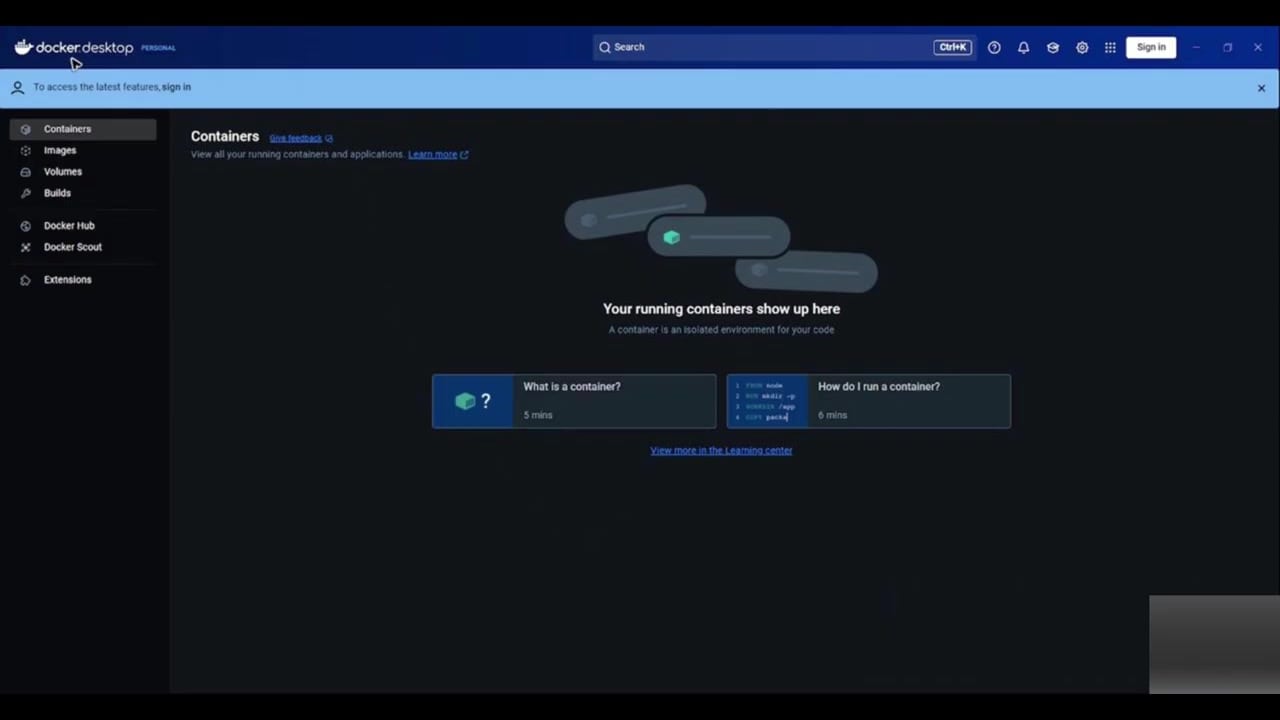
The screenshot shows the same concept through Docker Desktop: first identify the running n8n container so you update the correct service.
Step 2: Pull the New n8n Image
For a Compose setup, pull the latest image defined in your compose file.
docker compose pullIf you run a manual Docker container, pull the n8n image directly.
docker pull docker.n8n.io/n8nio/n8n:stable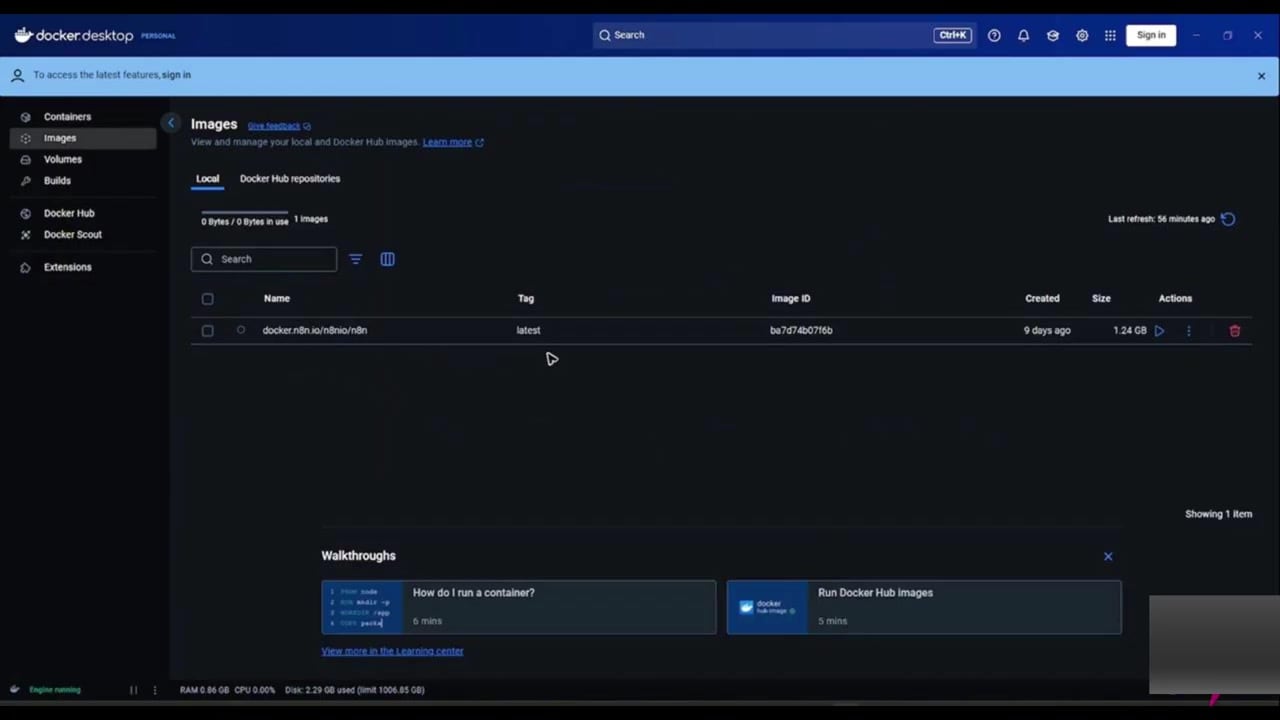
Using the stable tag is usually safer than jumping to a bleeding-edge release. For major version updates, read the n8n release notes and breaking changes first.
Step 3: Recreate the Container
After pulling the new image, recreate the n8n container so it starts from the updated image.
docker compose down
docker compose up -d
If you use a manual docker run command instead of Compose, stop the old container, remove it, and recreate it with the same volume and environment settings. Be careful not to delete the persistent volume.
Step 4: Watch the Logs
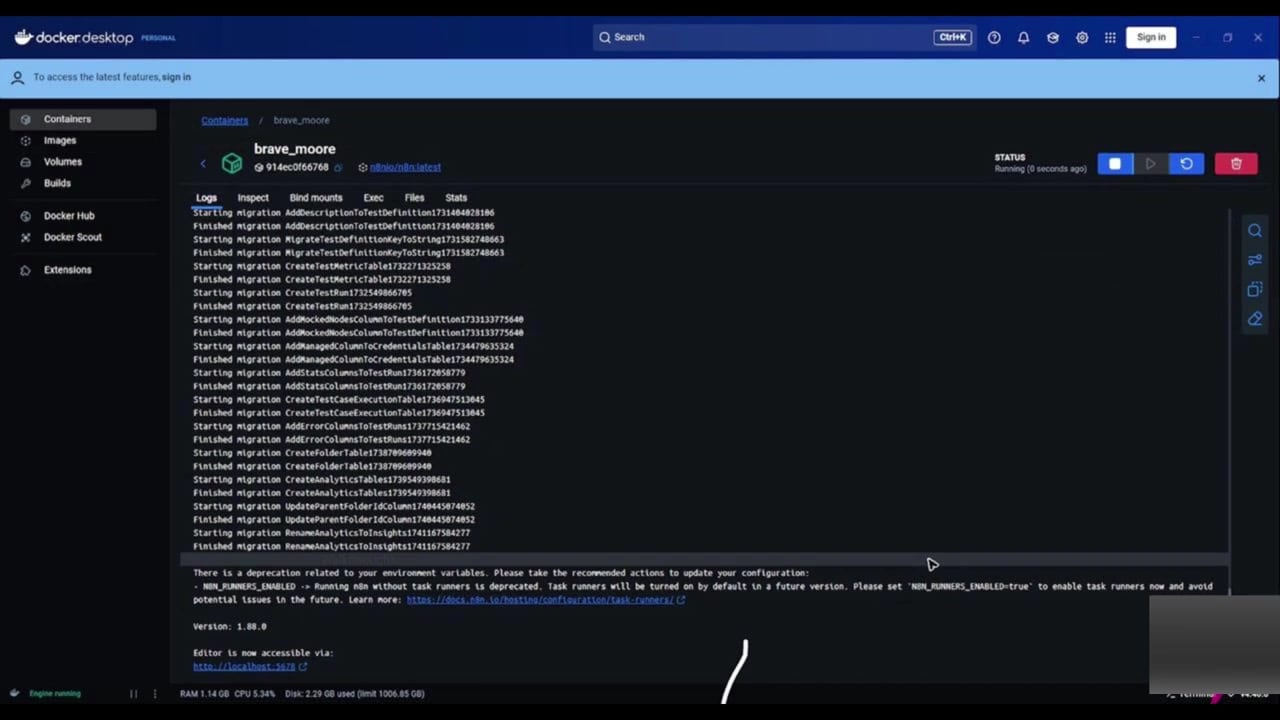
Do not assume the update succeeded just because the container started. Watch the logs and look for migration errors, database connection failures, or missing environment variables.
docker compose logs -f n8nIf n8n uses PostgreSQL, confirm the database container is healthy before blaming the n8n container.
docker compose logs -f postgresStep 5: Open n8n and Confirm the Version
Open your n8n domain or public Oracle Cloud IP address. Confirm that the editor loads, credentials are still available, and workflows are visible.
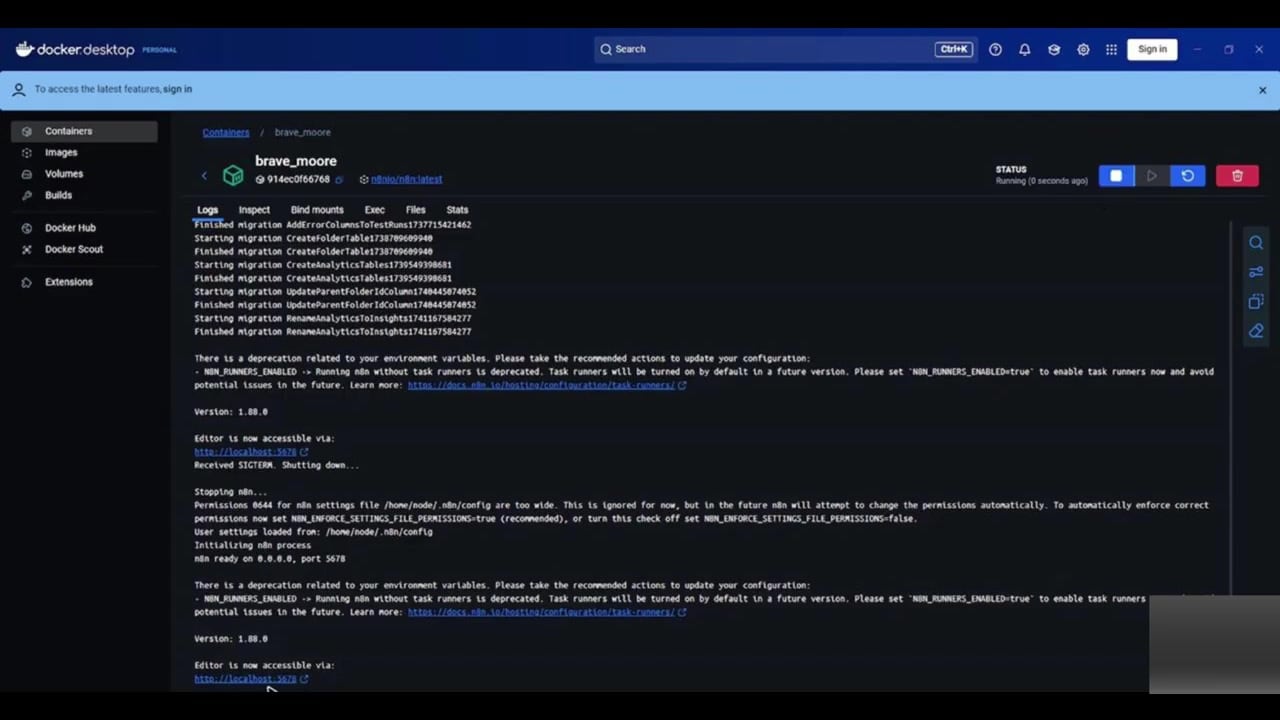
For a production instance, run a harmless test workflow before allowing important automations to continue. If you paused workflows before the update, reactivate them only after the instance behaves normally.
Oracle Cloud Notes
- Make sure the Oracle Cloud security list or network security group allows the port used by your reverse proxy.
- Prefer a domain and HTTPS reverse proxy instead of exposing the n8n editor directly on a raw port.
- If your boot volume is small, remove old Docker images after confirming the update works.
- Keep your
N8N_ENCRYPTION_KEYunchanged. Changing it can break access to saved credentials.
# Optional cleanup after you confirm the update works
docker image prune -f
Rollback Plan
If an update causes problems, the safest rollback is to restore both the previous image version and the matching data backup. Do not repeatedly switch versions on the same database without understanding the migrations that already ran.
# Example of pinning a specific image in docker-compose.yml
image: docker.n8n.io/n8nio/n8n:1.100.1
References
Official references used for accuracy: n8n self-hosted update documentation, n8n Docker installation documentation, and n8n 2.0 breaking changes.


Olaitan Oladipo holds a BSc in Sociology from Olabisi Onabanjo University. He is a self-taught automation builder who has spent years inside n8n doing the work that most tutorials skip: debugging OAuth errors at 2am, migrating client automations from Make.com mid-project, fighting reverse proxy misconfigurations on AWS EC2, and figuring out through trial and error what actually holds up in production versus what only looks clean in a demo.
He is not a developer by training and not a SaaS founder. He is the person in the Discord server who actually answers the question instead of linking to the docs.
His writing on n8n Automation Tutorial covers self-hosting, AI agent workflows, tool comparisons, and the security vulnerabilities the automation industry would rather not discuss. He has built AI-assisted invoice approval flows using OpenAI function calling, connected Claude via HTTP Request nodes, and holds considered opinions about Zapier, Make.com, LangChain, and CrewAI that their marketing teams would not appreciate.
He writes for people who are technical enough to follow a tutorial but experienced enough to want the honest version.


