
Close Menu

    Subscribe to Updates

    Get the latest creative news from FooBar about art, design and business.

    What's Hot

    How to self-host n8n on Hostinger VPS

    June 13, 2026

    n8n_community_packages_allow_tool_usage: How to Configure It

    June 12, 2026

    n8n access blocked Google verification process fix

    June 12, 2026
    n8n Automation Tutorialn8n Automation Tutorial
    • Home
    • n8n AI Workflows & Tool Comparisons
    • n8n Integrations & Nodes
    • n8n Setup & Self-Hosting
    • AI Automation & Enterprise Workflows
    • n8n Security & Vulnerabilities
    • n8n Tutorials & Comparisons
    • Contact Us
    Home ยป n8n access blocked Google verification process fix
    n8n Integrations & Nodes

    n8n access blocked Google verification process fix

    Olaitan OladipoBy Olaitan OladipoJune 12, 2026No Comments4 Mins Read
    Facebook Twitter Pinterest LinkedIn Tumblr WhatsApp VKontakte Email
    Google access blocked error because the n8n OAuth app has not completed verification
    This access blocked screen appears when the app is in testing and the Gmail account is not an approved test user.
    Share
    Facebook Twitter LinkedIn Pinterest Email

    When connecting Google Drive, Gmail, Google Sheets, or another Google API to n8n, you may see an Access blocked message saying the app has not completed the Google verification process. This usually happens when your Google Cloud OAuth app is still in testing and the Gmail account you are using has not been added as an approved test user.

    If you are also working through self-hosted node errors, the previous guide explains how to fix the n8n MCP Client Tool unrecognized node type issue. This article focuses only on the Google OAuth access blocked flow.

    Why Google Blocks the Connection

    Google Cloud apps in testing mode can only be authorized by approved test users. If your n8n OAuth credential requests Drive or other Google scopes and your Gmail account is not listed as a tester, Google blocks the authorization before n8n can finish connecting the account.

    Step 1: Create the Google Credential in n8n

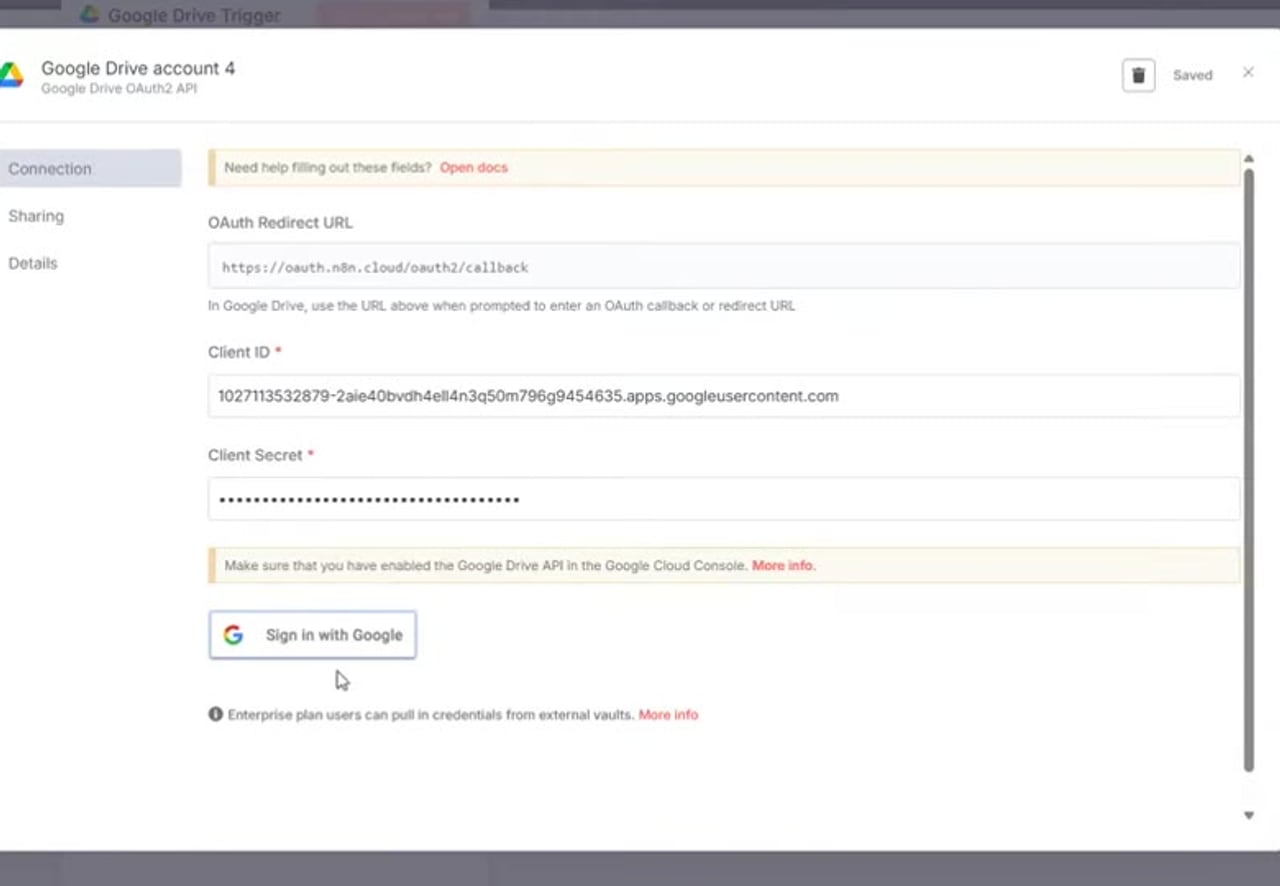
    Open your Google Drive node, choose the trigger or action you need, and create a new OAuth2 credential. n8n will show a redirect URI. Keep this page open because you need that URI in Google Cloud.
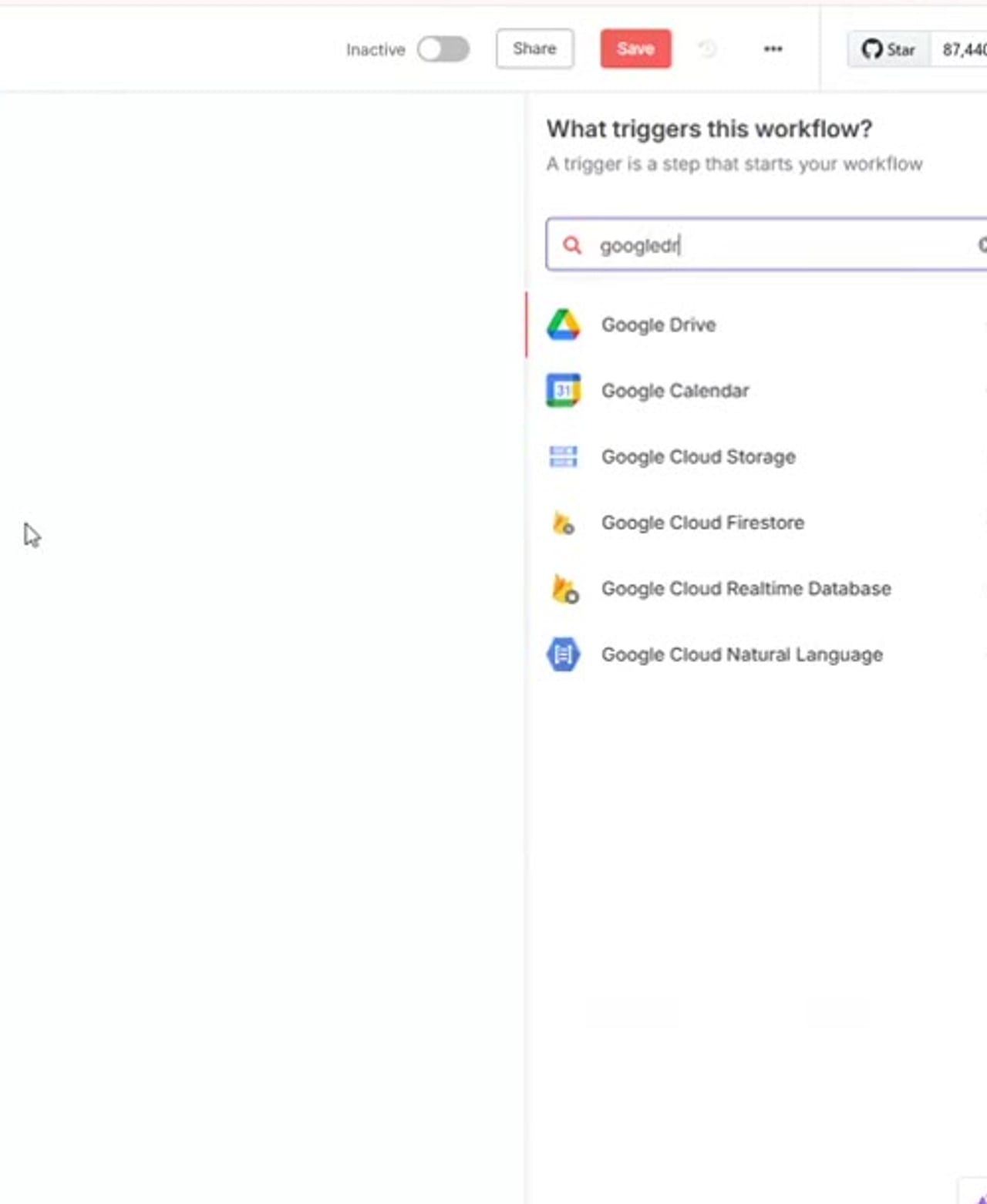
    n8n Google Drive trigger creating a new OAuth2 credential
    Start by creating a Google Drive OAuth2 credential inside the n8n Google Drive node.

    Step 2: Create or Edit the OAuth Client in Google Cloud

    In Google Cloud Console, open your project and go to APIs and Services > Credentials. Create an OAuth Client ID with application type set to Web application. Paste the redirect URI from n8n into Authorized redirect URIs, then save.
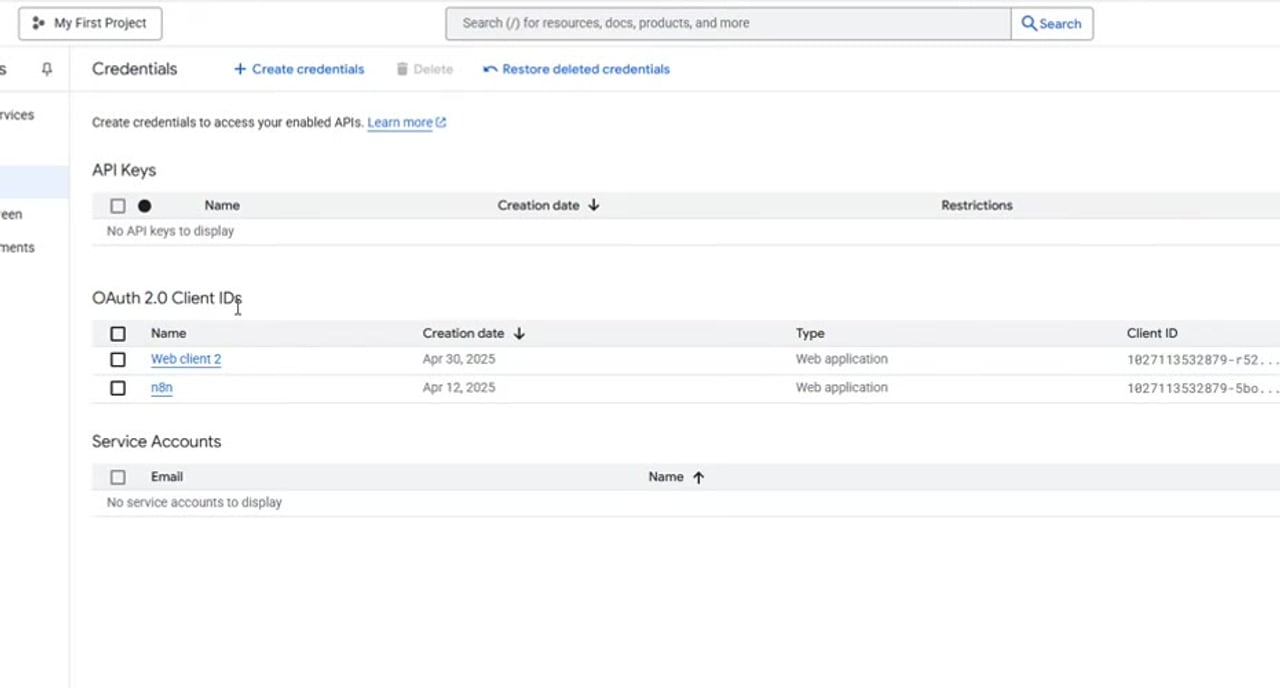
    Google Cloud OAuth client setup with n8n redirect URI
    Copy the OAuth redirect URI from n8n and paste it into the Google Cloud OAuth client.

    Copy the Client ID and Client Secret from Google Cloud back into the n8n credential fields and save the credential.

    Step 3: Confirm the Access Blocked Error

    If the Gmail account is not yet approved as a tester, clicking Sign in with Google will lead to the access blocked page. The important clue is the message that the app is being tested and can only be accessed by developer-approved testers.
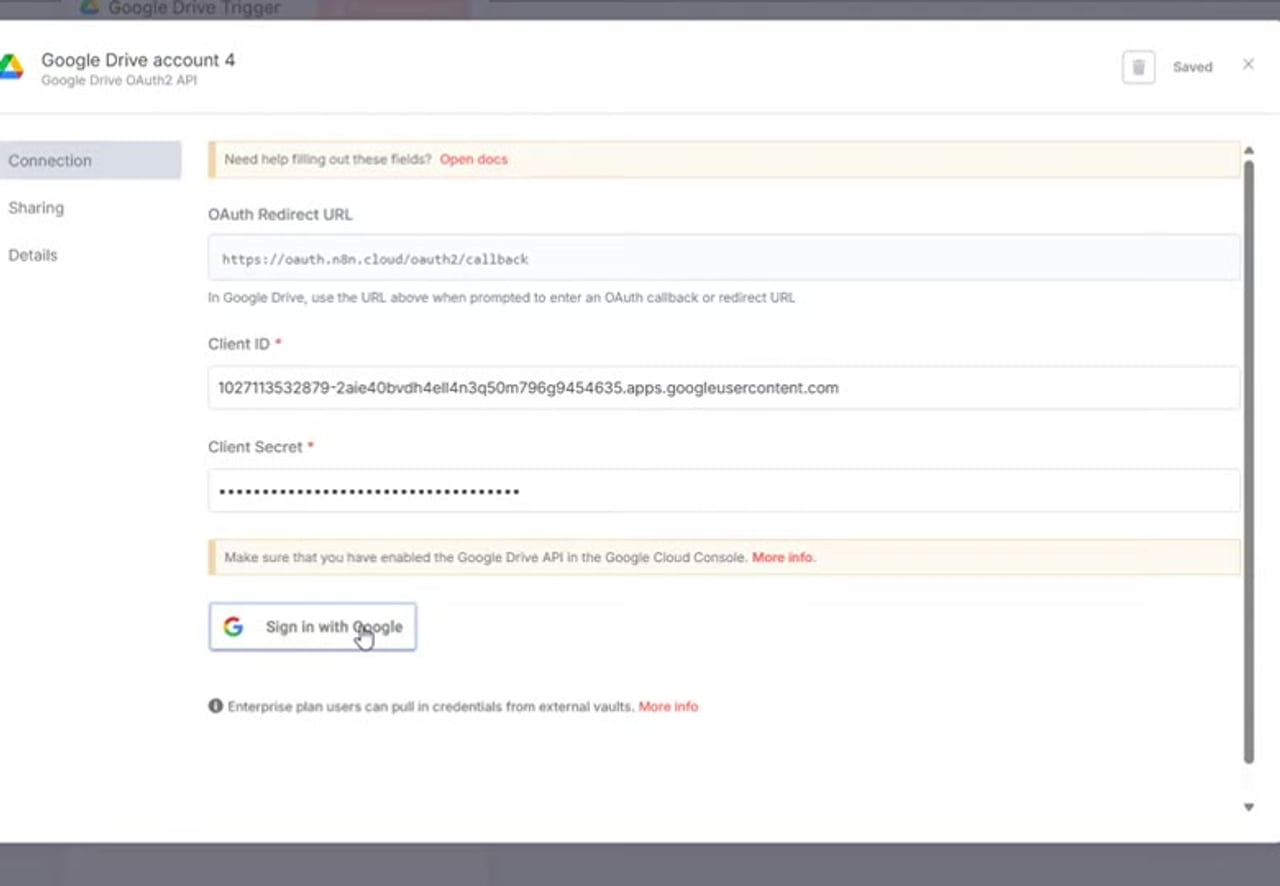
    Google access blocked error because the n8n OAuth app has not completed verification
    This access blocked screen appears when the app is in testing and the Gmail account is not an approved test user.

    Step 4: Add the Gmail Account as a Test User

    Go back to Google Cloud and open the Google Auth Platform or OAuth consent screen area. Then open Audience and find Test users. Add the exact Gmail account you are trying to connect in n8n, then save the change.
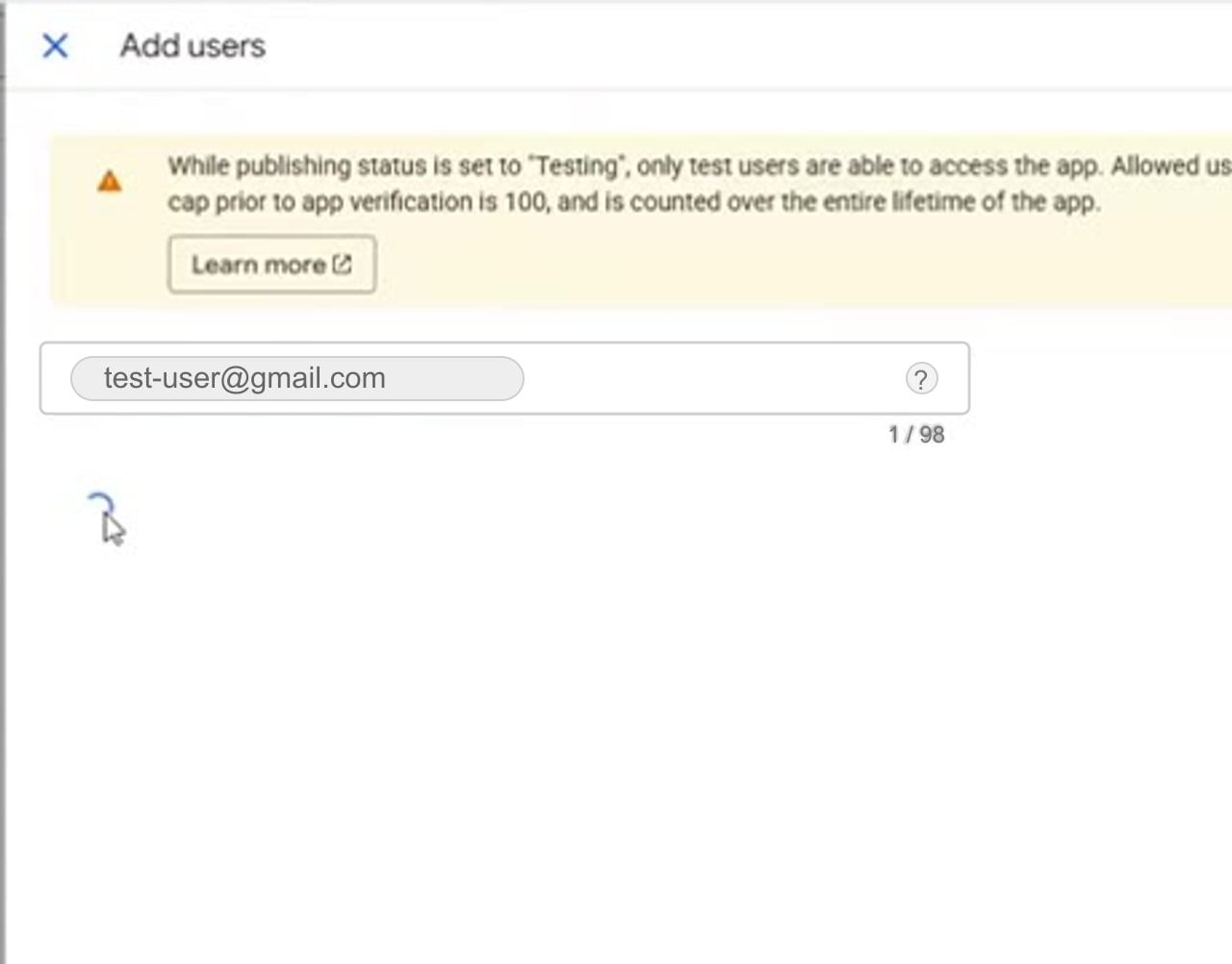
    Google Cloud OAuth consent screen adding a Gmail account as a test user
    Add the same Gmail account you are connecting in n8n as a test user in Google Cloud.

    Use the same email address: if the n8n popup is trying to authorize one Gmail account but you add a different email as the test user, the access blocked error will continue.

    Step 5: Try the Google Sign-In Again

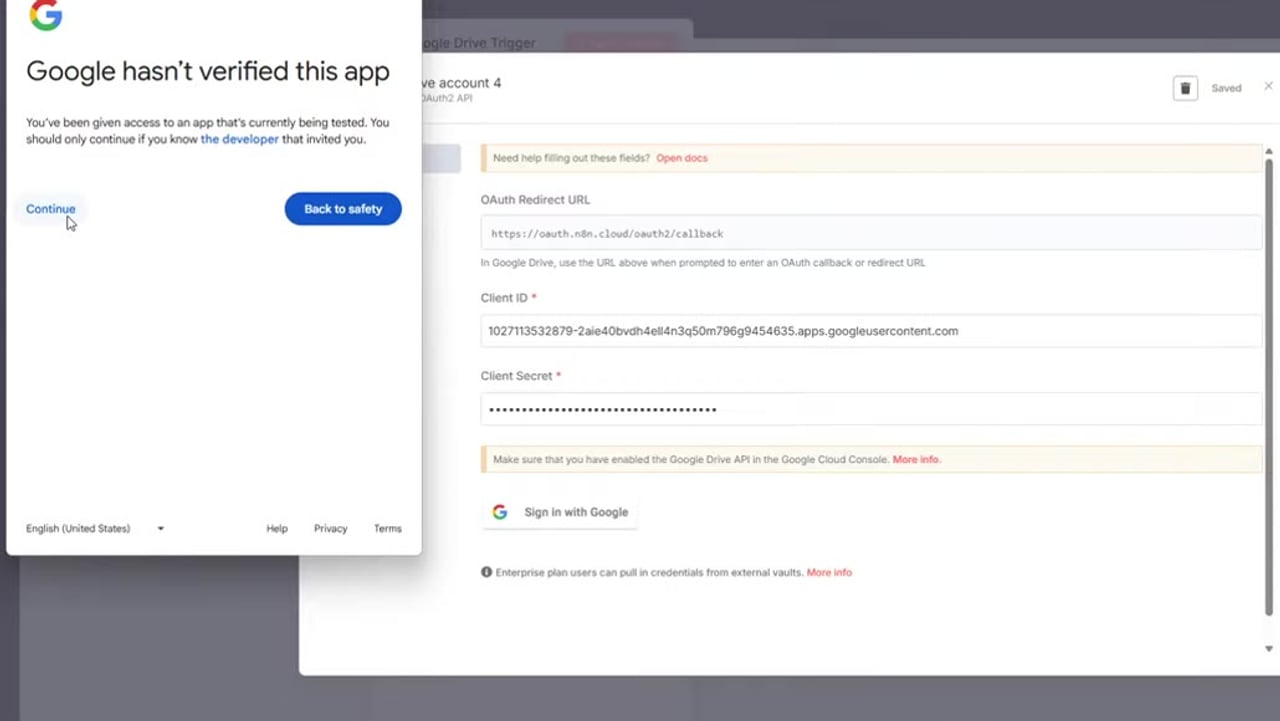
    Return to n8n and click Sign in with Google again. You may now see a warning that Google has not verified the app. For a private test app you created yourself, continue only if you recognize the app and understand the scopes it is requesting.
    Google unverified app warning screen after adding the account as a test user
    After adding the test user, Google may still show an unverified app warning, but the approved tester can continue.

    Step 6: Confirm the Account Is Connected

    After continuing through the Google consent screen, n8n should show the credential as connected. You can then choose the Google Drive folder, fetch a test event, or continue configuring the Google node.
    n8n Google Drive credential connected successfully
    Once the OAuth tester setup is correct, n8n shows the Google Drive account as connected.

    Troubleshooting Checklist

    • Make sure you added the same Gmail account that appears in the Google authorization popup.
    • Confirm the OAuth client belongs to the same Google Cloud project as the OAuth consent screen you edited.
    • Check that the n8n redirect URI exactly matches the Authorized redirect URI in Google Cloud.
    • If you changed Client ID or Client Secret, save the n8n credential again before retrying.
    • If the OAuth app is in testing mode, remember Google limits testing apps to approved test users.
    • If you need access for many outside users, you may need to publish the app and complete Google verification instead of relying on test users.

    Final Thoughts

    The fastest fix for the n8n Google verification access blocked error is usually not to rebuild the credential. Add the Gmail account as a Google Cloud test user, confirm the redirect URI, reconnect from n8n, and then test the Google node again.

    References

    Official references used for accuracy: Google Cloud Manage App Audience documentation, Google Cloud OAuth app branding documentation, and n8n Google OAuth single service credential documentation.

    Olaitan Oladipo

    Olaitan Oladipo holds a BSc in Sociology from Olabisi Onabanjo University. He is a self-taught automation builder who has spent years inside n8n doing the work that most tutorials skip: debugging OAuth errors at 2am, migrating client automations from Make.com mid-project, fighting reverse proxy misconfigurations on AWS EC2, and figuring out through trial and error what actually holds up in production versus what only looks clean in a demo.

    He is not a developer by training and not a SaaS founder. He is the person in the Discord server who actually answers the question instead of linking to the docs.

    His writing on n8n Automation Tutorial covers self-hosting, AI agent workflows, tool comparisons, and the security vulnerabilities the automation industry would rather not discuss. He has built AI-assisted invoice approval flows using OpenAI function calling, connected Claude via HTTP Request nodes, and holds considered opinions about Zapier, Make.com, LangChain, and CrewAI that their marketing teams would not appreciate.

    He writes for people who are technical enough to follow a tutorial but experienced enough to want the honest version.

    Share. Facebook Twitter Pinterest LinkedIn Tumblr WhatsApp Email
    Previous ArticleUnrecognized node type n8n-nodes-mcp.mcpclienttool
    Next Article n8n_community_packages_allow_tool_usage: How to Configure It
    Olaitan Oladipo
    • Website

    Olaitan Oladipo holds a BSc in Sociology from Olabisi Onabanjo University. He is a self-taught automation builder who has spent years inside n8n doing the work that most tutorials skip: debugging OAuth errors at 2am, migrating client automations from Make.com mid-project, fighting reverse proxy misconfigurations on AWS EC2, and figuring out through trial and error what actually holds up in production versus what only looks clean in a demo. He is not a developer by training and not a SaaS founder. He is the person in the Discord server who actually answers the question instead of linking to the docs. His writing on n8n Automation Tutorial covers self-hosting, AI agent workflows, tool comparisons, and the security vulnerabilities the automation industry would rather not discuss. He has built AI-assisted invoice approval flows using OpenAI function calling, connected Claude via HTTP Request nodes, and holds considered opinions about Zapier, Make.com, LangChain, and CrewAI that their marketing teams would not appreciate. He writes for people who are technical enough to follow a tutorial but experienced enough to want the honest version.

    Related Posts

    n8n_community_packages_allow_tool_usage: How to Configure It

    June 12, 2026

    Unrecognized node type n8n-nodes-mcp.mcpclienttool

    June 12, 2026

    n8n Puppeteer:Install Puppeteer in n8n via Community Node

    May 27, 2026

    n8n HTTP Request Node Retry on Fail: Error Handling & Retry Logic

    May 26, 2026
    Leave A Reply Cancel Reply

    Recent Posts
    • How to self-host n8n on Hostinger VPS
    • n8n_community_packages_allow_tool_usage: How to Configure It
    • n8n access blocked Google verification process fix
    • Unrecognized node type n8n-nodes-mcp.mcpclienttool
    • Unrecognized node type n8n-nodes-base.executecommand
    • n8n Community License Activation Error: Fix Connection Failed on npm Self-Hosting
    • Your Agent Passed the Demo. Nobody Can Explain What It Did at 3am.

    Subscribe to Updates

    Get the latest creative news from SmartMag about art & design.

    About Us

    n8n Automation Tutorial is a free resource for developers, freelancers, and business owners who want to build and deploy n8n workflows. Tutorials cover self-hosting, Docker, AWS, API integrations, and real-world automation use cases - from beginner setups to production-ready deployments.

    n8n Automation Tutorial
    • Contact Us
    • Privacy Policy
    • Disclaimer
    • Terms and Conditions
    © 2026 n8n Automation Tutorial.

    Type above and press Enter to search. Press Esc to cancel.