


The n8n MCP Server Trigger node lets n8n expose selected workflows and tools through the Model Context Protocol. In plain terms, it lets an AI client such as Claude Desktop, Claude Code, or another MCP-compatible tool discover and call actions that you define inside n8n.
Before exposing tools externally, make sure your self-hosted instance has the right domain, HTTPS, webhook URL, proxy, and credential settings. The previous article covers n8n credentials and environment variables for encryption key, proxy, and secure cookie setup.
What the MCP Server Trigger Does
The MCP Server Trigger turns an n8n workflow into an MCP server endpoint. The workflow starts with the trigger, then you connect tools to it. Those tools can be things like Gmail, Google Calendar, a calculator, a database search, or a separate n8n workflow exposed as a reusable action.

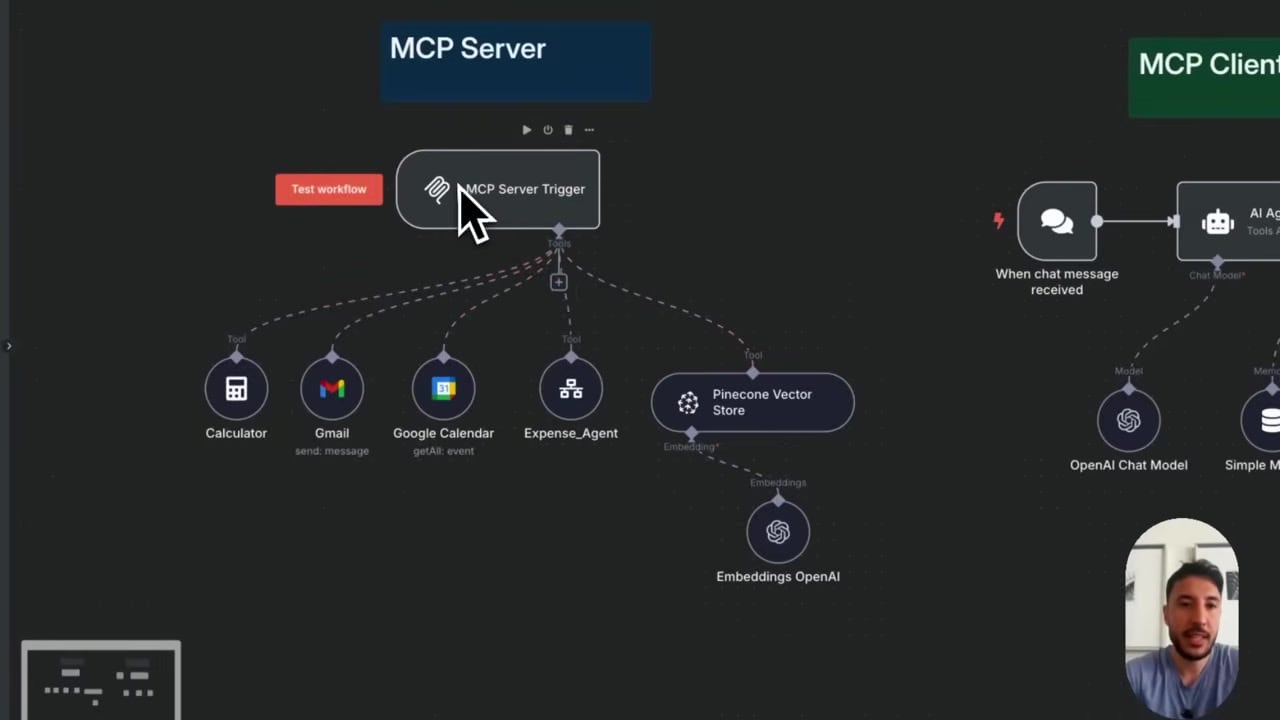
The important idea is that n8n is not only running an automation here. It is publishing a tool server that another AI application can connect to and use.
MCP Server vs MCP Client in n8n
- MCP Server Trigger: n8n exposes tools to another AI client.
- MCP Client Tool: an n8n AI Agent connects to an external MCP server and uses its tools.
You can use both patterns. For example, Claude Desktop can call tools exposed by n8n, and an n8n AI Agent can also call tools exposed by another MCP server.
Step 1: Add the MCP Server Trigger
Create a new workflow and add the MCP Server Trigger. The trigger gives you an MCP endpoint with a path. For external clients, use the production URL after the workflow is activated.
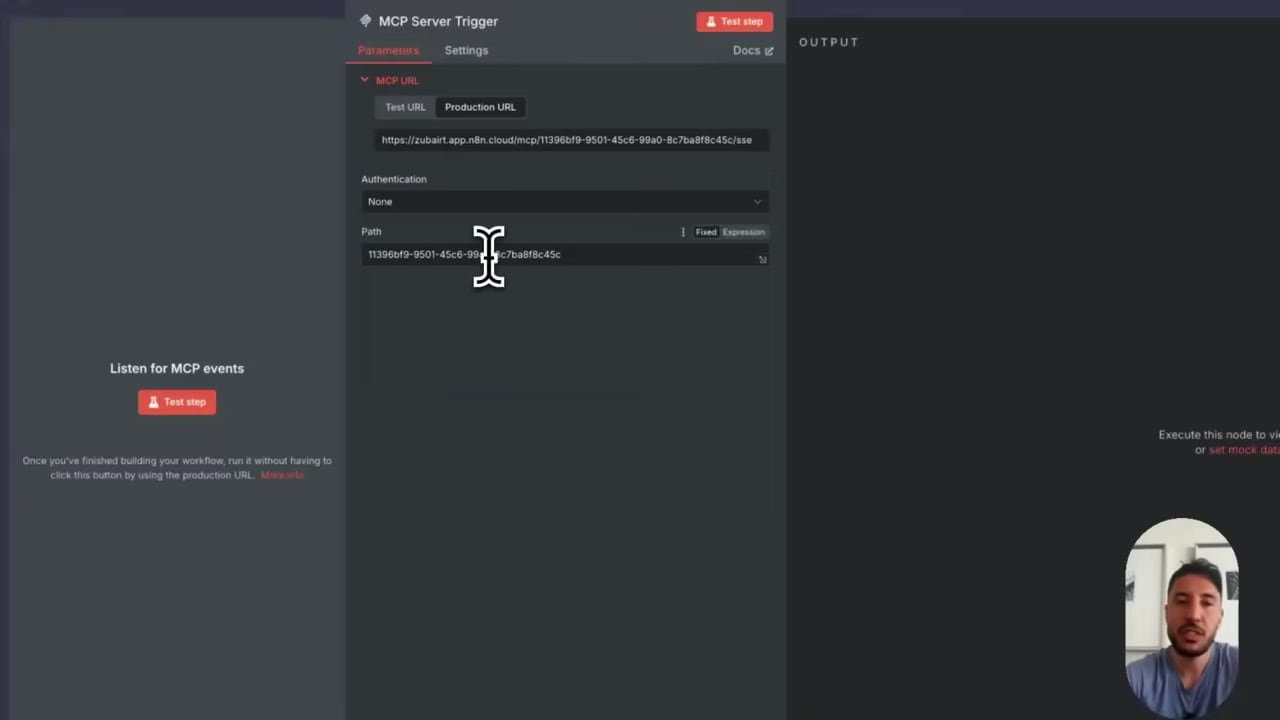
Choose the authentication mode carefully. For public or production use, do not leave sensitive tools exposed without authentication. Use the authentication options supported by your n8n version and client.
Step 2: Attach Tools to the MCP Server
Connect the tools that you want the external AI client to access. Each tool should have a clear purpose. If the tool supports model-defined fields, give the model enough guidance to call it correctly.
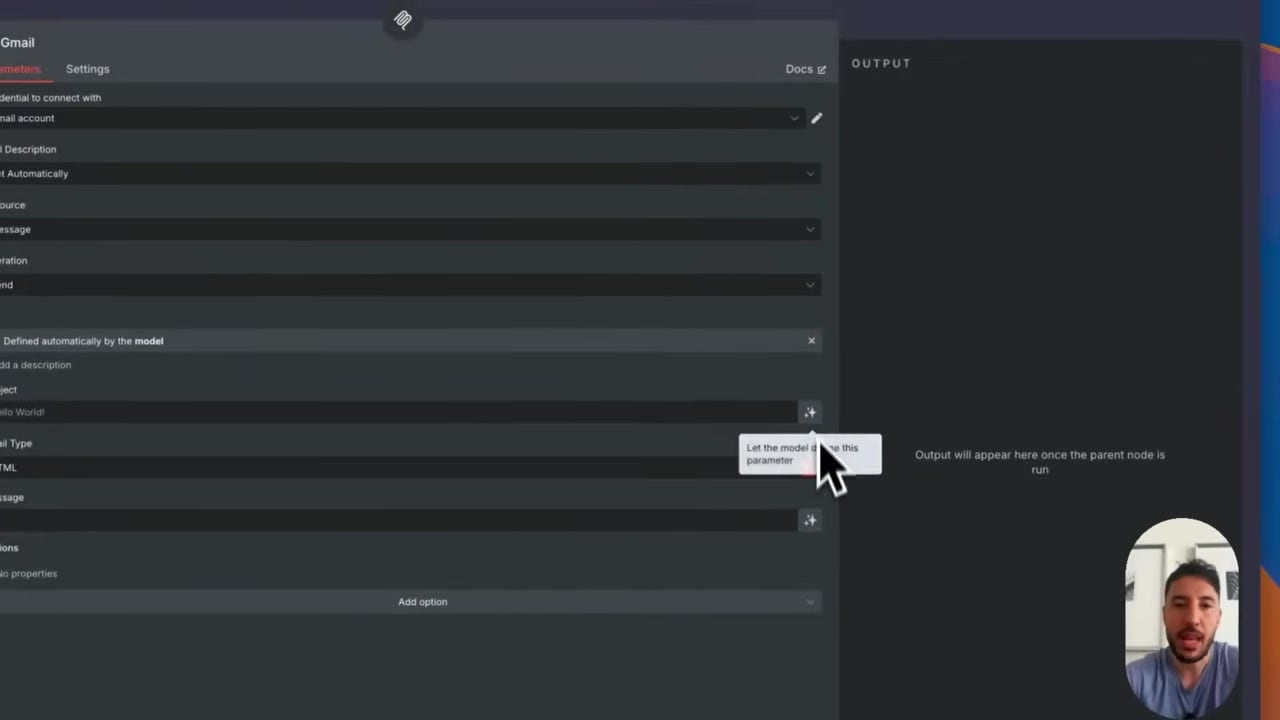
Good tool descriptions matter. If the AI client does not understand when to use a tool, it may ignore it or call it with weak inputs.
Step 3: Configure the MCP Client Application
Desktop clients usually connect through a JSON configuration file. n8n documentation currently recommends using mcp-remote for accessing an n8n MCP server from clients that run locally.
{
  "mcpServers": {
    "n8n": {
      "command": "npx",
      "args": [
        "mcp-remote",
        "https://n8n.example.com/mcp/your-path",
        "--header",
        "Authorization: Bearer $AUTH_TOKEN"
      ],
      "env": {
        "AUTH_TOKEN": "replace-with-token"
      }
    }
  }
}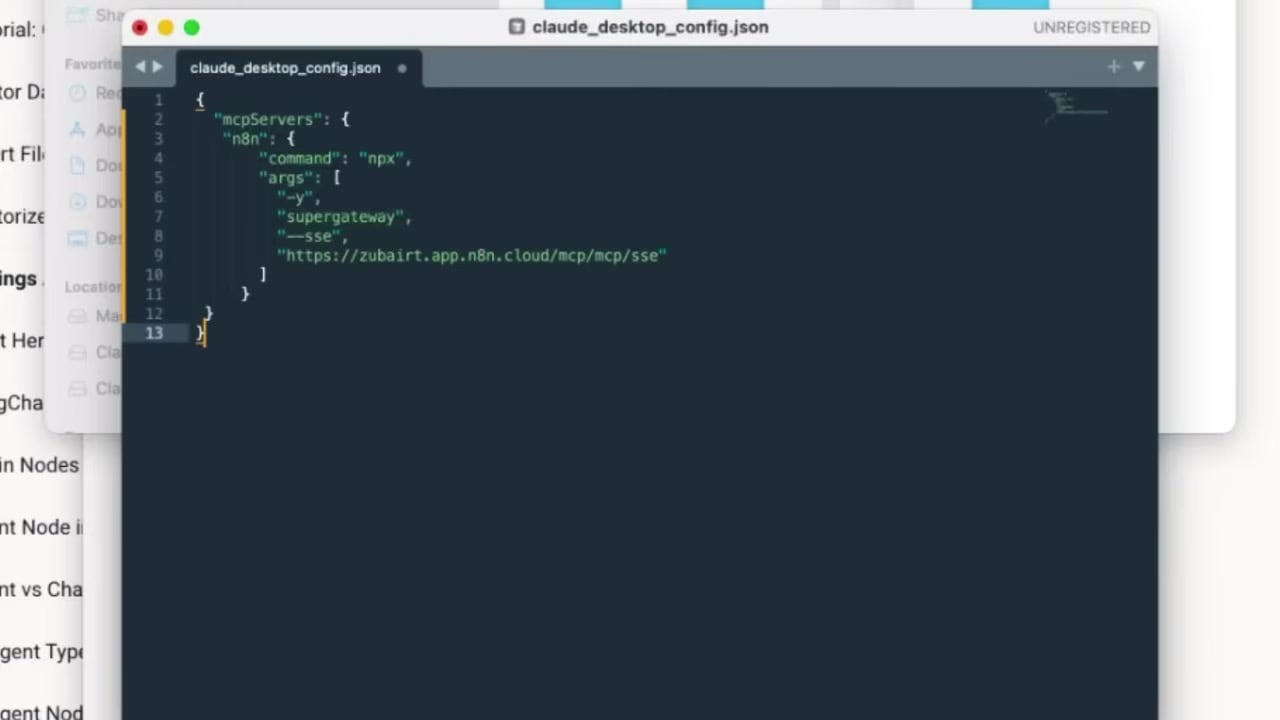
Replace the endpoint, path, and token with the values from your own n8n workflow. Restart the client after editing the config file so it reloads the MCP server list.
Step 4: Activate the n8n Workflow
The production MCP endpoint only works reliably when the workflow is active. Save and activate the workflow after the tools are connected.
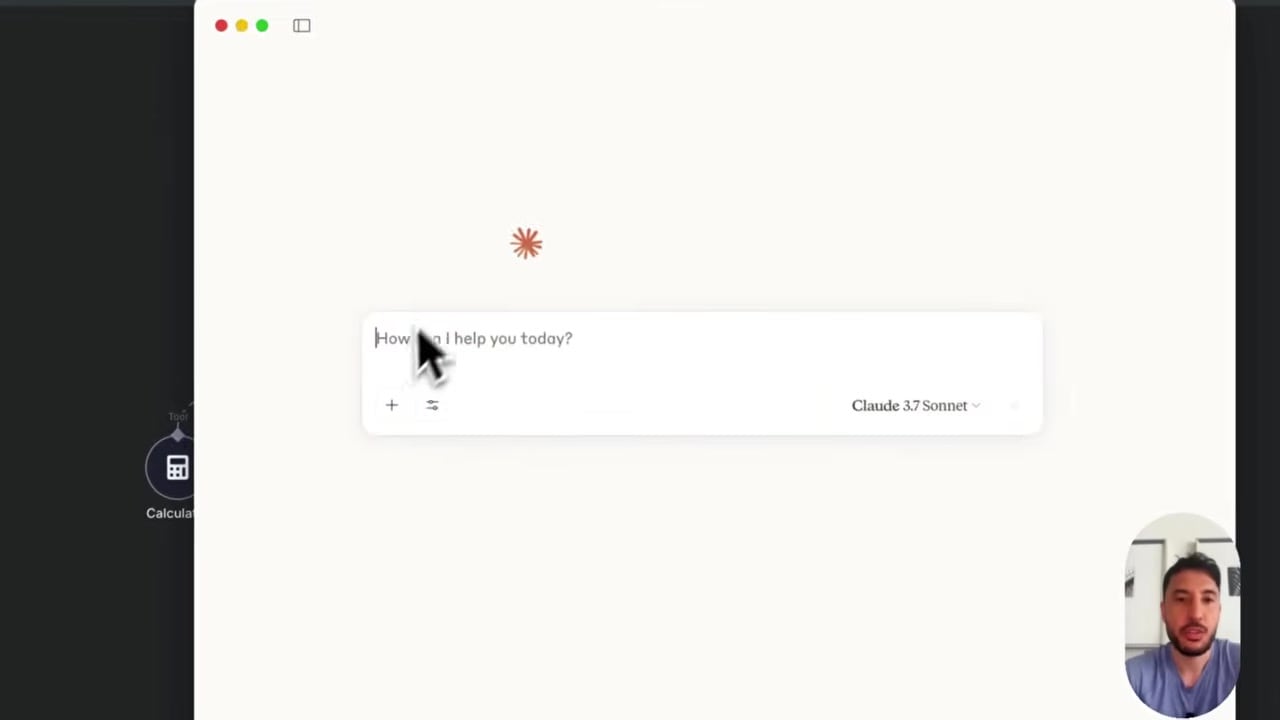
Once activated, open the client and check whether the tools appear. If they do not, verify the endpoint URL, authentication header, workflow activation status, and reverse proxy settings.
Step 5: Expose a Workflow as a Tool
One of the most useful patterns is exposing another n8n workflow as a callable tool. For example, the MCP server can expose a tool that triggers a workflow to send an email, query a database, create a CRM task, or run a research process.
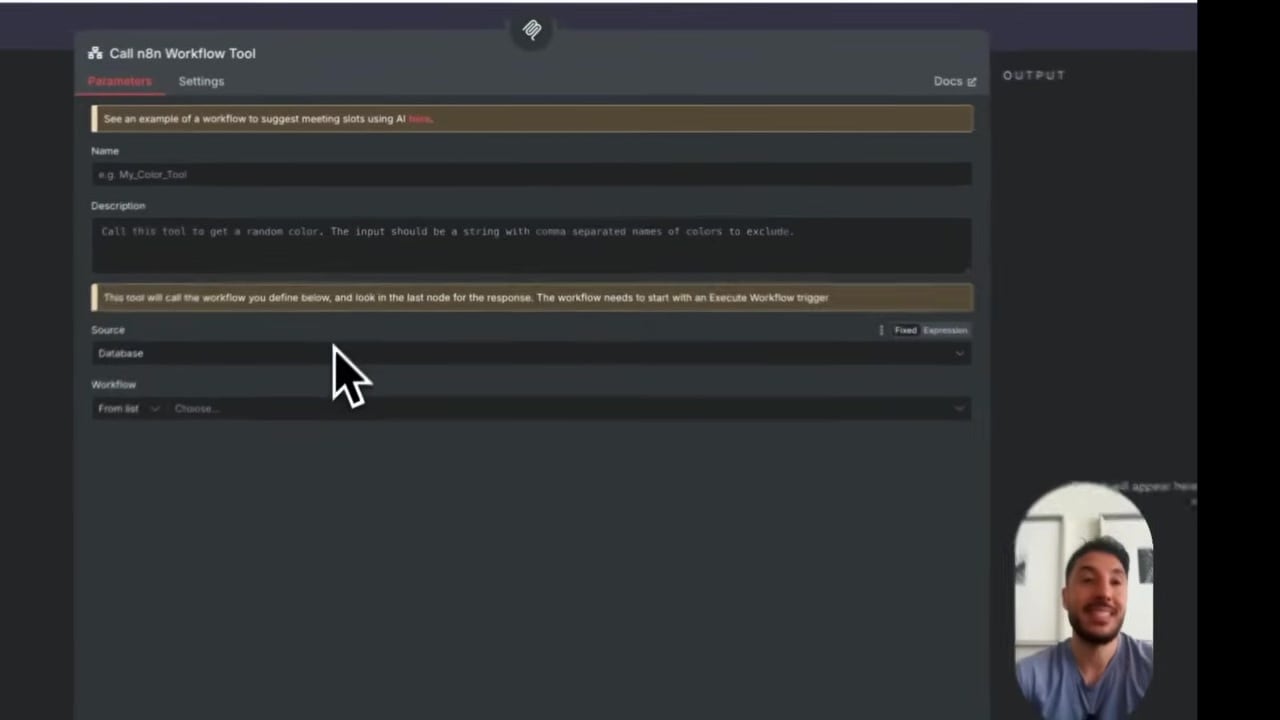
This makes n8n a practical action layer for AI clients. Instead of giving the AI client direct access to every integration, you can wrap actions inside controlled workflows.
Step 6: Use n8n as an MCP Client Too
n8n can also connect to an MCP server from inside an AI Agent workflow by using the MCP Client Tool. In that case, n8n is the client, and another application or server provides the tools.
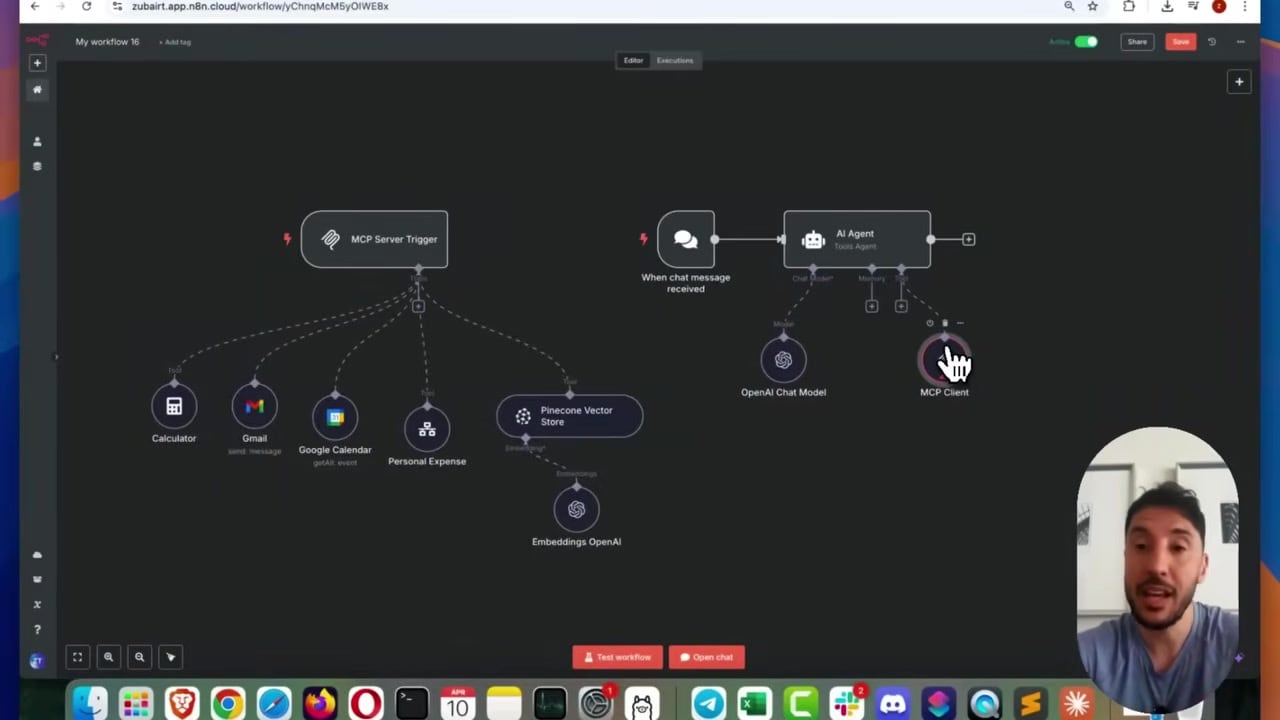
Use the SSE endpoint from the MCP server, choose whether to include all tools or selected tools, and test with a small prompt before connecting the setup to important automations.
Queue Mode Limitation
n8n documentation notes a queue mode limitation for MCP Server Trigger. If you use queue mode, make sure requests to /mcp* reach the main instance and not worker containers. Workers execute jobs, but the MCP server endpoint should be handled by the main n8n process.
Best Practices
- Expose only the tools the AI client truly needs.
- Use clear tool names and descriptions.
- Require authentication for sensitive tools.
- Keep n8n behind HTTPS when exposing MCP endpoints publicly.
- Use workflow tools as safety wrappers around risky actions.
- Test with read-only tools before enabling tools that send messages, update records, or trigger paid API calls.
References
Official references used for accuracy: n8n MCP Server Trigger documentation, n8n guide to accessing an n8n MCP server, and n8n MCP Client Tool documentation.


Olaitan Oladipo holds a BSc in Sociology from Olabisi Onabanjo University. He is a self-taught automation builder who has spent years inside n8n doing the work that most tutorials skip: debugging OAuth errors at 2am, migrating client automations from Make.com mid-project, fighting reverse proxy misconfigurations on AWS EC2, and figuring out through trial and error what actually holds up in production versus what only looks clean in a demo.
He is not a developer by training and not a SaaS founder. He is the person in the Discord server who actually answers the question instead of linking to the docs.
His writing on n8n Automation Tutorial covers self-hosting, AI agent workflows, tool comparisons, and the security vulnerabilities the automation industry would rather not discuss. He has built AI-assisted invoice approval flows using OpenAI function calling, connected Claude via HTTP Request nodes, and holds considered opinions about Zapier, Make.com, LangChain, and CrewAI that their marketing teams would not appreciate.
He writes for people who are technical enough to follow a tutorial but experienced enough to want the honest version.


