


The Zapier Salesforce integration connects Salesforce to over 8,000 apps using automated workflows called Zaps. Each Zap runs on a trigger-action model: an event in one app triggers an action in another. Common use cases include syncing new Salesforce leads to HubSpot, sending Slack alerts for new opportunities, and logging Google Ads form submissions directly as Salesforce leads.
For related reading, see Is Zapier HIPAA Compliant? Security Certifications, the 2025 Breach, and 4 Alternatives.
What Is the Zapier Salesforce Integration?
The Zapier and Salesforce integration is a no-code automation connection that links Salesforce CRM to other apps without custom development. Zapier acts as a bridge, listening for trigger events in Salesforce or a connected app and performing a defined action in response.
A Zap has 2 core components:
- Trigger — the event that starts the workflow (e.g., a new lead is created in Salesforce)
- Action — what happens next (e.g., a Slack notification is sent to the sales channel)
A single Zap can perform multiple actions. For example, closing an Opportunity in Salesforce can simultaneously create a customer in QuickBooks, add a project board in Trello, and create a folder in Google Drive, according to Prolocity (2024).
Zapier connects to over 8,000 apps as of 2026, according to Max Productive (2026).
What Are the Requirements for Zapier Integration with Salesforce?
There are 5 requirements to connect Salesforce and Zapier:
- A paid Zapier plan — Salesforce is a premium app; it requires the Professional plan or higher (from $19.99/month billed annually)
- A Salesforce account with Sales or Service edition — compatible editions include Essentials, Professional, Enterprise, Unlimited, and Performance
- My Domain configured in the Salesforce org — Custom Domains are not supported
- Zapier approved as an External Client App in the Salesforce org — organizations requiring a custom app must have a Salesforce administrator create an External Client App for Zapier
- Appropriate user, object, and field permissions in Salesforce for the connecting user
According to Zapier's official help documentation (updated April 2026), new custom apps in Salesforce are created as External Client Apps — Connected Apps can no longer be created through Salesforce Setup.
Does Zapier Work with All Salesforce Editions?
Zapier works with Salesforce Sales and Service editions: Essentials, Professional, Enterprise, Unlimited, and Performance. Developer and Free editions are not supported. Salesforce API access is required. The Enterprise edition allows 100,000 API calls per 24-hour period, according to Automation Atlas (2026).
How Does Zapier Connect to Salesforce? Step-by-Step Setup
There are 6 steps to set up the Salesforce Zapier integration:
Step 1: Log in to Zapier and create a new Zap Go to zapier.com, log in to a paid account, and click "Create Zap."
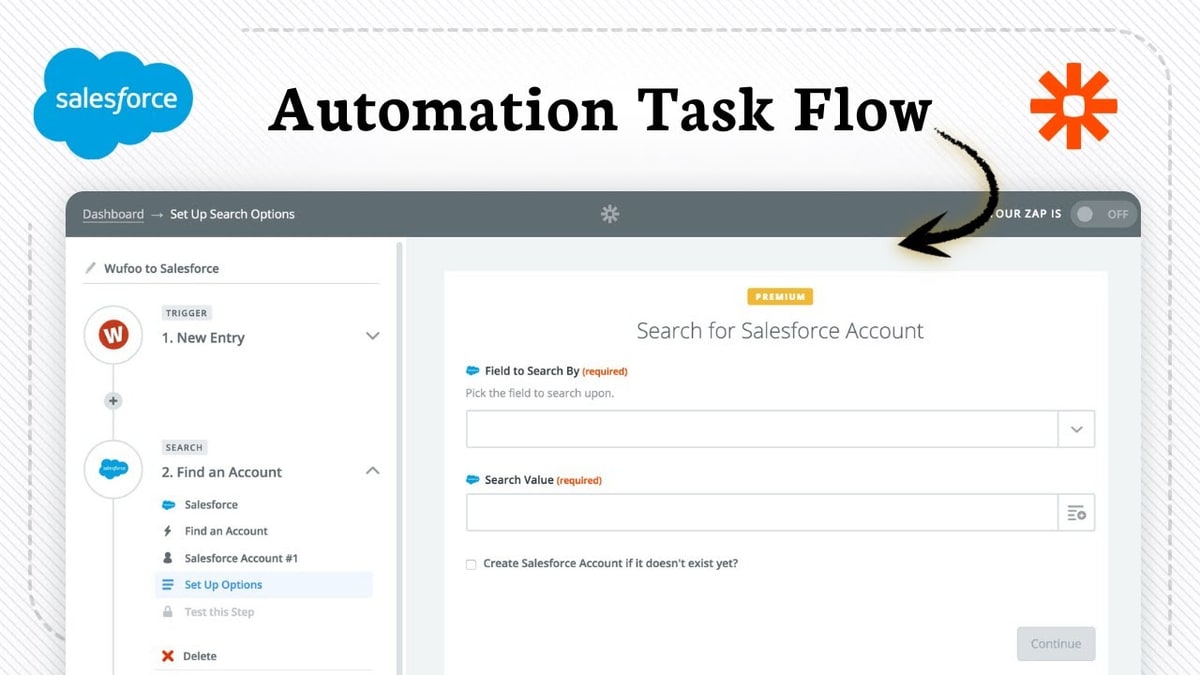
Step 2: Select Salesforce as the trigger or action app Search for Salesforce in the app selector. Salesforce can be either the trigger app (events that start the Zap) or the action app (where the Zap performs an action).
Step 3: Choose the trigger event Select from available Salesforce trigger events. Examples include New Lead, New Record (any object), Updated Record, Updated Field, New Contact, and New Outbound Message.
Step 4: Authenticate Salesforce Connect the Salesforce account by entering credentials. The connecting user must have API access and the appropriate object and field permissions in Salesforce.
Step 5: Select the Salesforce object and map fields Choose the Salesforce object (Lead, Contact, Opportunity, Account, or a custom object). Map the data fields between Salesforce and the connected app.
Step 6: Test the Zap with a sample record Zapier pulls a live record from Salesforce to test the configuration. Testing confirms the trigger fires correctly and the mapped fields transfer accurate data. After a successful test, activate the Zap.
How to Set Up a Salesforce Outbound Message Trigger in Zapier
The New Outbound Message trigger requires additional setup inside Salesforce. There are 4 steps:
- Create a Zap using the Salesforce New Outbound Message trigger — Zapier generates a unique webhook URL
- In Salesforce, create a new Flow or Workflow Rule that matches the conditions to trigger the Outbound Message
- In the Outbound Message settings, enter the Zapier webhook URL as the endpoint URL
- Activate the Flow or Workflow Rule in Salesforce — the Zap does not fire until the Salesforce workflow is activated
According to Zapier's help documentation (April 2026), the Zap will not work if the associated Salesforce Flow is not activated.
What Triggers and Actions Does Salesforce Have on Zapier?
Salesforce has 6 primary triggers and 8 primary actions available on Zapier.
Salesforce Triggers on Zapier
| Trigger | Description |
|---|---|
| New Lead | Fires when a new Lead record is created |
| New Record | Fires when any record of a specified object is created |
| Updated Record | Fires when any record of a specified object is updated |
| Updated Field on Record | Fires when a specific field changes; outputs old and new values |
| New Contact | Fires when a new Contact is created |
| New Outbound Message | Fires when a Salesforce Flow or Workflow sends an outbound message |
Salesforce Actions on Zapier

| Action | Description |
|---|---|
| Create Record | Creates a new record in any Salesforce object |
| Update Record | Updates an existing record in any Salesforce object |
| Find Record | Finds a record by up to 2 field values |
| Update Lead | Updates an existing Lead record |
| Add Contact to Campaign | Adds an existing contact to a Salesforce Campaign |
| Send Email | Sends an email using Salesforce Simple Email Actions |
| Run SOQL Query | Executes a custom SOQL SELECT query with full query control |
| Custom Apex REST | Direct pass-through to custom Apex REST endpoints |
Source: Zapier Salesforce App Directory (2026)
What Are 6 Common Zapier Salesforce Workflow Templates?
The 6 most common Salesforce Zapier integration workflow templates are:
Template 1: New Salesforce Lead → Slack Notification
- Trigger: New Lead in Salesforce
- Action: Send a message to a designated Slack channel
- Use case: Sales teams receive instant alerts when new leads enter Salesforce, enabling sub-minute follow-up. A filter step limits notifications to high-value leads only.
Template 2: New Salesforce Lead → Create HubSpot Contact
- Trigger: New Lead in Salesforce
- Action: Create or update a Contact in HubSpot
- Use case: Organizations running Salesforce and HubSpot in parallel keep both CRMs synchronized without manual data entry. This is one of the most popular Salesforce Zap templates, according to Zapier's official blog (2024).
Template 3: Closed Won Opportunity → Multiple Actions
- Trigger: Updated Field on Opportunity (Stage = Closed Won)
- Actions: Create customer in QuickBooks + add project in Trello + create folder in Google Drive
- Use case: The moment a deal closes, finance, project management, and file systems are all updated simultaneously. This eliminates 3 manual handoff steps from the sales-to-delivery process.
Template 4: Google Ads Lead Form Submission → Salesforce Lead
- Trigger: New Lead Form Entry in Google Ads
- Action: Create Lead in Salesforce
- Use case: Ad leads are captured directly in Salesforce with zero manual upload. Every Google Ads conversion becomes a Salesforce Lead record in real time.
Template 5: New Salesforce Contact → Add to Mailchimp Audience
- Trigger: New Contact in Salesforce
- Action: Add or update Subscriber in Mailchimp
- Use case: New CRM contacts are automatically enrolled in email marketing sequences, eliminating the manual export-import cycle between Salesforce and Mailchimp.
Template 6: Salesforce Case Attachment → AI Summary in Slack
- Trigger: New Case Attachment in Salesforce
- Action: Analyze with AI by Zapier → Send summary to Slack
- Use case: Support teams receive an instant AI-generated summary of new case attachments in their Slack channel, reducing time spent reading raw attachments before responding.
How Do You Map Fields Between Salesforce and Other Apps in Zapier?
Field mapping in Zapier connects data fields from the trigger app to the corresponding fields in the action app. There are 4 steps to map fields correctly:
- After selecting the action app and action event, Zapier displays all available fields for that object
- Click the field in the action app and select the matching field from the trigger data
- Use Zapier's formatter or custom values to transform data where needed (e.g., combining First Name and Last Name into a Full Name field)
- Test the mapping with a live sample record to verify accurate data transfer
Confirm all Salesforce fields included in a mapping or SOQL query have appropriate field accessibility and are not hidden. Hidden fields cause Zap failures.
What Zapier Plan Is Required for Salesforce Integration?
Salesforce requires a paid Zapier plan. The table below shows the 4 Zapier pricing tiers and their Salesforce compatibility:
| Plan | Price (Annual) | Tasks/Month | Salesforce Access | Multi-Step Zaps |
|---|---|---|---|---|
| Free | $0 | 100 | No | No (2-step only) |
| Professional | $19.99/month | 750 | Yes | Yes |
| Team | $69.99/month | 2,000 | Yes | Yes |
| Enterprise | Custom | 5,000+ | Yes | Yes |
Source: No Code MBA, Zapier Official Pricing (2026)
The Professional plan at $19.99/month (billed annually) is the minimum for Salesforce access. It includes multi-step Zaps, webhooks, filters, paths, AI fields, and all premium app integrations, according to No Code MBA (2026).
What Counts as a Task in Zapier?
A task is counted every time a Zap successfully completes 1 action step. The trigger never counts. In a 3-step Zap with 1 trigger and 2 actions, each run consumes 2 tasks. Estimate monthly task consumption by multiplying action steps per Zap by expected trigger frequency per month, then summing across all Zaps.
What Are the 4 Limitations of Zapier Salesforce Integration?
There are 4 limitations to account for when using Salesforce and Zapier:
- Salesforce API limits — Salesforce enforces per-24-hour API call limits by edition; Enterprise allows 100,000 calls/day; high-frequency Zaps can approach this ceiling in large organizations
- Task-based pricing at scale — at 5,000 tasks/month, Zapier costs approximately $123–$148/month; the cost gap versus alternatives widens at higher volumes, according to Max Productive (2026)
- Polling delay — some Salesforce triggers use polling rather than instant webhooks; update frequency is near-instant on Professional but not real-time for all trigger types
- SOQL and Apex complexity — SOQL queries and Custom Apex REST actions require Salesforce knowledge to configure; incorrect field accessibility or query syntax causes silent Zap failures
When Should You Use Zapier Over Native Salesforce Connectors?
Zapier is the stronger choice in 3 scenarios:
- Multi-app workflows — connecting Salesforce to 3 or more apps in a single sequence that no native connector covers
- Non-technical builders — operations and marketing teams who need to build Salesforce automations without engineering resources
- Cross-stack standardization — organizations with mixed tool stacks (Gmail, Slack, Google Sheets alongside Salesforce) that need 1 automation platform rather than multiple point-to-point integrations
HubSpot and Salesforce have a native integration available through the HubSpot App Marketplace. For organizations only syncing these 2 platforms, the native integration requires less maintenance. Zapier adds value when the workflow extends beyond 2 apps or requires conditional logic, filtering, or branching paths.
Zapier holds SOC 2 Type II, ISO 27001, and PCI DSS certifications. Enterprise plans include SAML SSO, RBAC, audit logs, and GDPR compliance.


Olaitan Oladipo holds a BSc in Sociology from Olabisi Onabanjo University. He is a self-taught automation builder who has spent years inside n8n doing the work that most tutorials skip: debugging OAuth errors at 2am, migrating client automations from Make.com mid-project, fighting reverse proxy misconfigurations on AWS EC2, and figuring out through trial and error what actually holds up in production versus what only looks clean in a demo.
He is not a developer by training and not a SaaS founder. He is the person in the Discord server who actually answers the question instead of linking to the docs.
His writing on n8n Automation Tutorial covers self-hosting, AI agent workflows, tool comparisons, and the security vulnerabilities the automation industry would rather not discuss. He has built AI-assisted invoice approval flows using OpenAI function calling, connected Claude via HTTP Request nodes, and holds considered opinions about Zapier, Make.com, LangChain, and CrewAI that their marketing teams would not appreciate.
He writes for people who are technical enough to follow a tutorial but experienced enough to want the honest version.


