
If n8n shows a Google Drive connection problem such as Access blocked, the cause is usually not n8n itself. It often happens because the Google Cloud OAuth app is still in testing mode, the Gmail account was not added as a test user, or the redirect URI from n8n was not added to the OAuth client.
This guide follows the article step by step and turns it into a practical screenshot walkthrough. By the end, you will have a Google Cloud OAuth client with a Client ID and Client Secret that can be pasted into n8n’s Google Drive OAuth2 credentials. For the previous guide in this series, read How to Host n8n on AWS EC2 for Free: Step-by-Step Docker Guide.
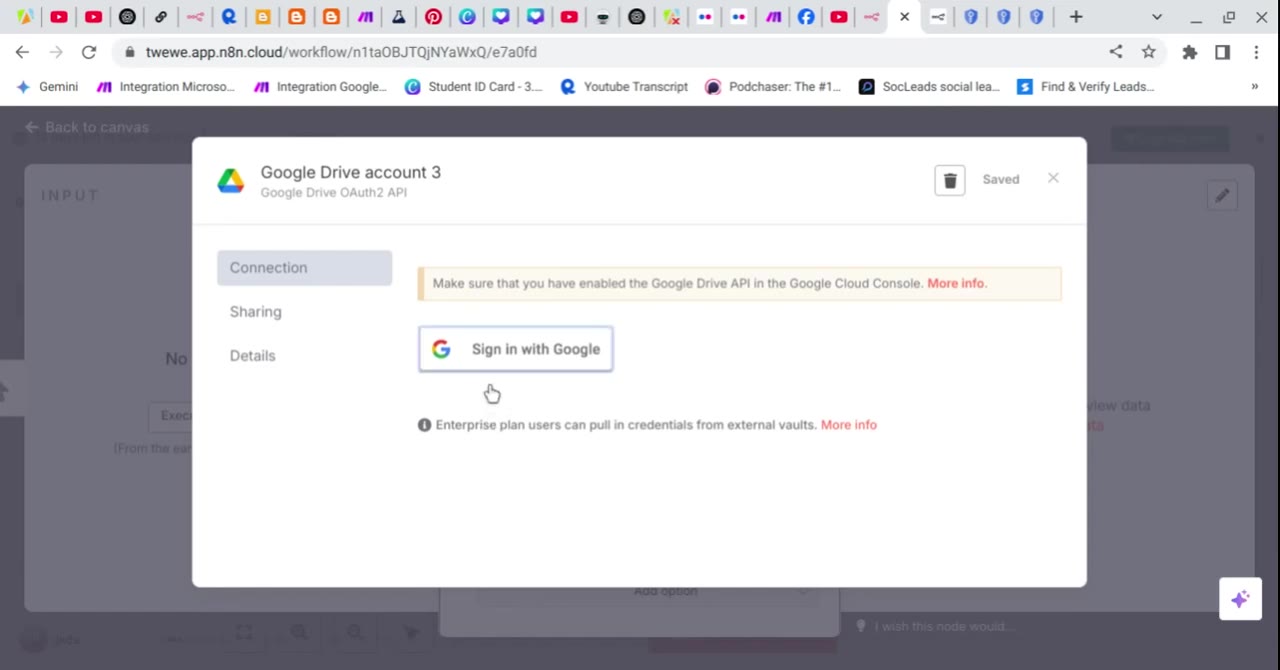
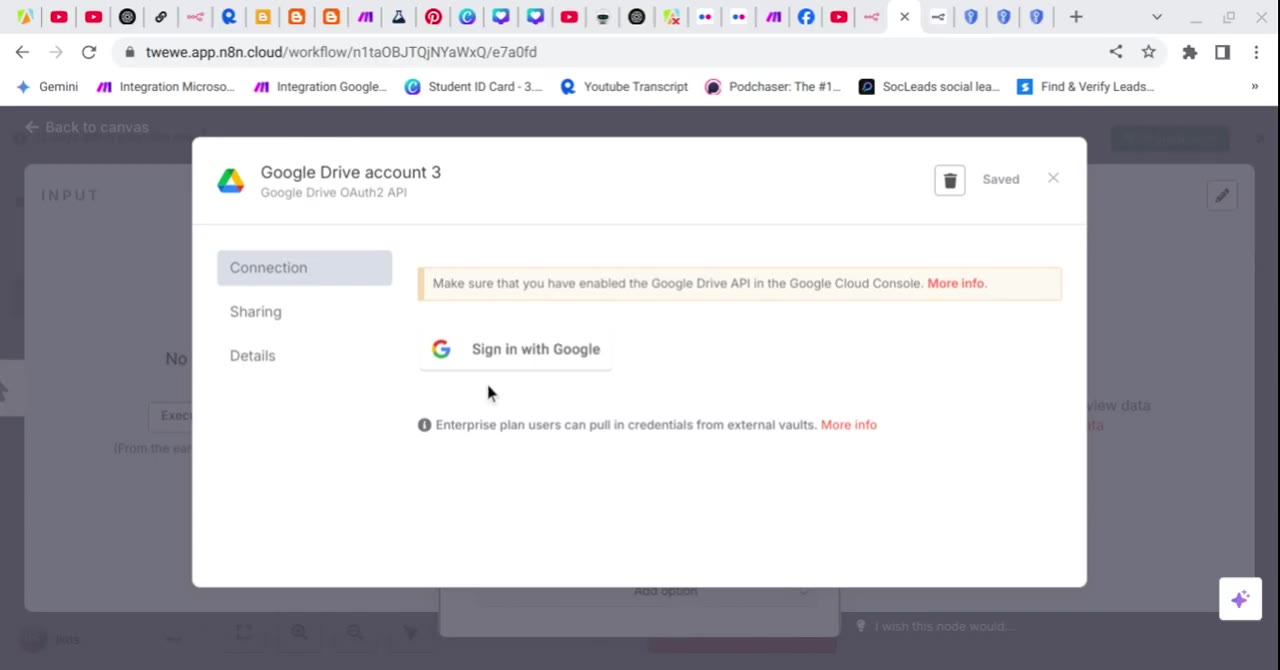
Important: Use the same Google account throughout this process. The Gmail address you add as a test user should be the same one you use when signing in to Google Drive from n8n.
Quick Fix Summary
- Open your Google Cloud project.
- Go to the OAuth consent screen or Google Auth Platform Audience page.
- Add your Gmail address as a test user.
- Go to Credentials and create an OAuth client ID.
- Set the application type to Web application.
- Copy the OAuth Redirect URL from n8n.
- Paste that URL into Authorized redirect URIs in Google Cloud.
- Copy the Client ID and Client Secret back into n8n.
- Click Sign in with Google again.
Step 1: Open the OAuth Audience Page in Google Cloud
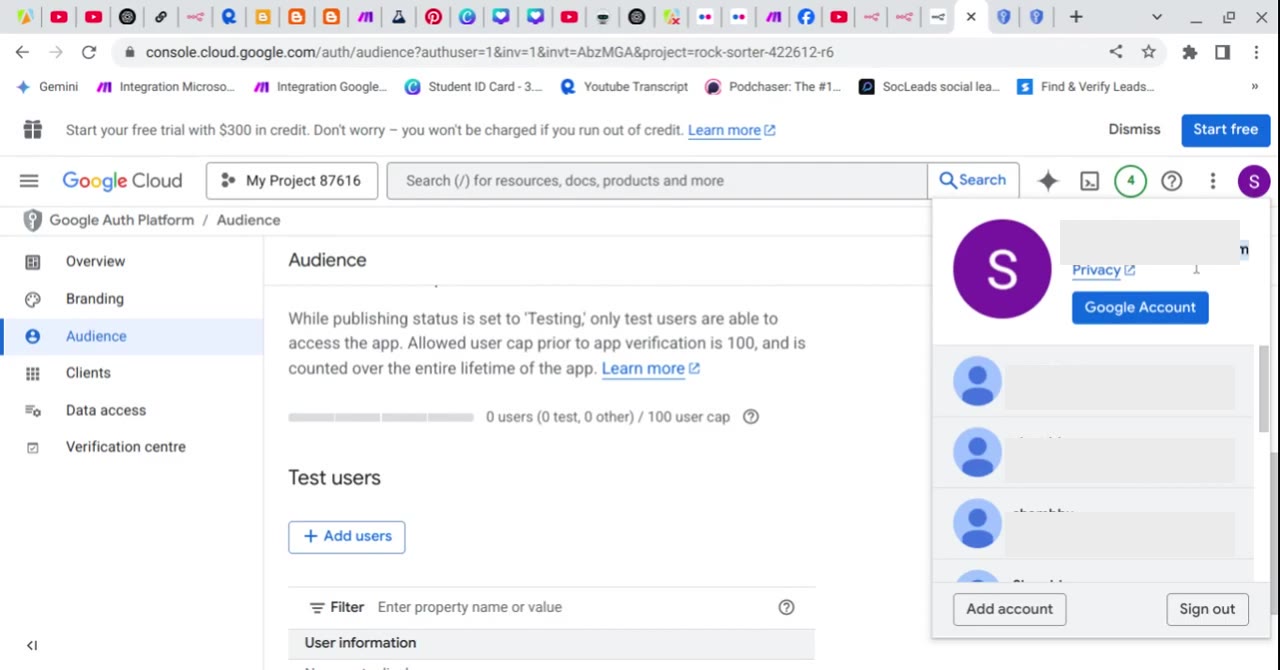
Start in the Google Cloud project connected to your n8n Google Drive credential. In the newer Google Cloud interface, the OAuth consent setup appears under Google Auth Platform. Open the Audience page so you can manage who is allowed to test the app.
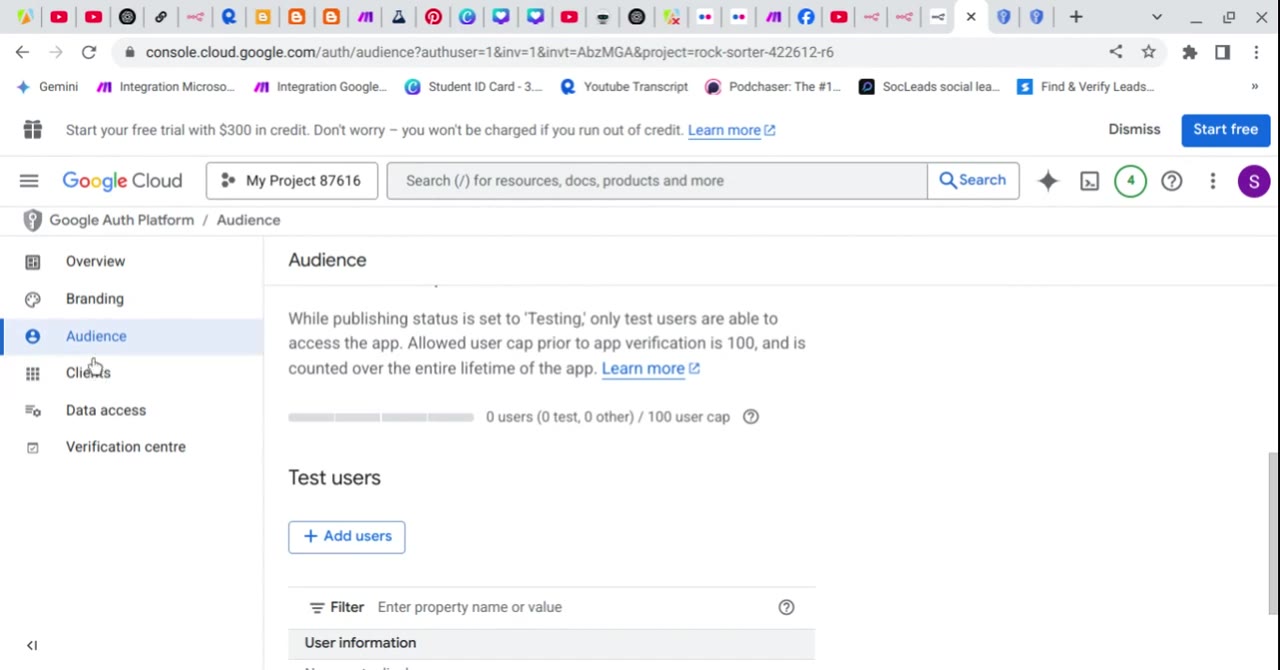
When the publishing status is set to testing, only approved test users can access the app. That is why adding the correct Gmail account matters before trying to sign in from n8n again.
Step 2: Add the Gmail Account as a Test User
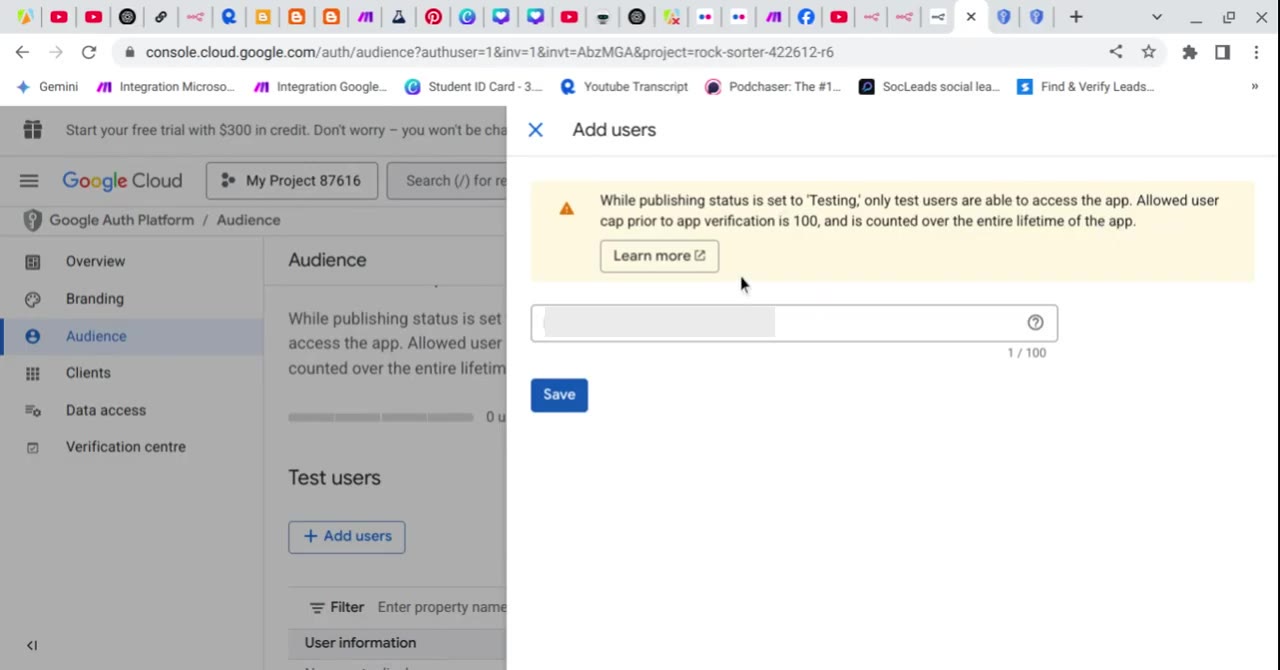
Scroll to the Test users section and click Add users. This is the step that fixes many blocked OAuth attempts because it explicitly allows your account to use the app during testing.
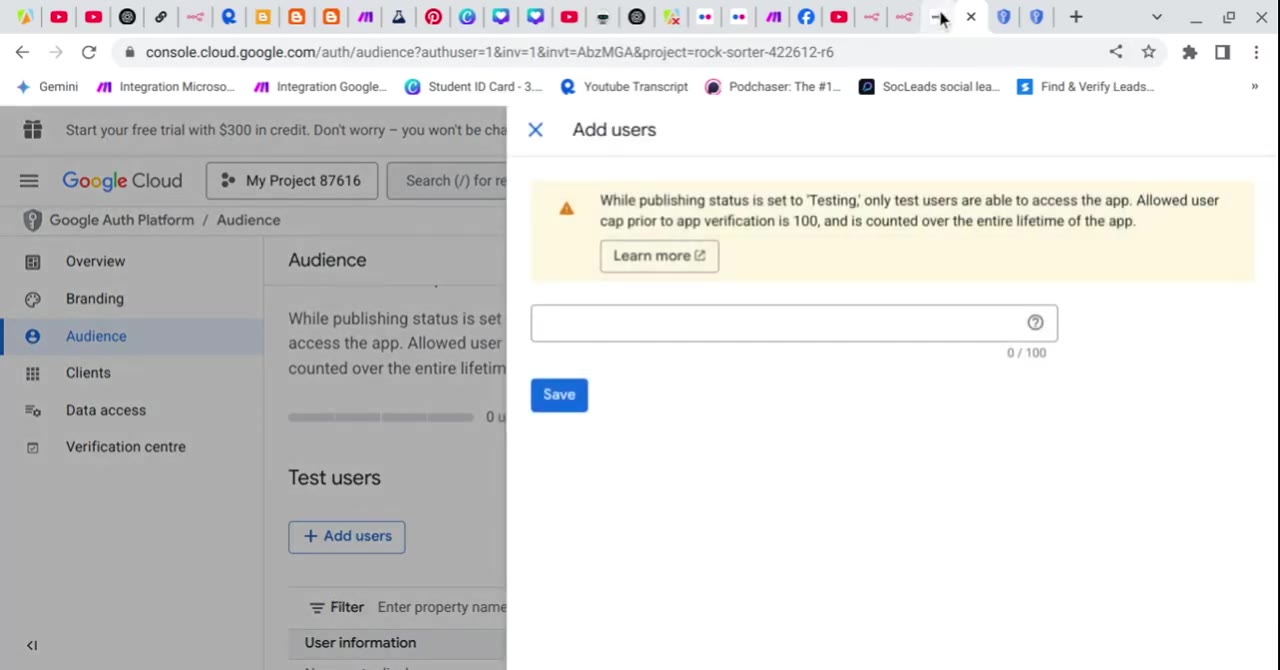
If you are unsure which Gmail address to add, check the account you plan to use for the n8n Google Drive connection. It must be the same account you will choose in Google’s sign-in prompt.
Paste the Gmail address into the Add users field, then click Save. Do not add a different account unless that is the account you will actually use inside n8n.
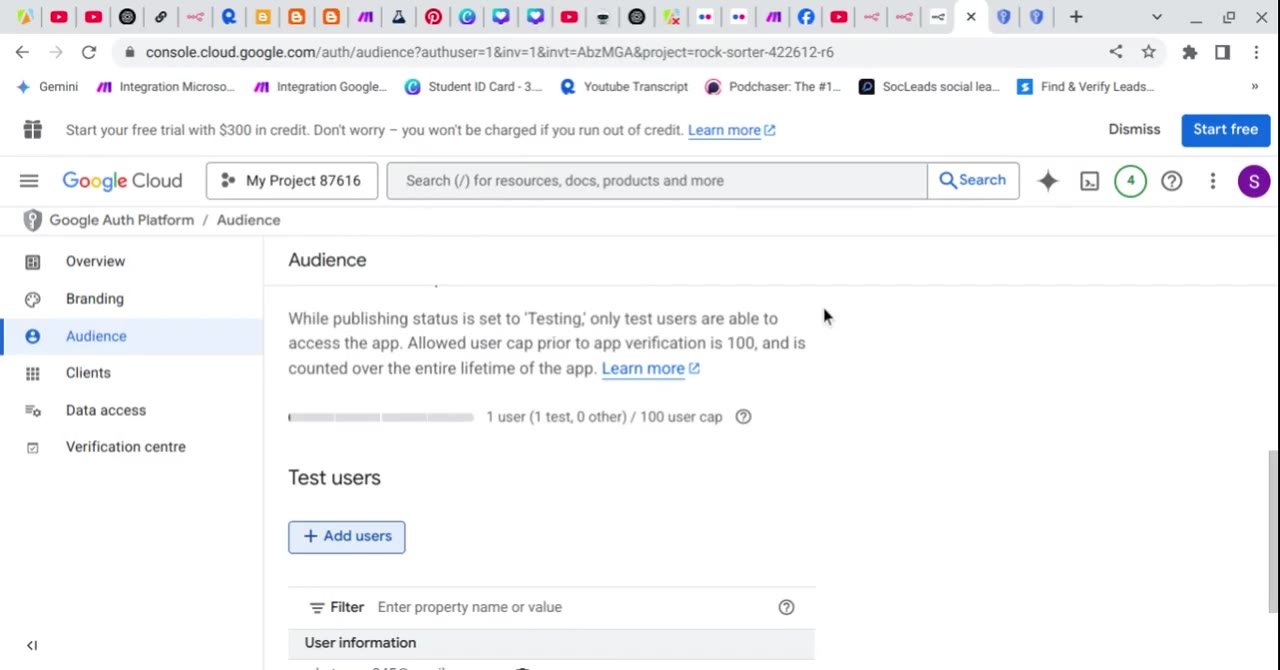
After saving, Google Cloud should show the user in the Test users list. This confirms that the account can proceed through the OAuth consent flow while the app is still in testing.
Step 3: Go to APIs and Services, Then Credentials
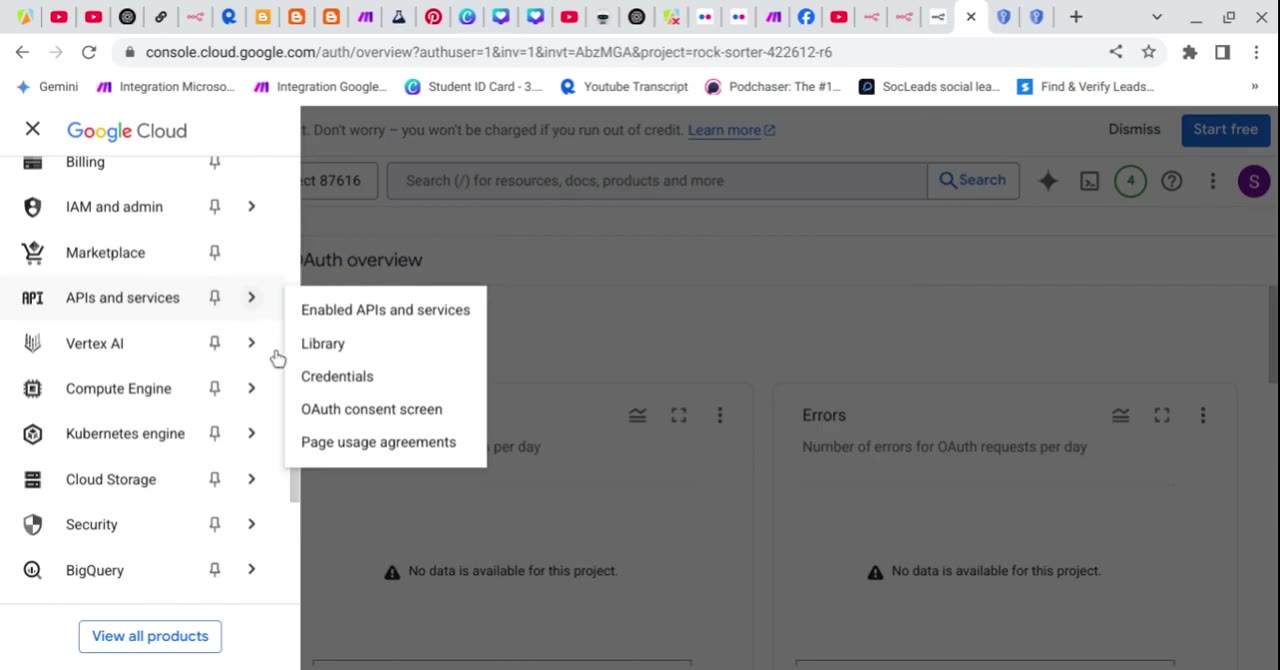
Next, create the credentials that n8n needs. Open the Google Cloud side menu, go to APIs and services, then select Credentials. In some newer layouts, you may also see this flow under the Google Auth Platform client screens.
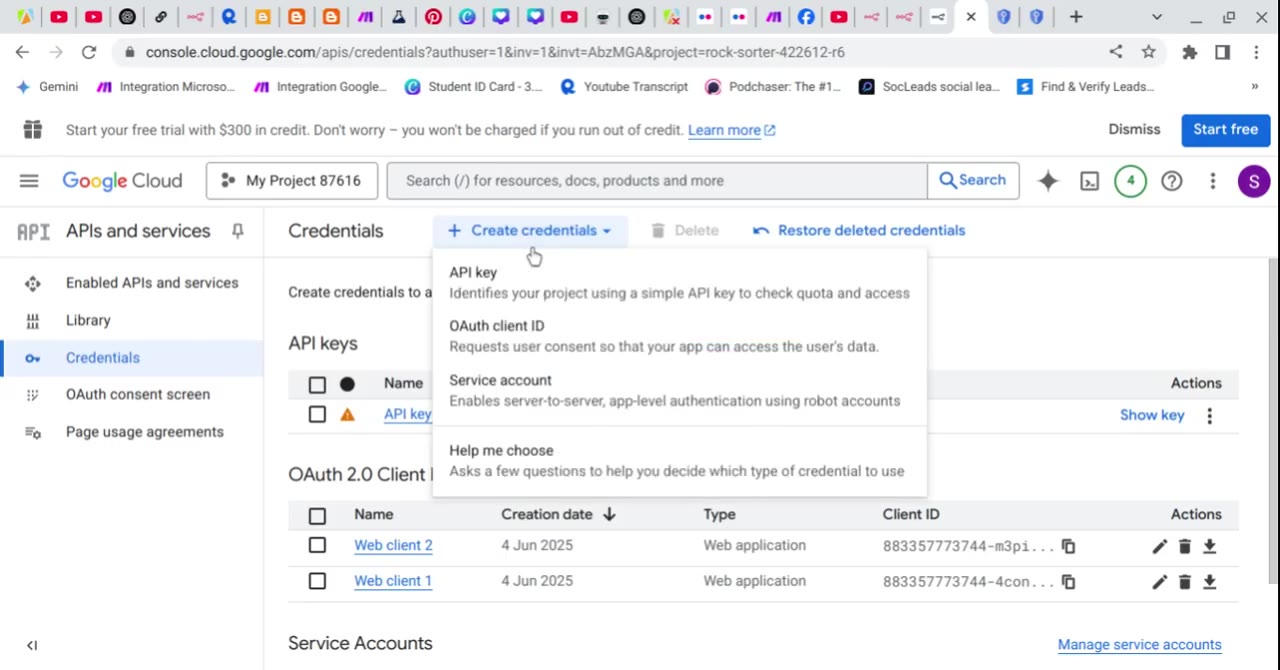
On the Credentials page, click Create credentials. From the dropdown, choose OAuth client ID. You do not need an API key for this n8n Google Drive sign-in flow.
Step 4: Create a Web Application OAuth Client
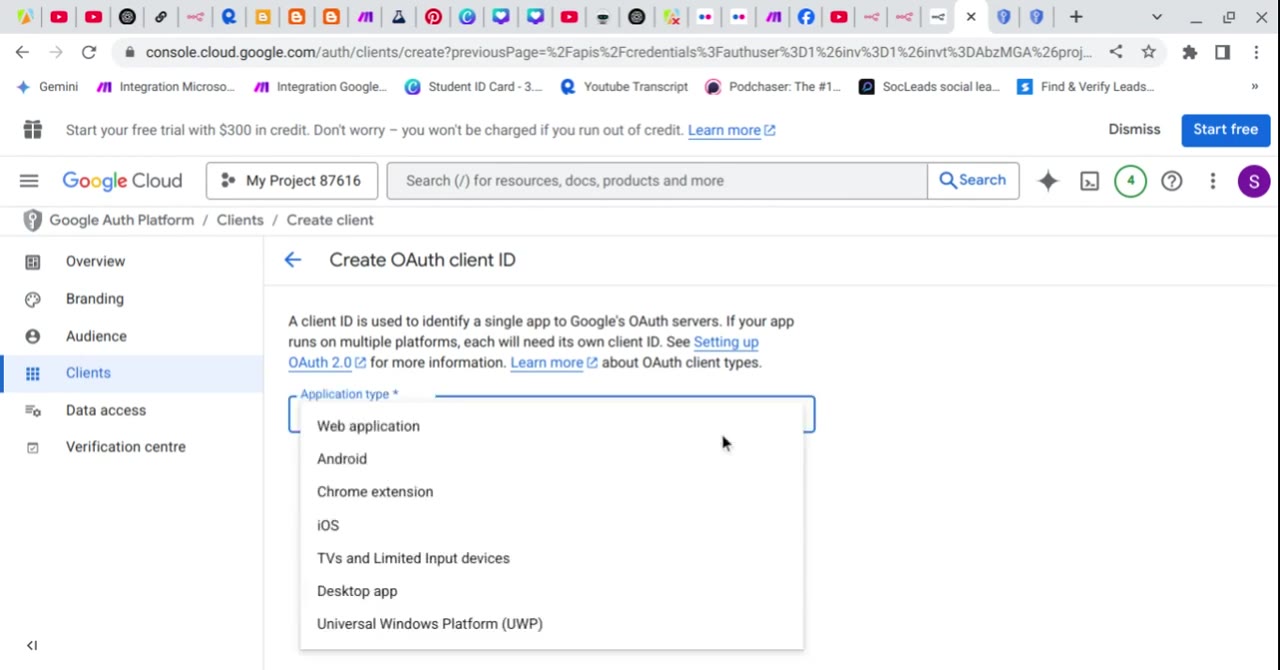
On the Create OAuth client ID page, set Application type to Web application. This is the correct choice for the n8n OAuth redirect flow because Google will redirect back to an n8n callback URL after authorization.
Give the OAuth client a clear name, such as n8n Google Drive, so you can recognize it later if you need to edit or regenerate credentials.
Step 5: Copy the n8n OAuth Redirect URL
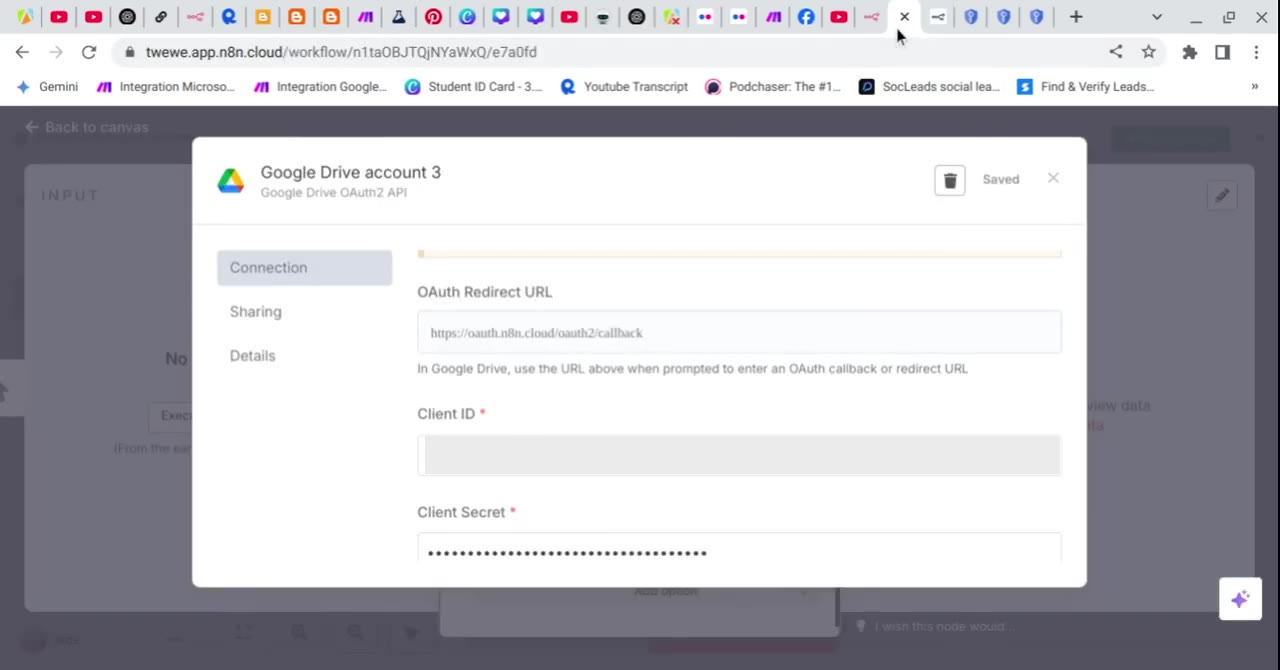
Now return to your n8n Google Drive credential. n8n displays an OAuth Redirect URL. Copy this exact URL. For n8n Cloud, it may look similar to https://oauth.n8n.cloud/oauth2/callback. For self-hosted n8n, the callback URL can be different.
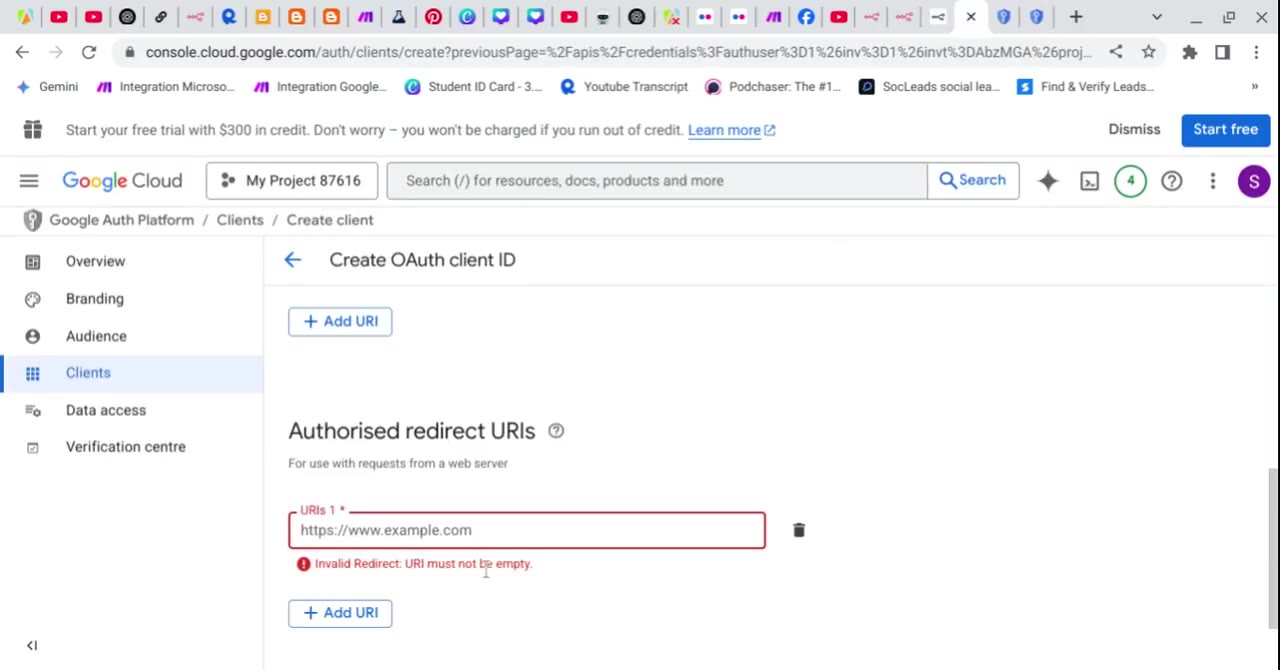
Paste the copied n8n redirect URL into the Authorized redirect URIs field in Google Cloud. The full URL must match exactly. A missing slash, wrong protocol, or different domain can break the connection.
Step 6: Copy the Client Secret from Google Cloud
After you create the OAuth client, Google Cloud shows a dialog containing the new credential details. Copy the Client Secret immediately and store it safely. Google warns that client secrets may not be viewable again after the dialog is closed.
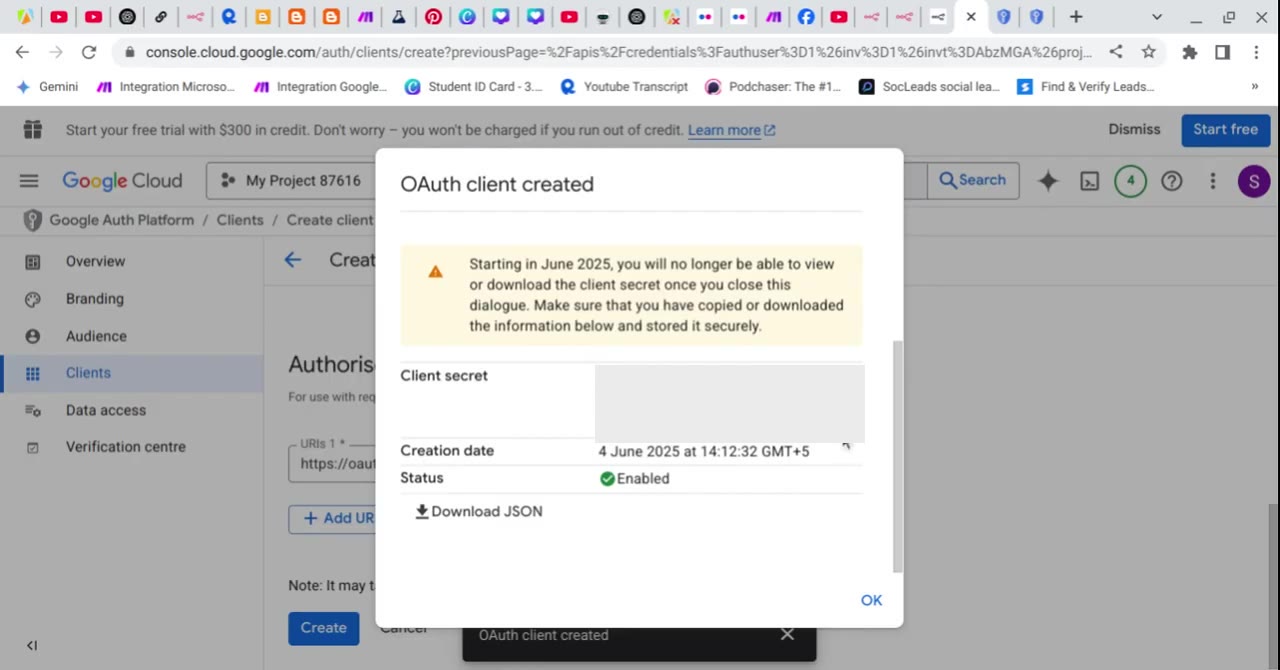
Security note: Treat the Client Secret like a password. Do not paste it into public tutorials, screenshots, comments, or shared documents.
Step 7: Paste the Client ID and Client Secret into n8n
Go back to n8n and paste the values from Google Cloud into the Google Drive credential fields. The Client ID goes into Client ID, and the Client Secret goes into Client Secret. Save the credential.
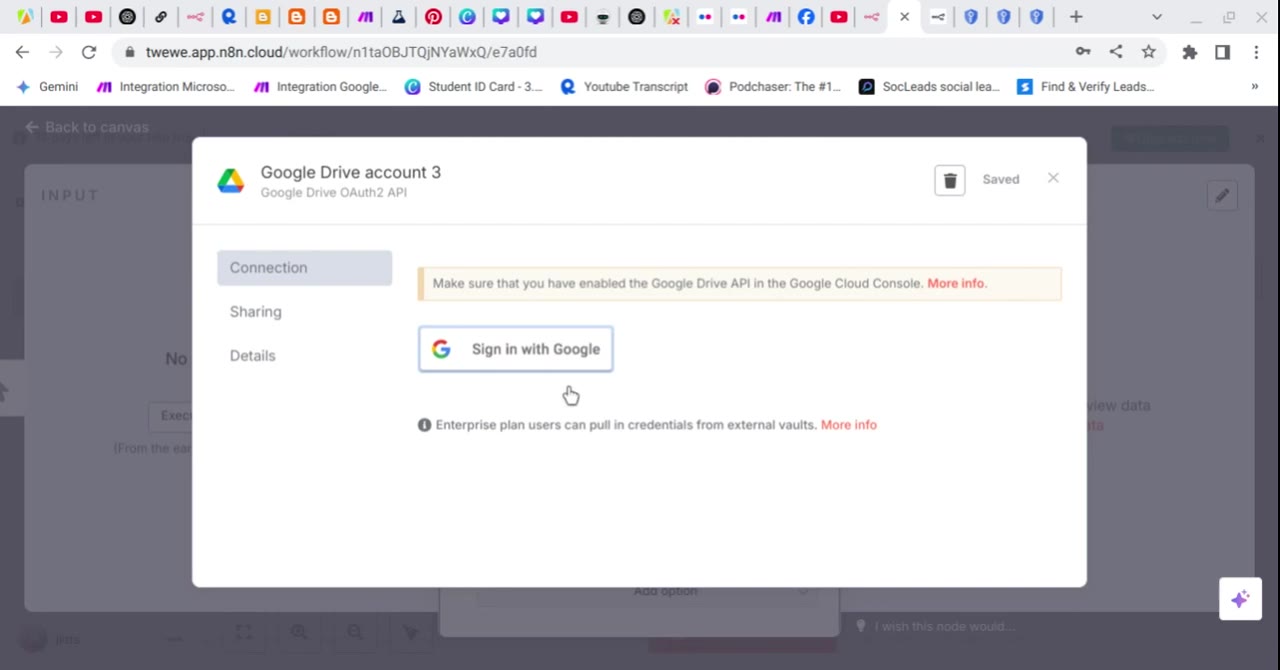
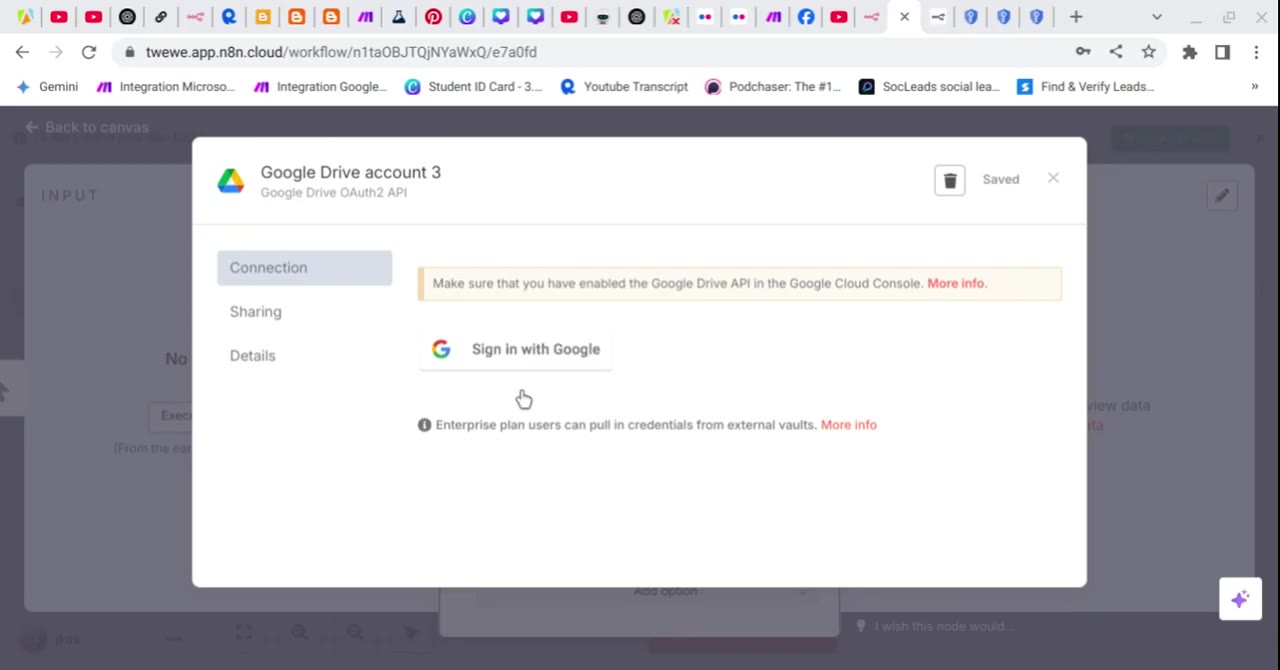
Once the values are saved, return to the Connection tab and click Sign in with Google. Because the Gmail account is now a test user and the redirect URI is allowed, the sign-in flow should proceed instead of being blocked.
Troubleshooting Checklist
If Google Drive still does not connect to n8n, use this checklist before rebuilding everything from scratch.
- Confirm the Gmail address in Google Cloud Test users matches the Google account you select during sign-in.
- Confirm the app is in testing mode and the test user was saved successfully.
- Confirm the Google Drive API is enabled in the same Google Cloud project.
- Confirm the OAuth Redirect URL in Google Cloud exactly matches the URL shown inside n8n.
- Confirm the OAuth client application type is Web application.
- Confirm you pasted the Client ID into the Client ID field and the Client Secret into the Client Secret field.
- If you use n8n Cloud, use the redirect URL shown by n8n Cloud. If you self-host n8n, use the redirect URL from your own n8n instance.
- If you created credentials in the wrong Google Cloud project, recreate them in the project where the OAuth consent screen and Google Drive API are configured.
Final Notes
This fix works because it solves the two parts Google checks during OAuth: who is allowed to use the app while it is in testing, and where Google is allowed to redirect the user after consent. Once both are configured correctly, n8n can complete the Google Drive OAuth connection and use the credential inside workflows.
For production use, review Google’s OAuth verification requirements and n8n’s credential security guidance. For a personal or internal automation setup, adding yourself as a test user is usually enough to move past the access blocked message and finish the connection.

Olaitan Oladipo holds a BSc in Sociology from Olabisi Onabanjo University. He is a self-taught automation builder who has spent years inside n8n doing the work that most tutorials skip: debugging OAuth errors at 2am, migrating client automations from Make.com mid-project, fighting reverse proxy misconfigurations on AWS EC2, and figuring out through trial and error what actually holds up in production versus what only looks clean in a demo.
He is not a developer by training and not a SaaS founder. He is the person in the Discord server who actually answers the question instead of linking to the docs.
His writing on n8n Automation Tutorial covers self-hosting, AI agent workflows, tool comparisons, and the security vulnerabilities the automation industry would rather not discuss. He has built AI-assisted invoice approval flows using OpenAI function calling, connected Claude via HTTP Request nodes, and holds considered opinions about Zapier, Make.com, LangChain, and CrewAI that their marketing teams would not appreciate.
He writes for people who are technical enough to follow a tutorial but experienced enough to want the honest version.