
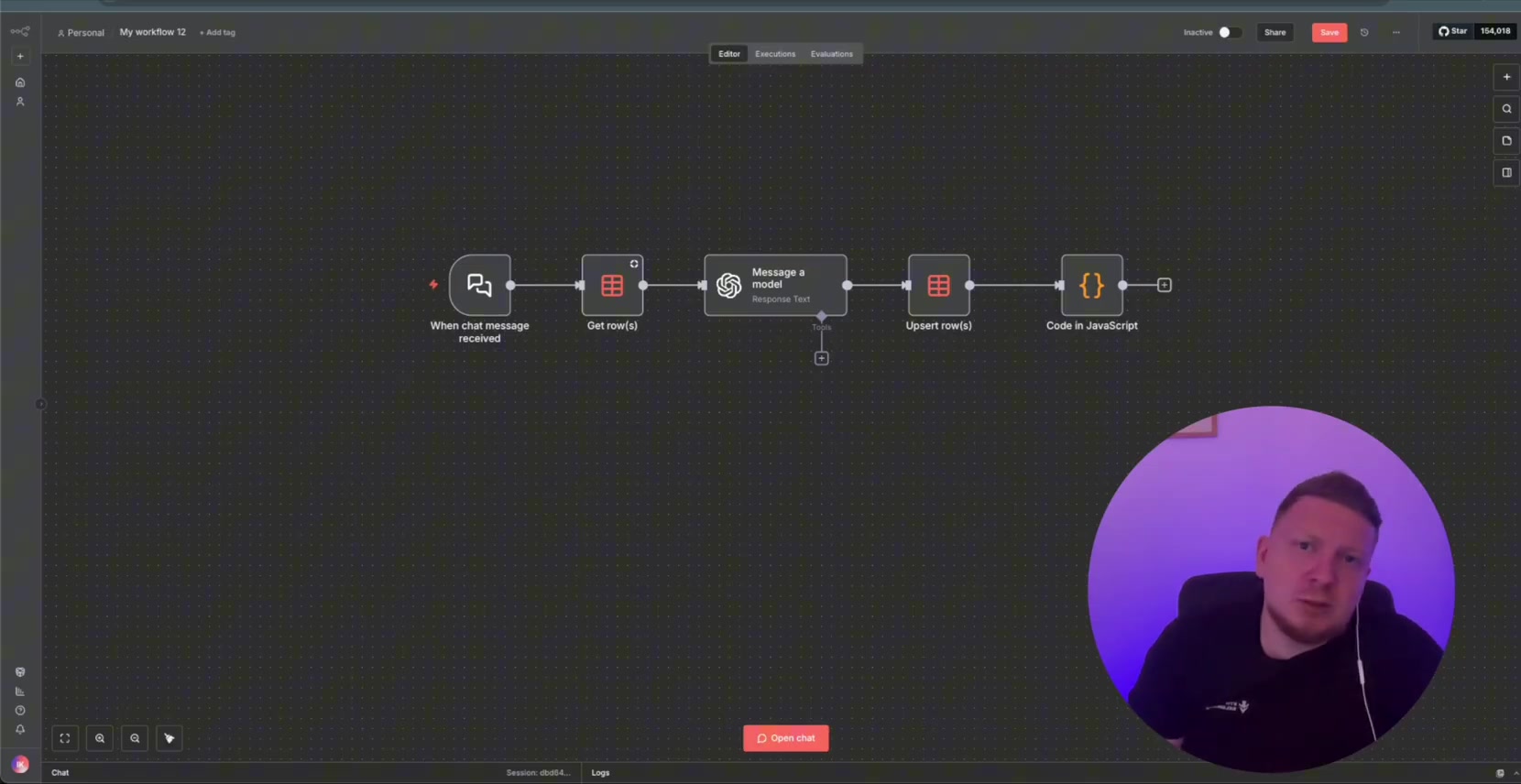
This guide shows how to use the OpenAI Responses API inside n8n without building the request manually in an HTTP node. The workflow uses an n8n chat trigger, the OpenAI model node, and n8n Data Tables to save and reload chat history for each session.
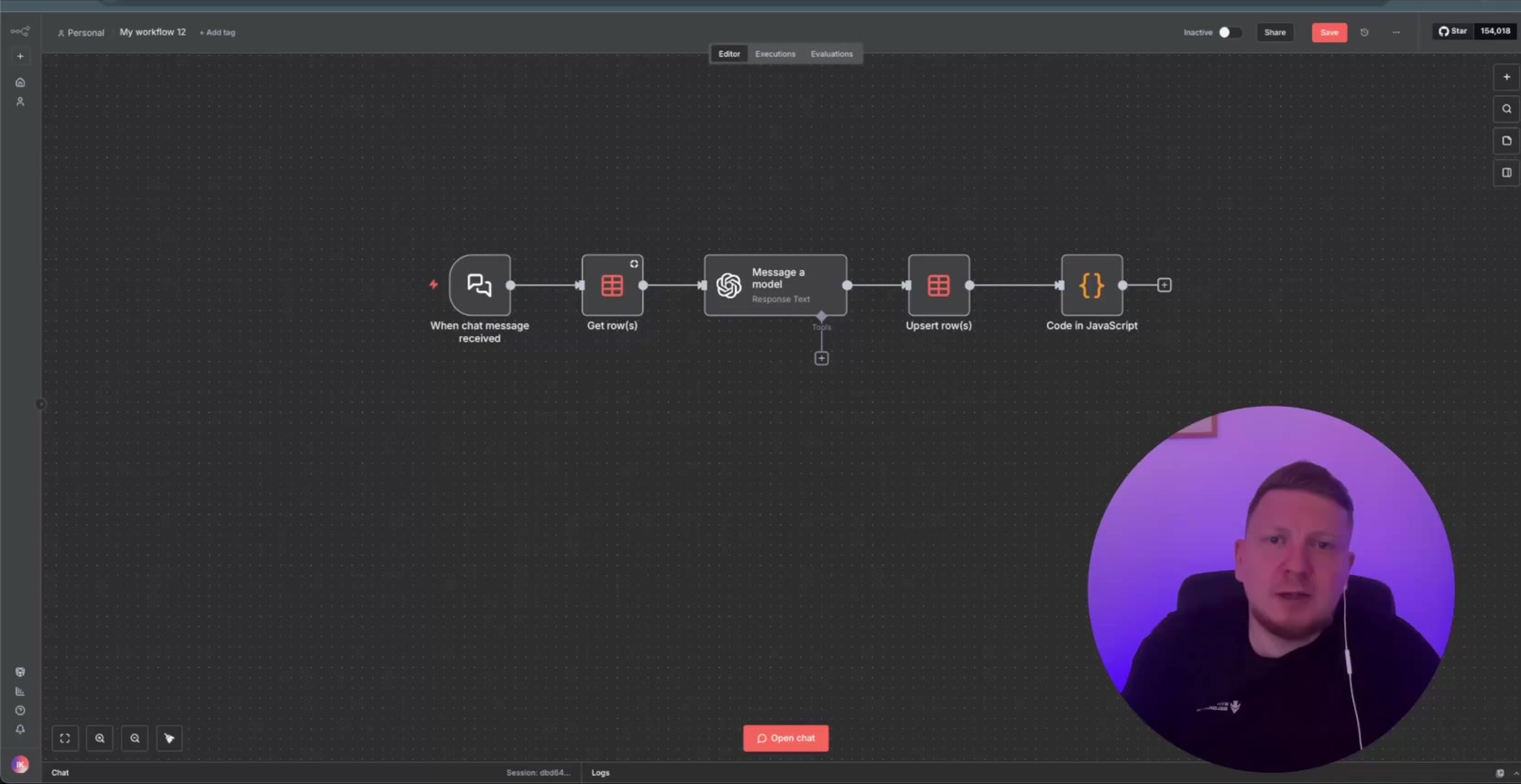
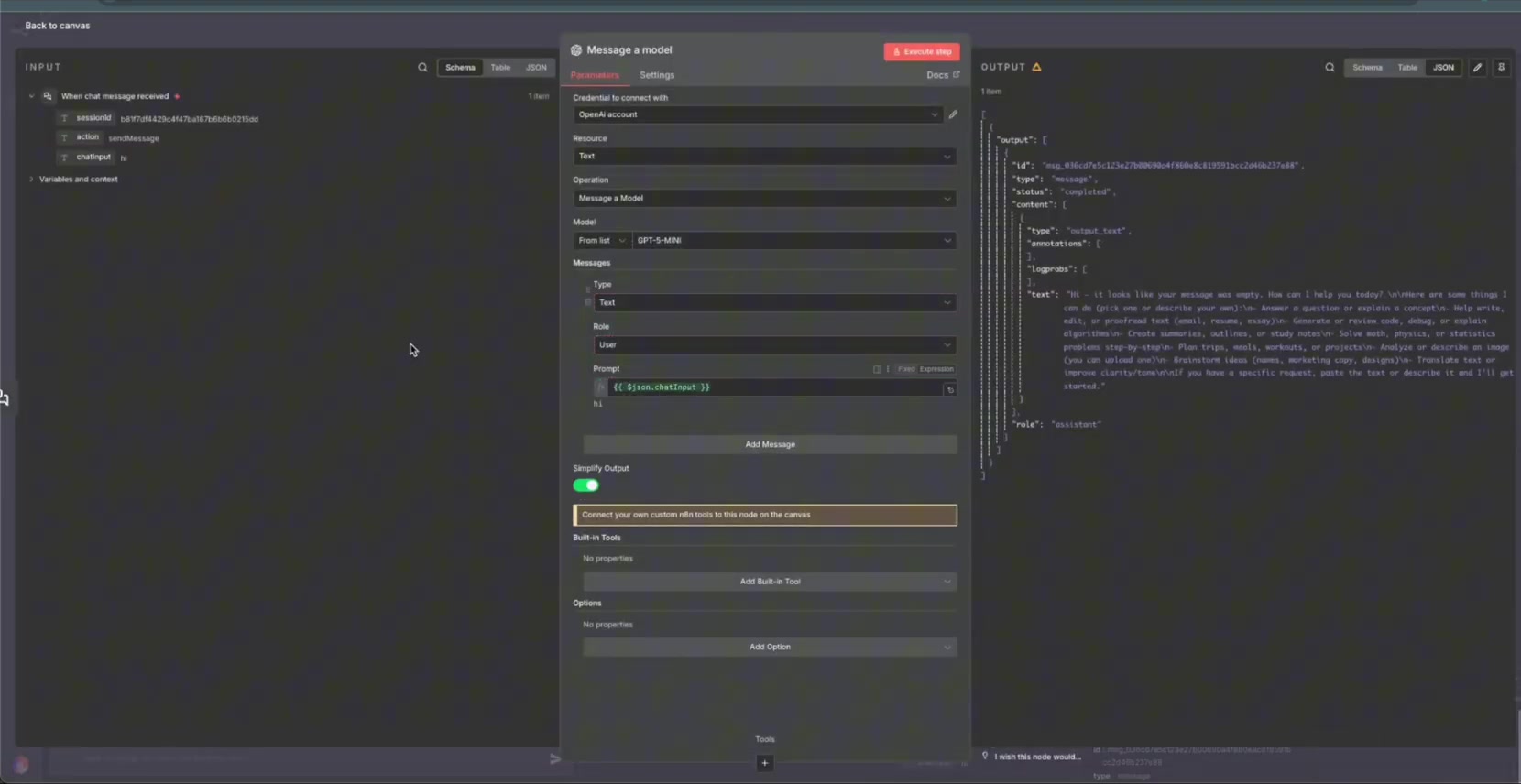
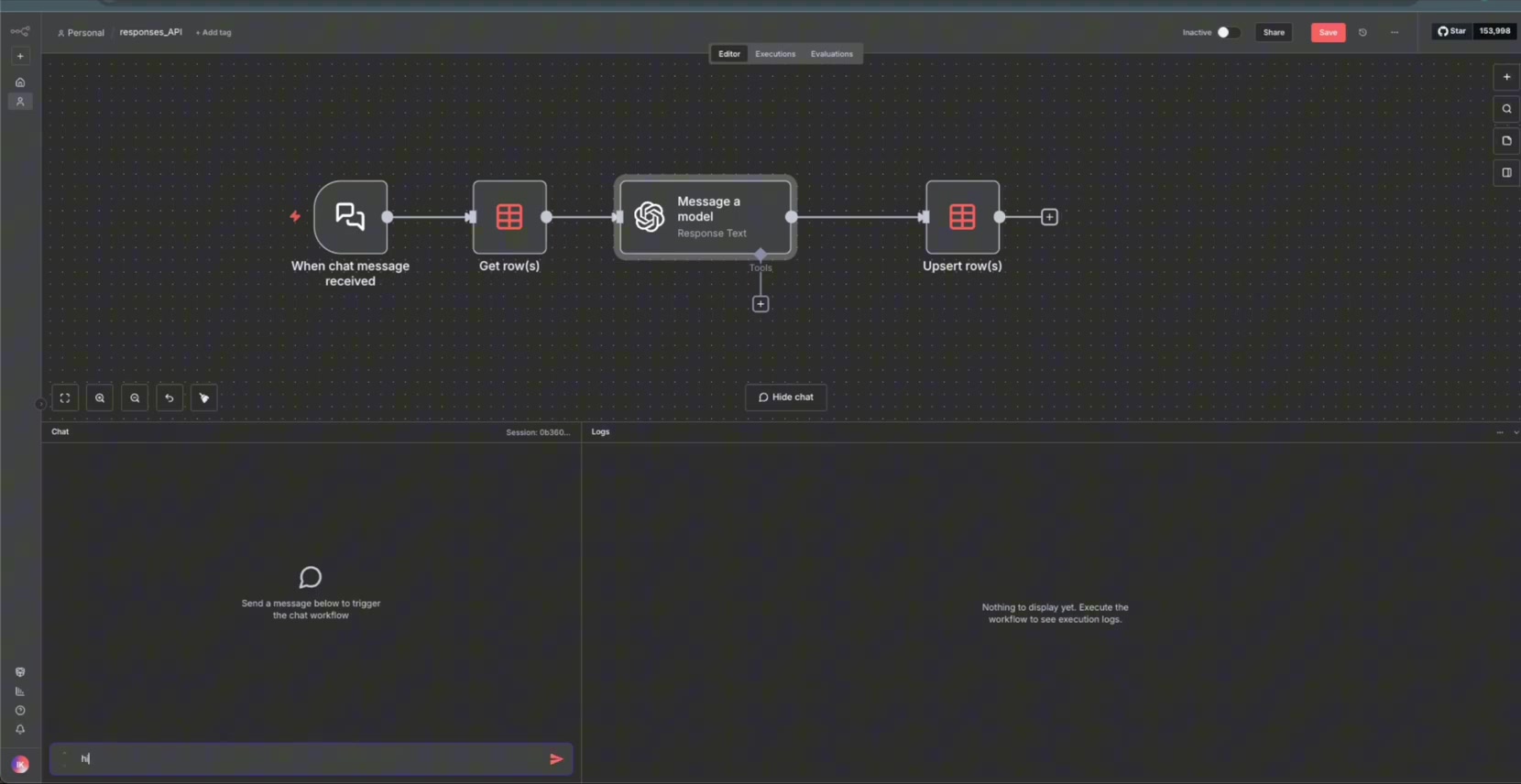
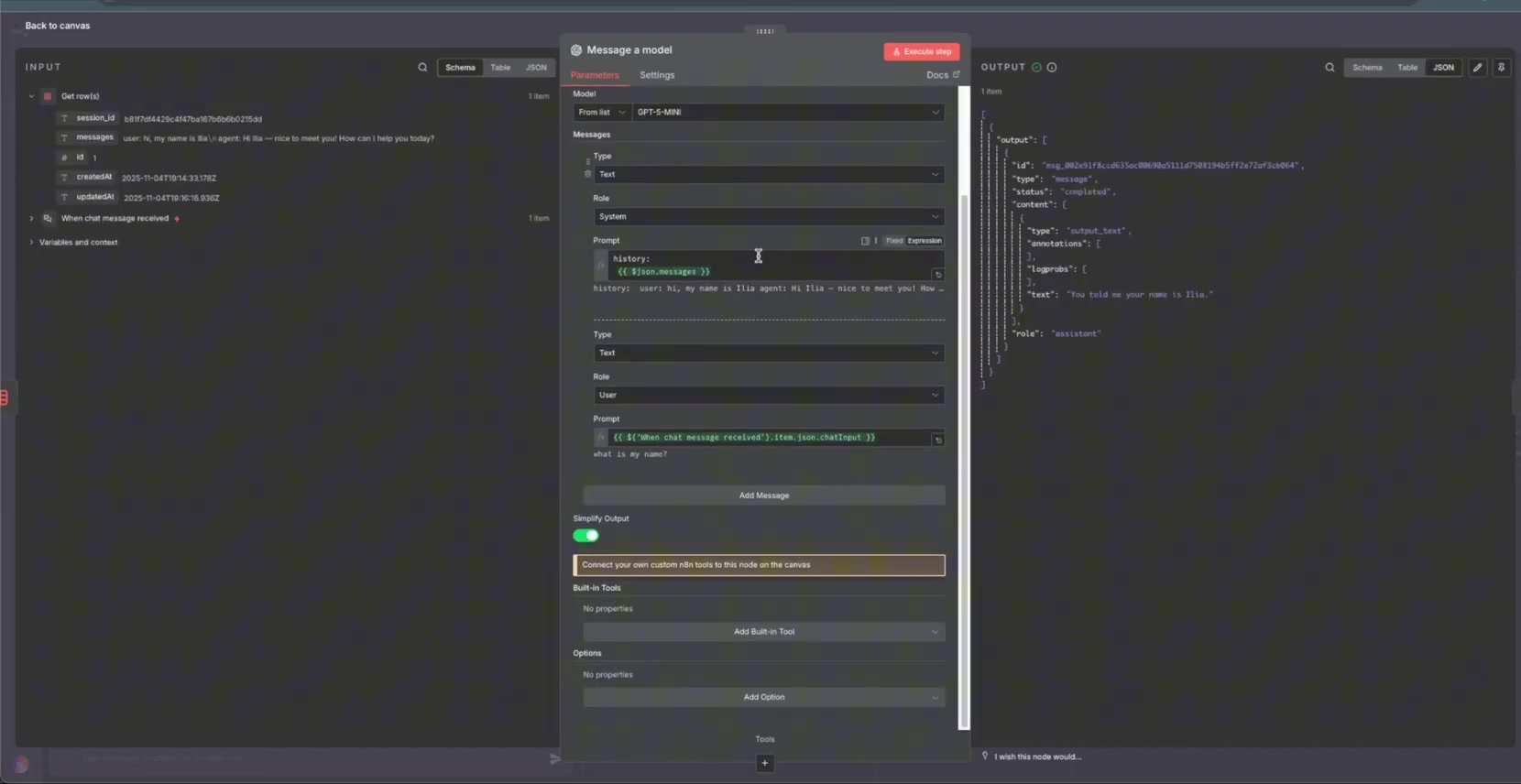
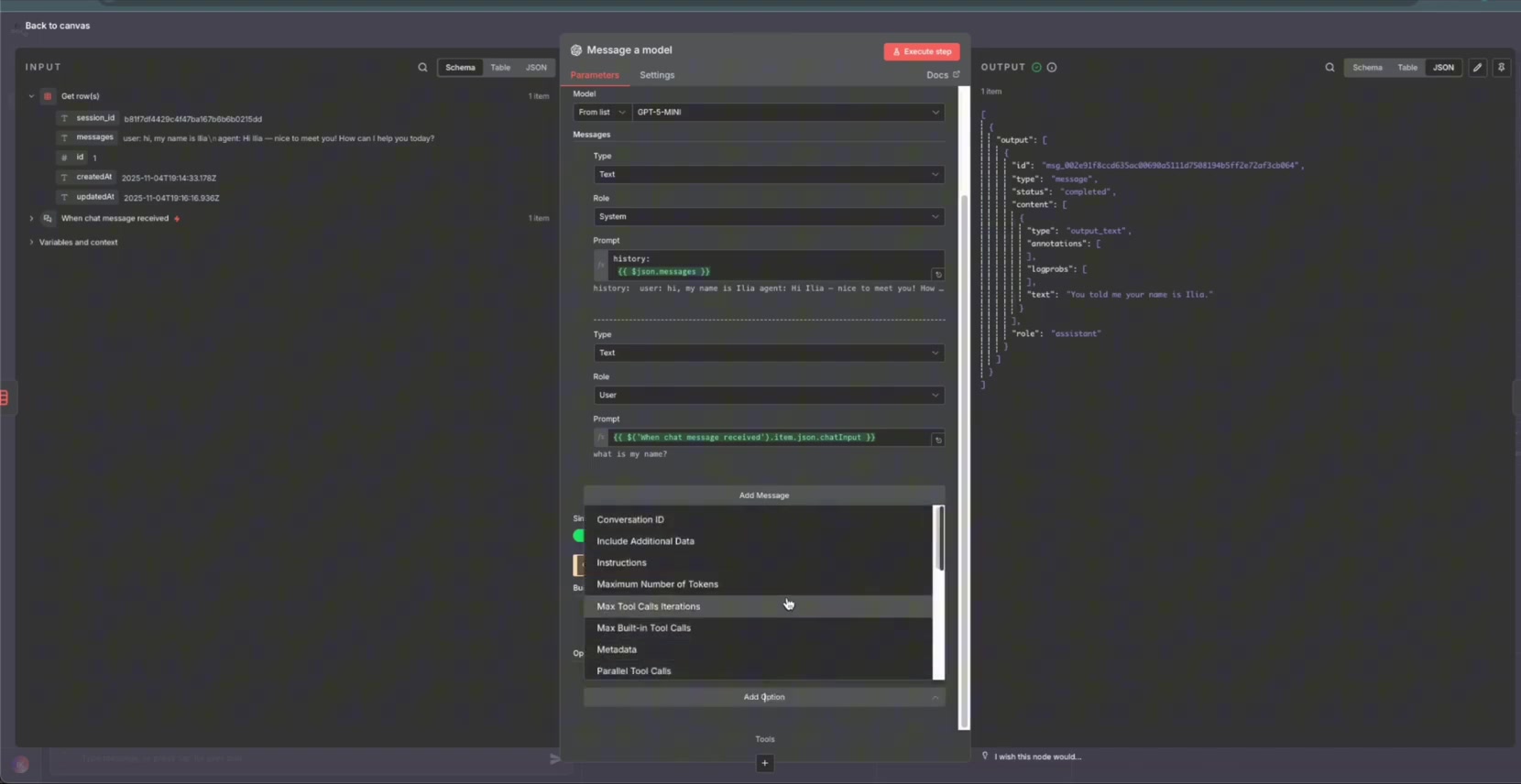
Version note: The image shows an OpenAI operation labeled Message a Model. Current n8n documentation also describes newer OpenAI node behavior where Responses API usage may appear as Generate a Model Response, depending on your n8n version. The setup idea is the same: choose the OpenAI operation that sends a model response through the Responses API. For the previous guide in this series, read Make.com to n8n Script Translator: EASILY Convert Make Automations to n8n.
What You Will Build
- A simple n8n chat workflow that sends user messages to OpenAI.
- A Responses API-based OpenAI model call inside n8n.
- A Data Table memory store keyed by session ID.
- A history lookup step that retrieves prior messages before the next model call.
- A token-usage comparison between the OpenAI dashboard and Playground.
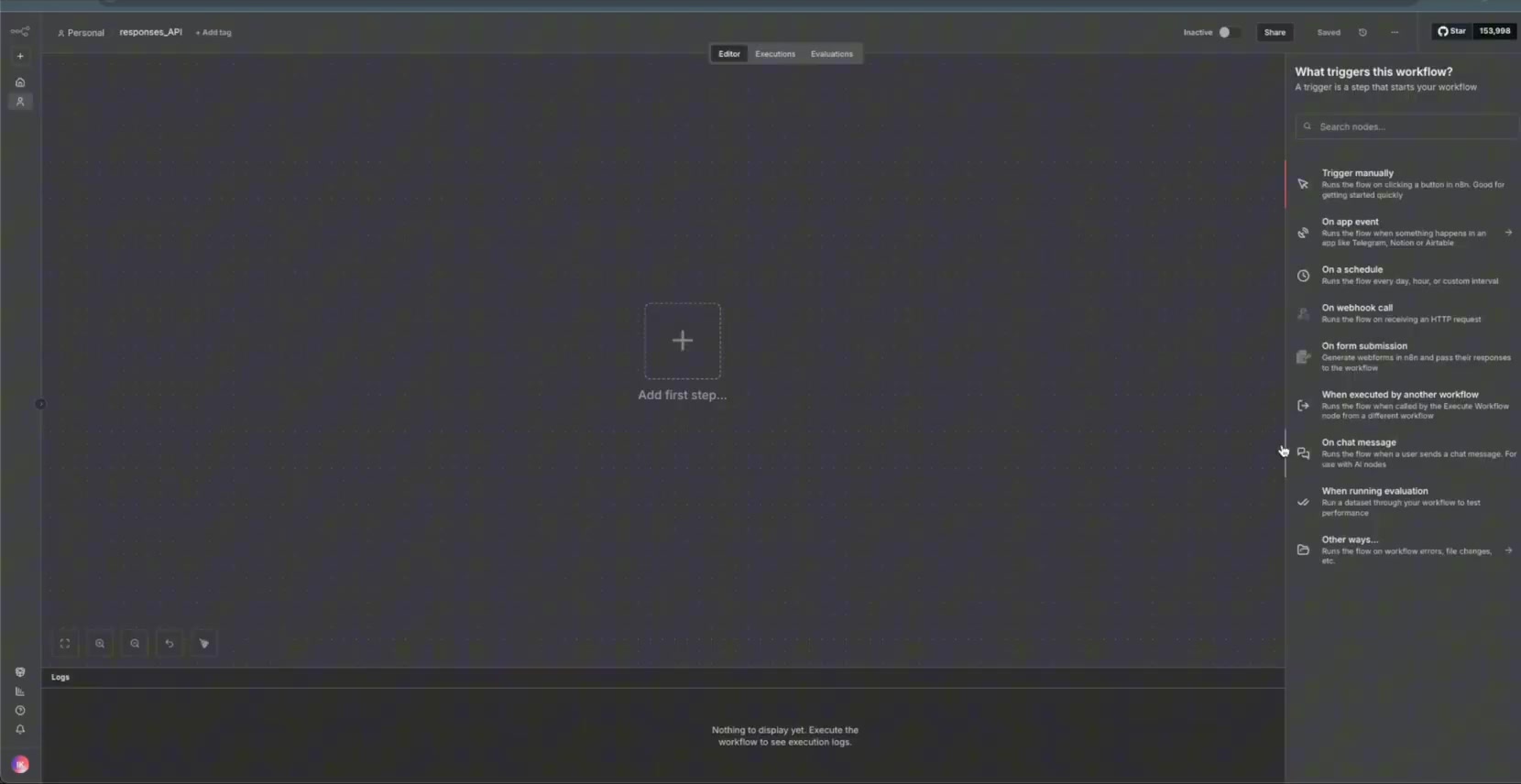
Step 1: Create the Chat Input
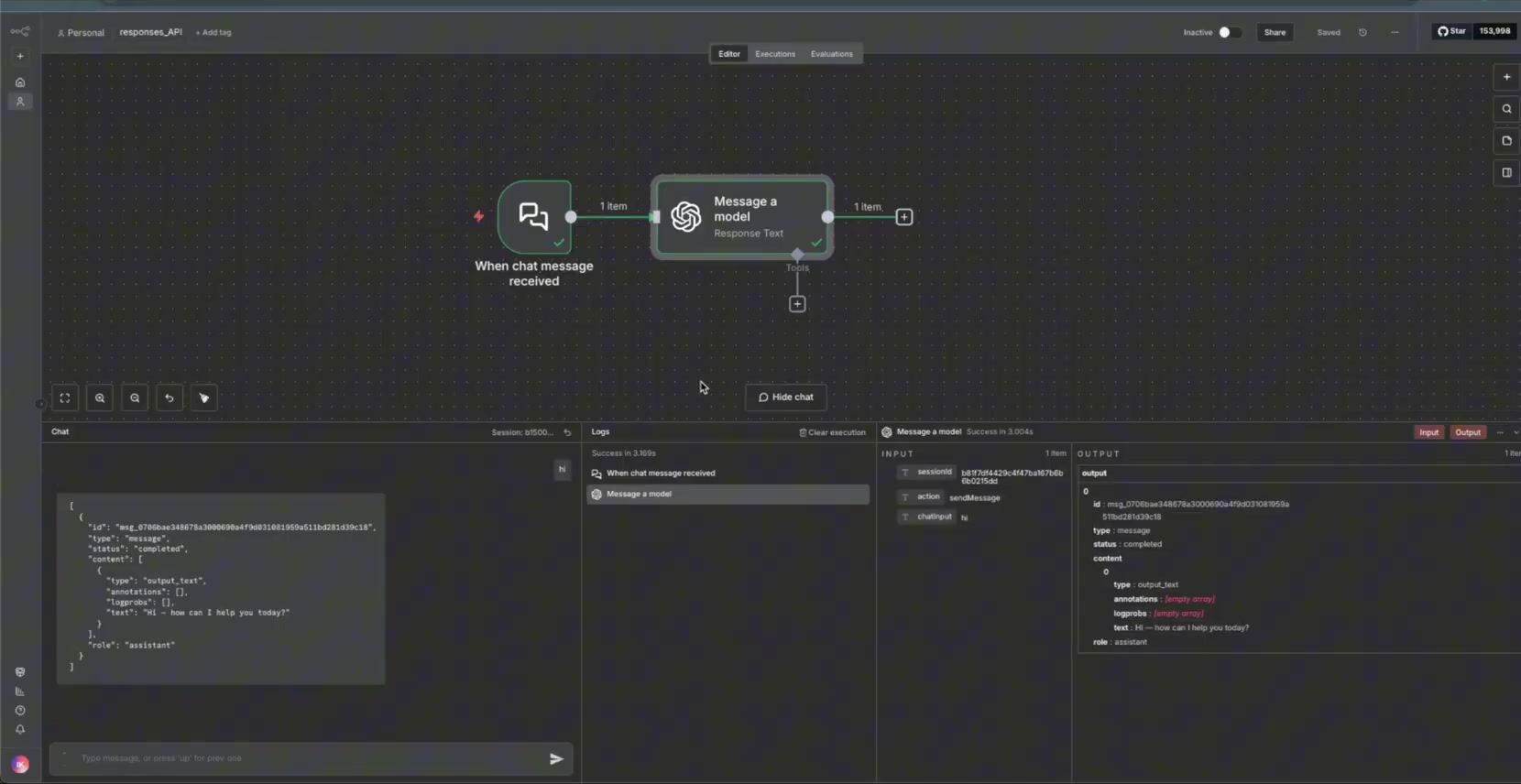
Begin with a chat input node. This gives you a clean test interface for entering messages and checking whether the OpenAI node receives the right input.
Step 2: Add the OpenAI Model Node
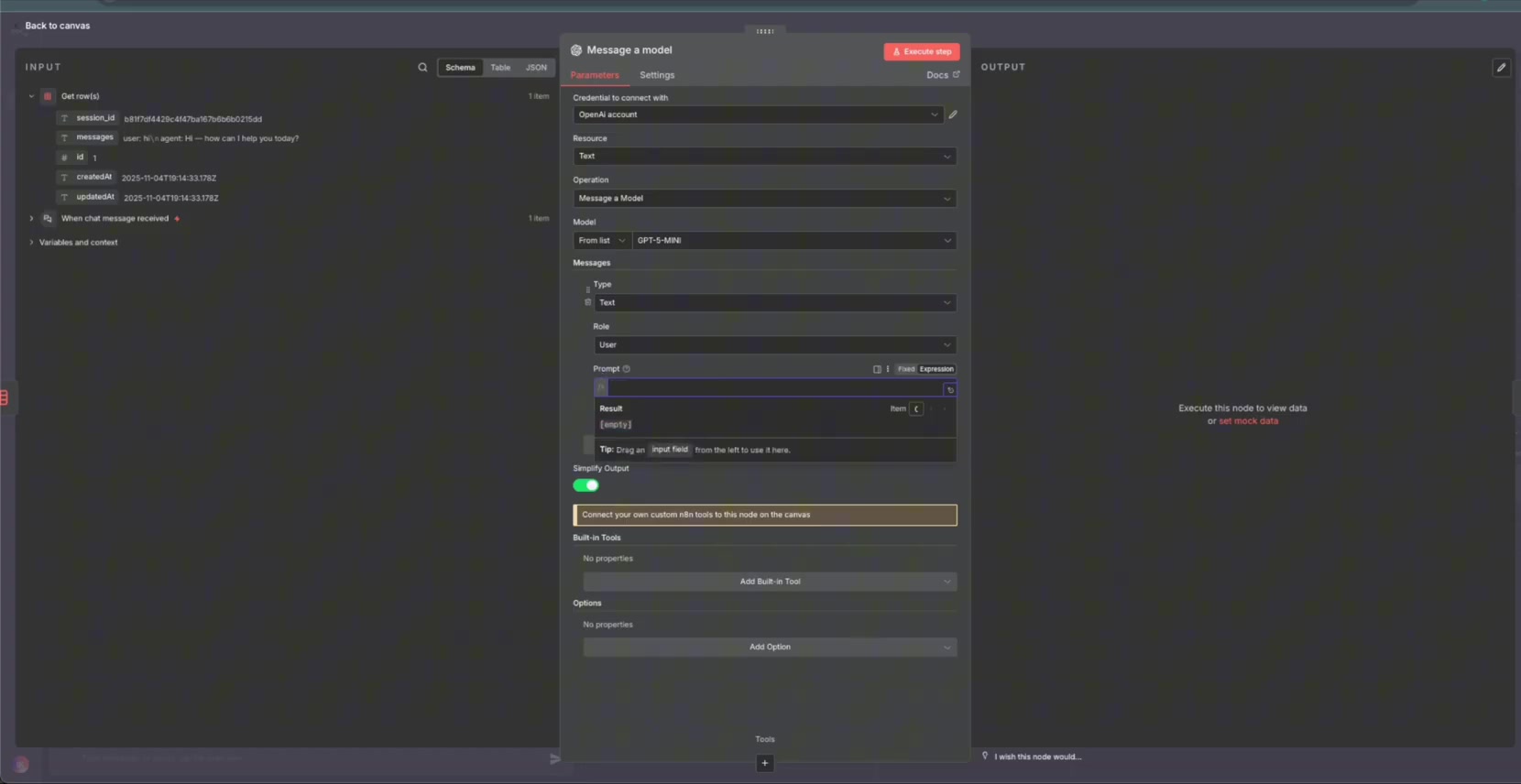
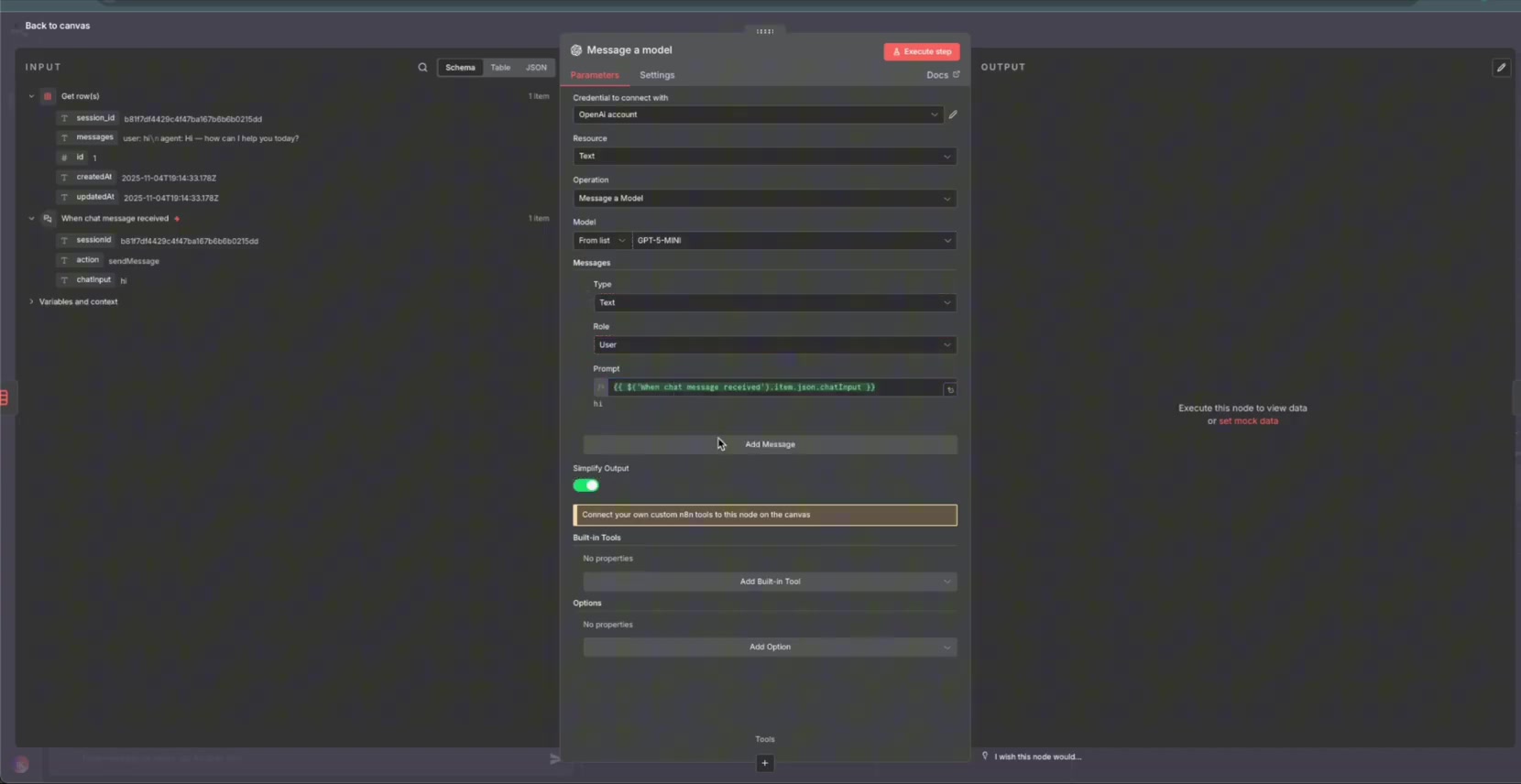
Add the built-in OpenAI node instead of starting with a generic HTTP Request node. In the image, the operation is shown as Message a Model. In newer n8n versions, look for the OpenAI text operation that uses the Responses API, such as Generate a Model Response.
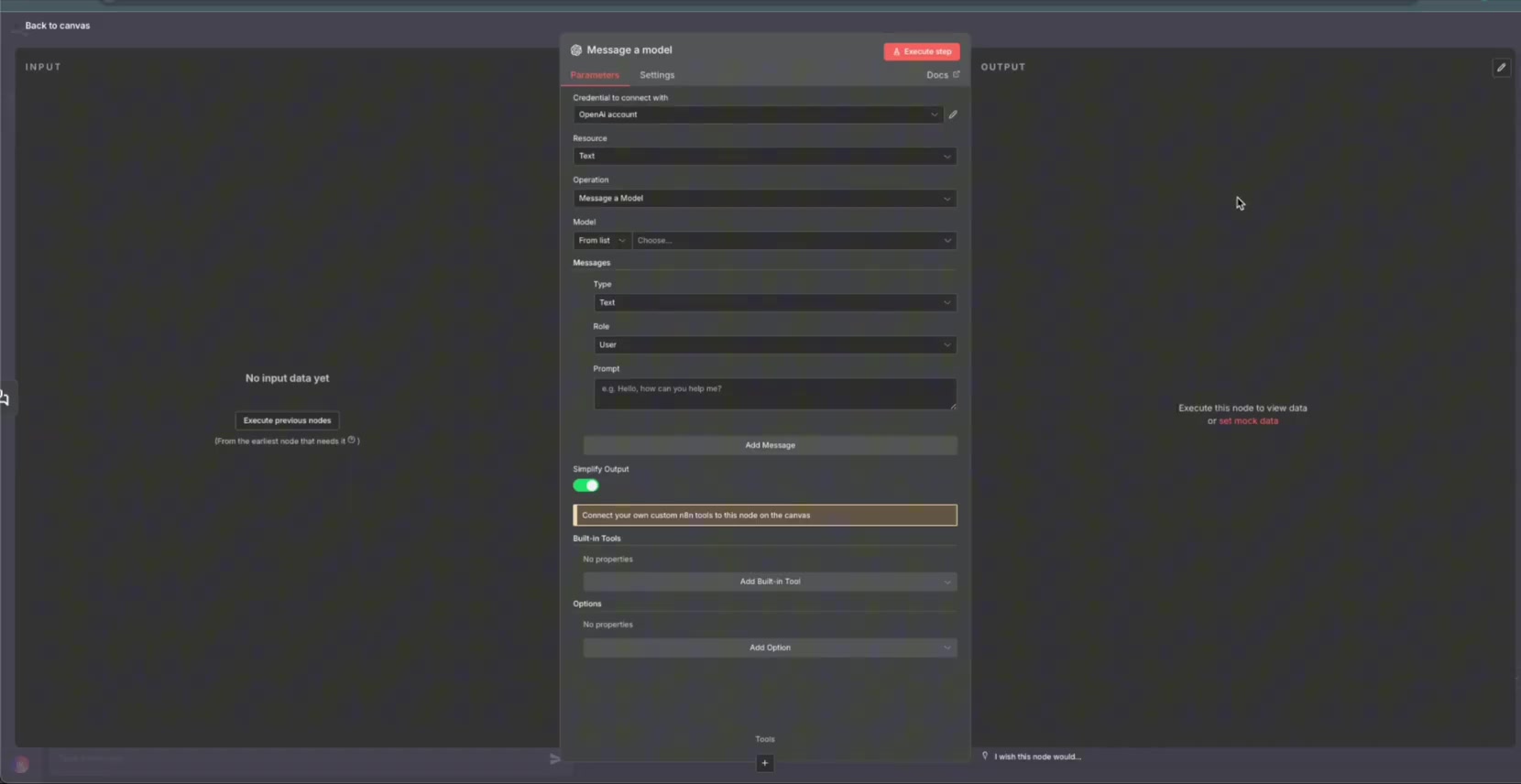
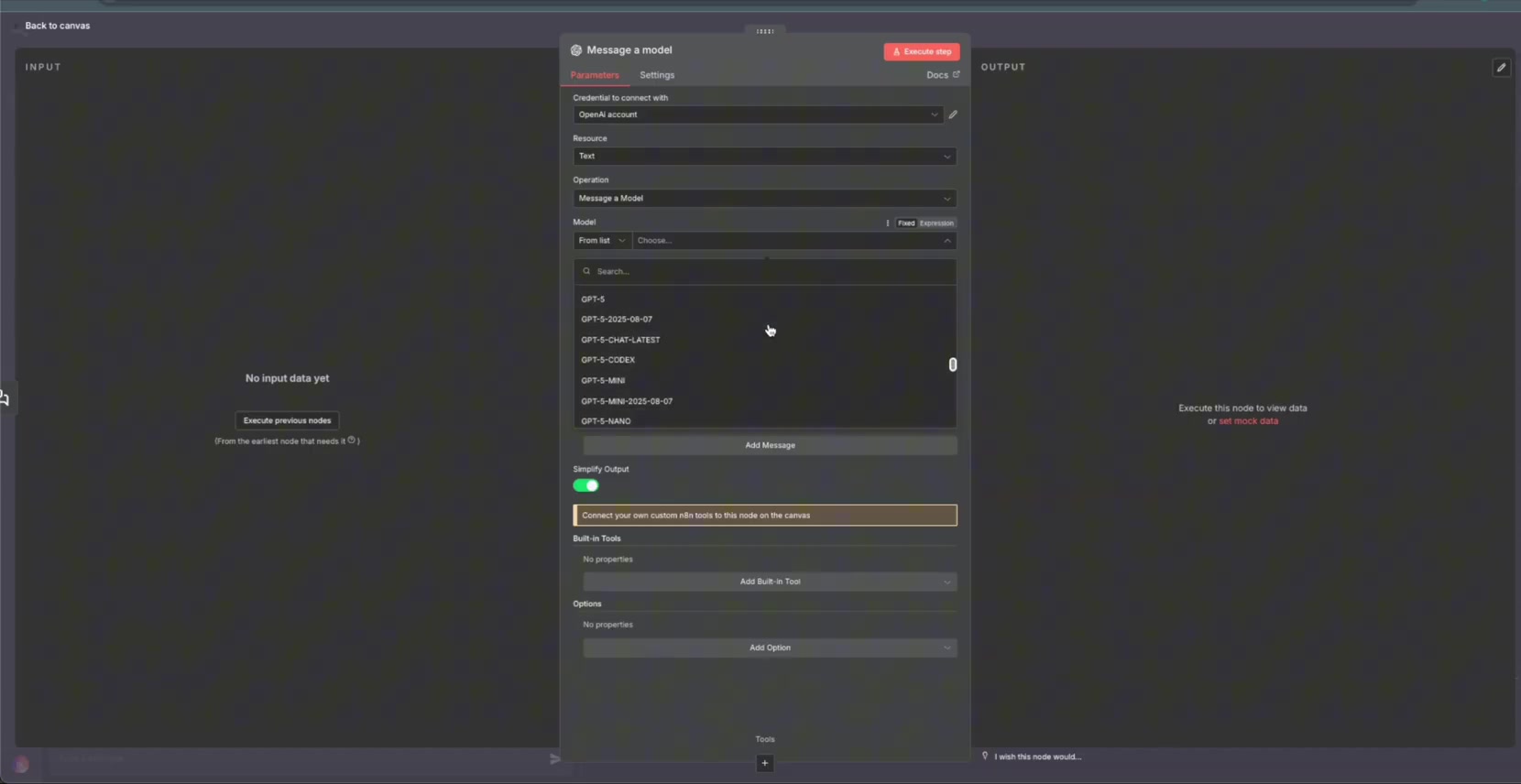
Select a lightweight model available in your OpenAI account. The exact model list can vary because n8n loads the models available to your account.
For the first test, enter a small prompt like Hi. This keeps the test cheap and makes it easy to confirm that the node is connected correctly.
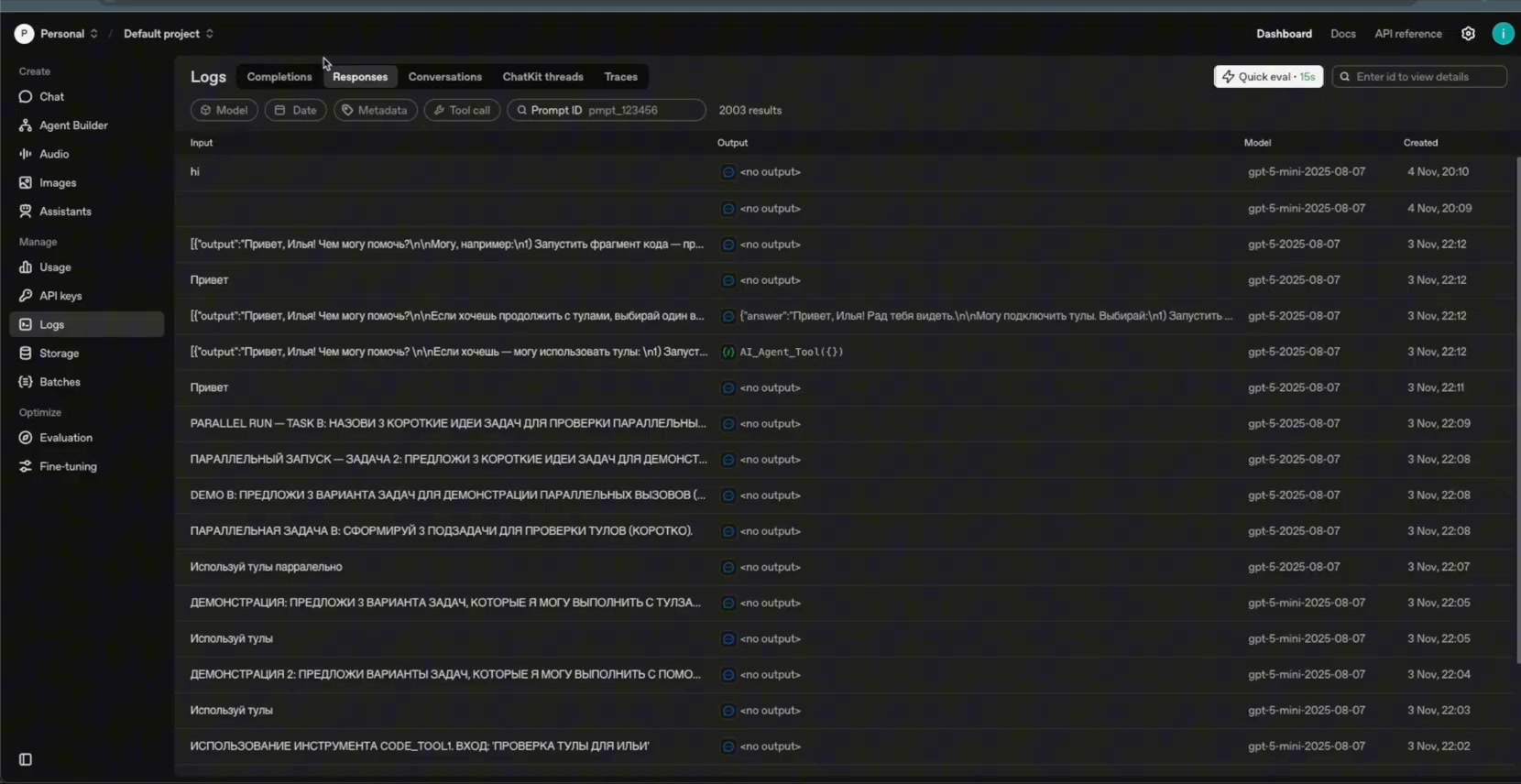
After the test, open the OpenAI dashboard logs and check the Responses tab. Seeing the request there confirms that this workflow is using the Responses API path, not a regular Chat Completions-only flow.
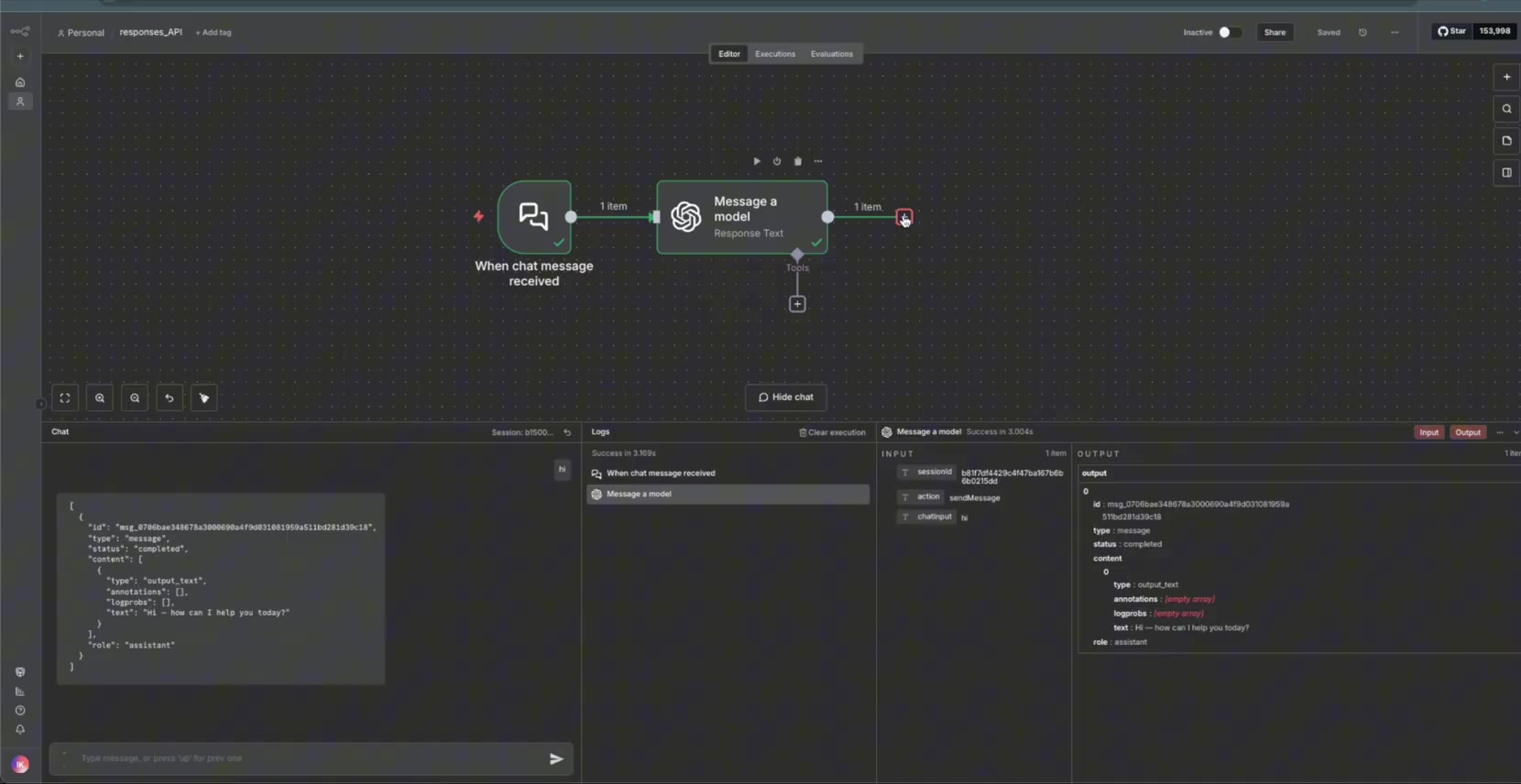
Now connect the chat input into the OpenAI node and run another test through the workflow canvas.
Step 3: Add Data Table Memory
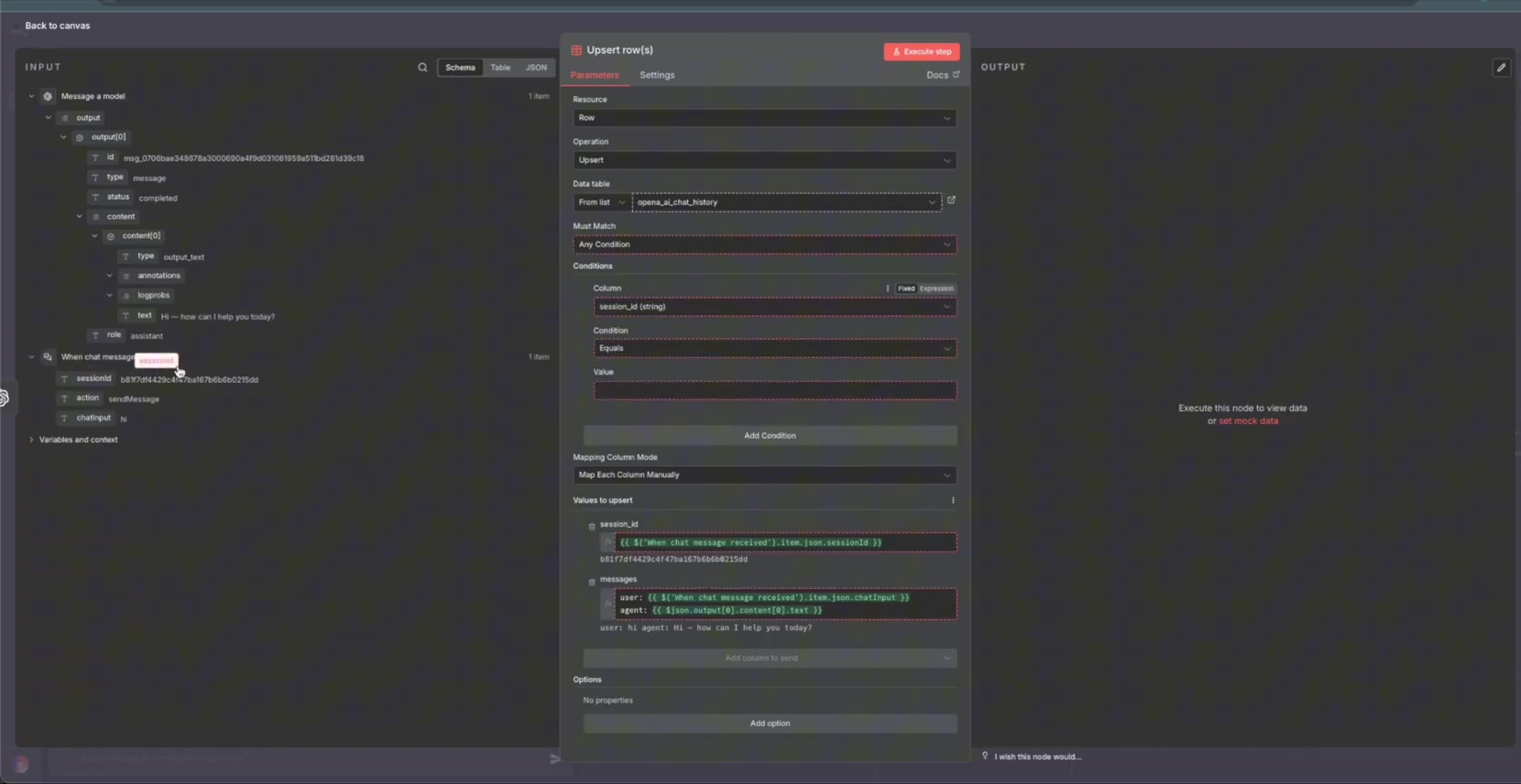
A single model call does not automatically give your n8n workflow long-term chat memory. For this project, the memory layer is a simple n8n Data Table. The workflow upserts one row per session, meaning it creates the row if it does not exist and updates the same row if it already exists.
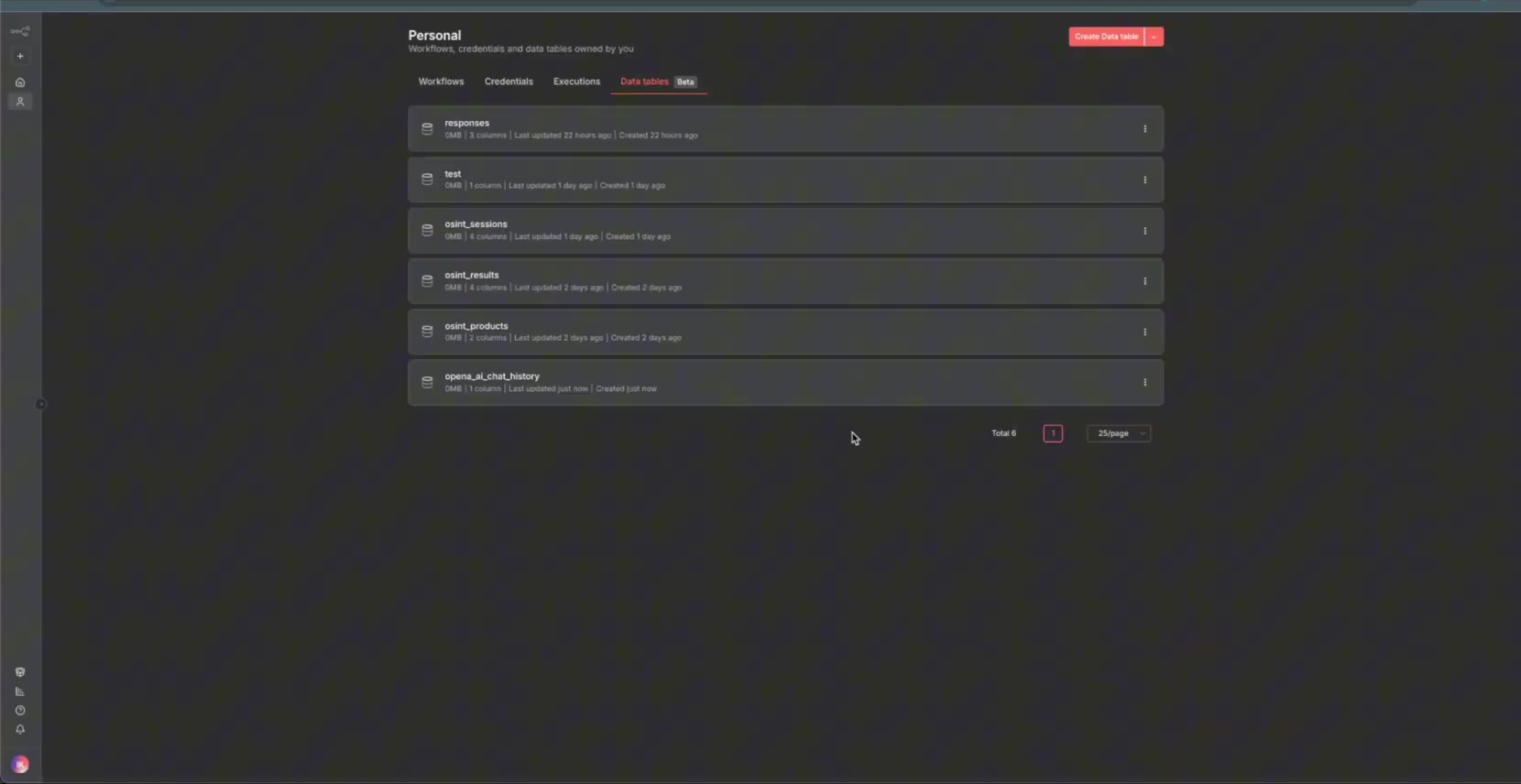
Create a new table for chat history. A simple name like openai_ai_chat_history makes the purpose clear.
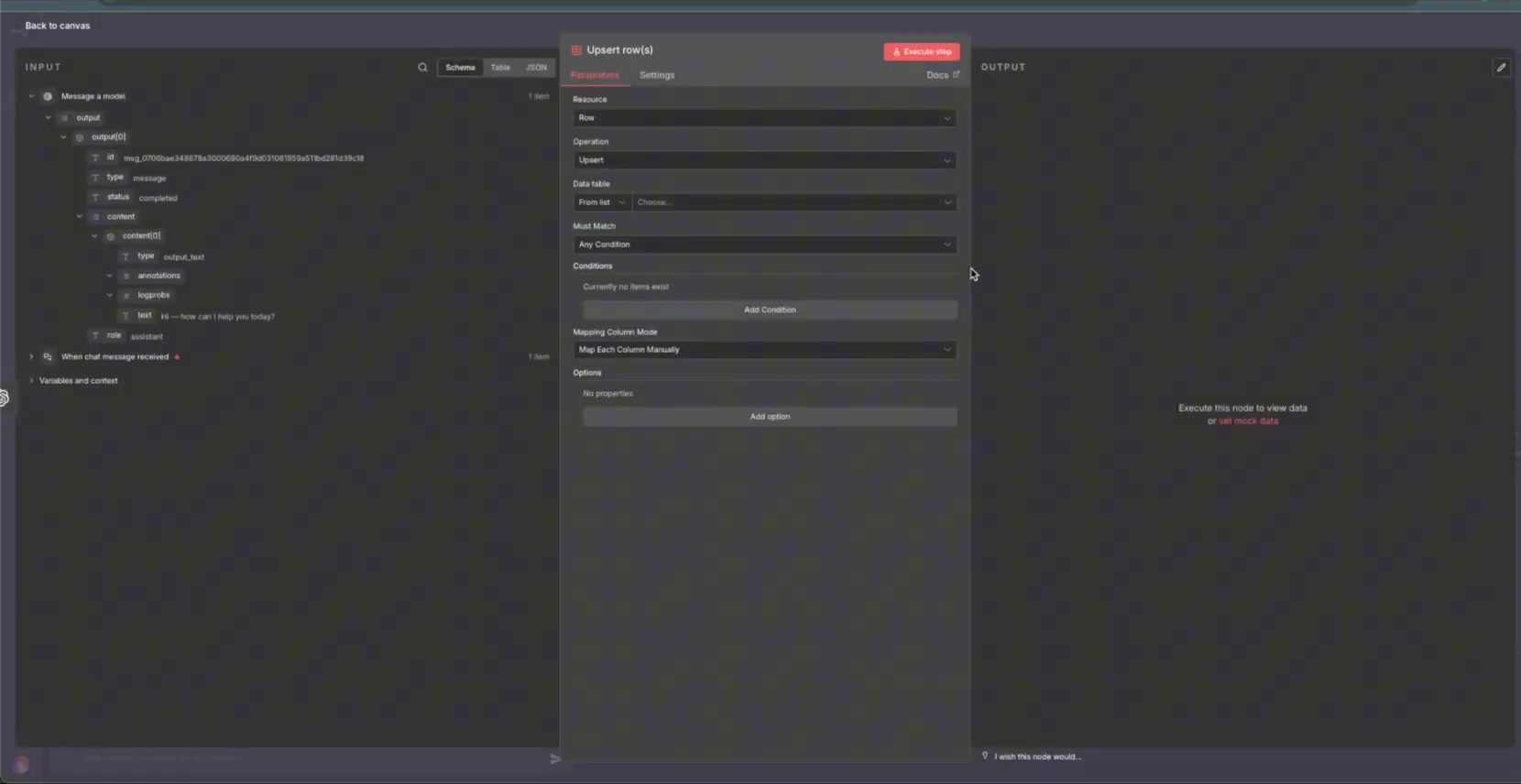
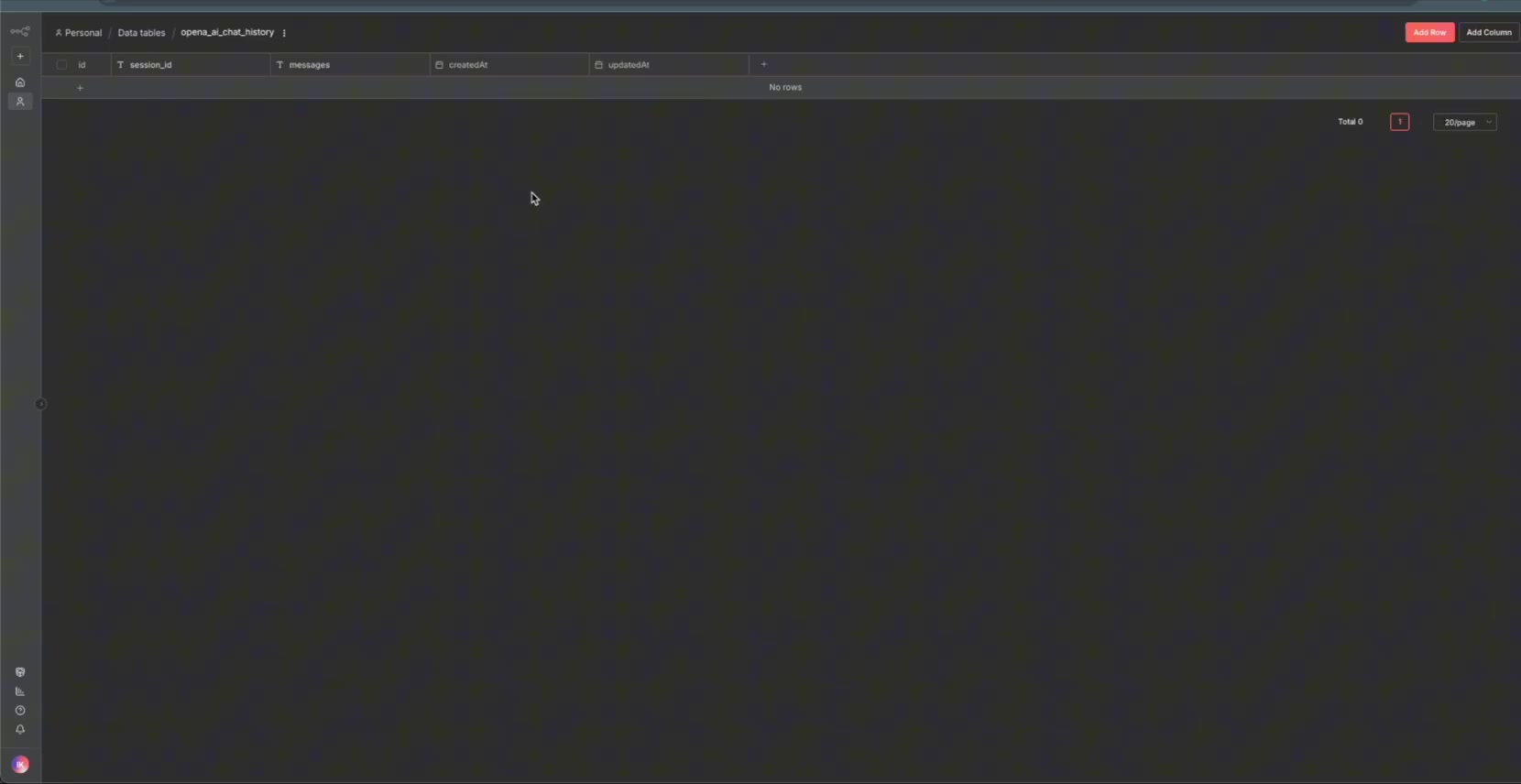
Add two important columns: one for the session ID and one for the message history. The session ID is the lookup key that keeps different chat sessions separate.
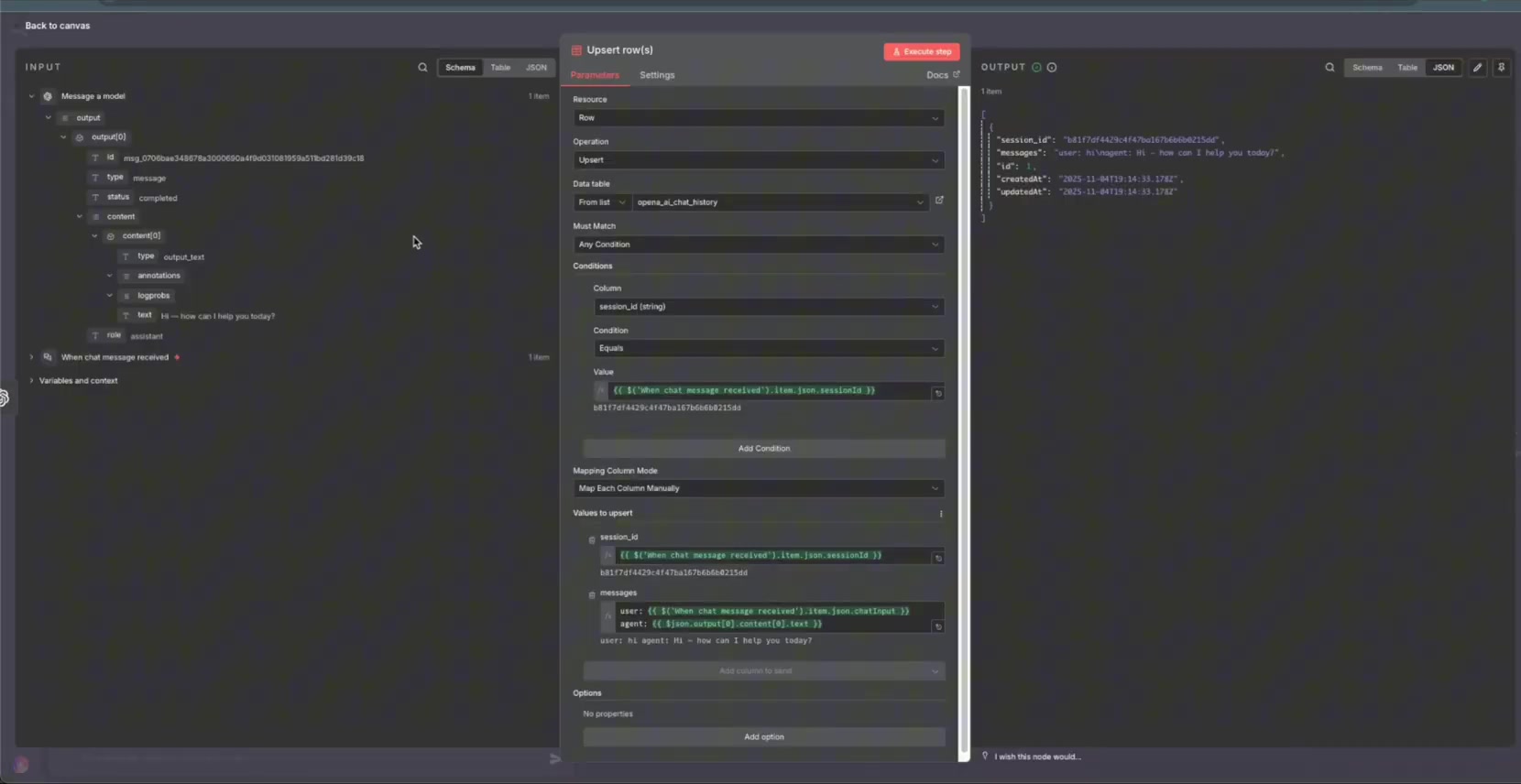
Next, map the incoming session ID and messages into the table. The stored history should include both sides of the conversation: the user message and the assistant response.
Configure the upsert condition so the workflow matches rows by session ID. This prevents the table from creating a new row for every message in the same conversation.
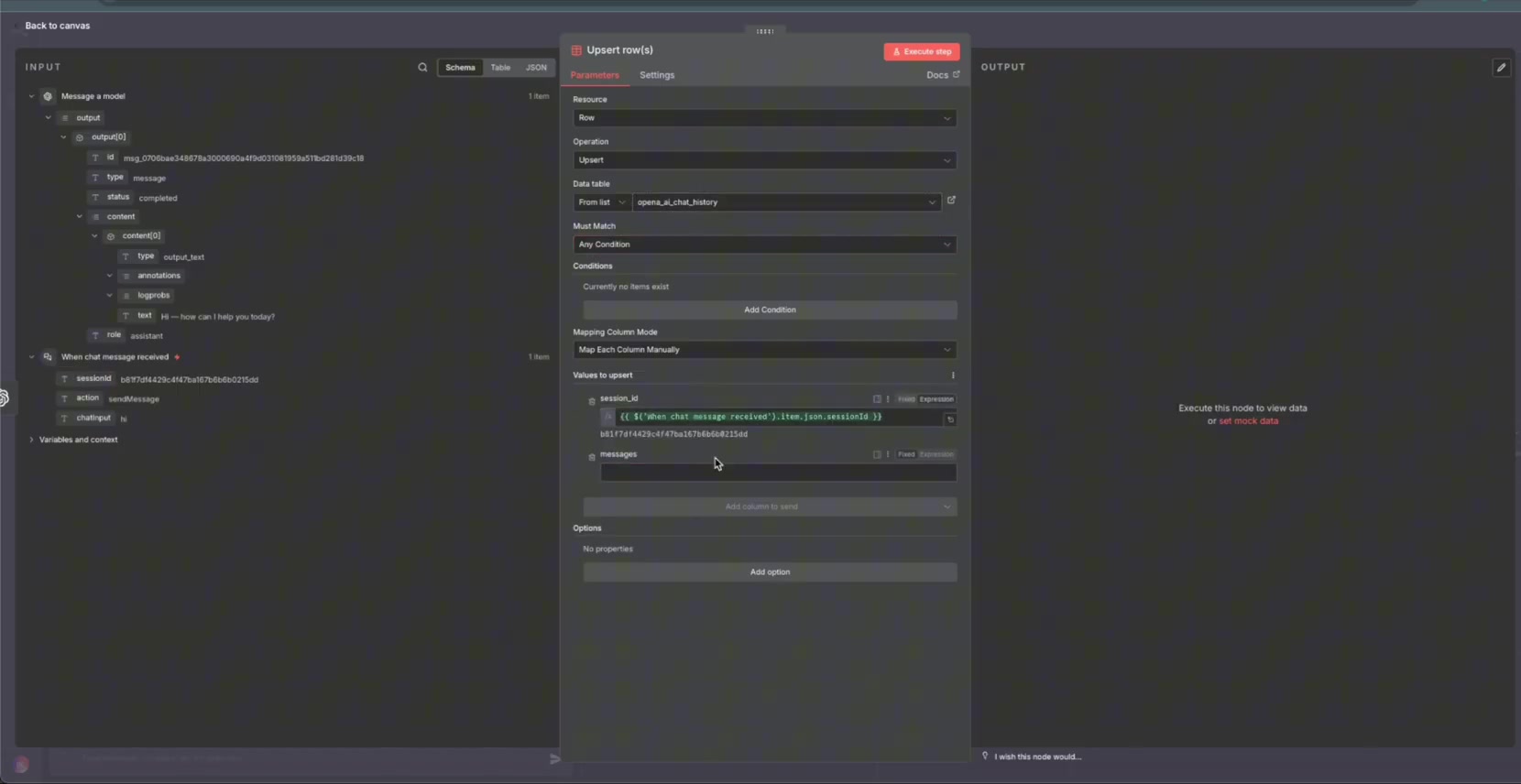
Run the workflow and confirm that a row appears in the Data Table. At this point, the workflow can save memory, but it still needs to retrieve that memory before each new model call.
Step 4: Fetch History Before the Model Runs
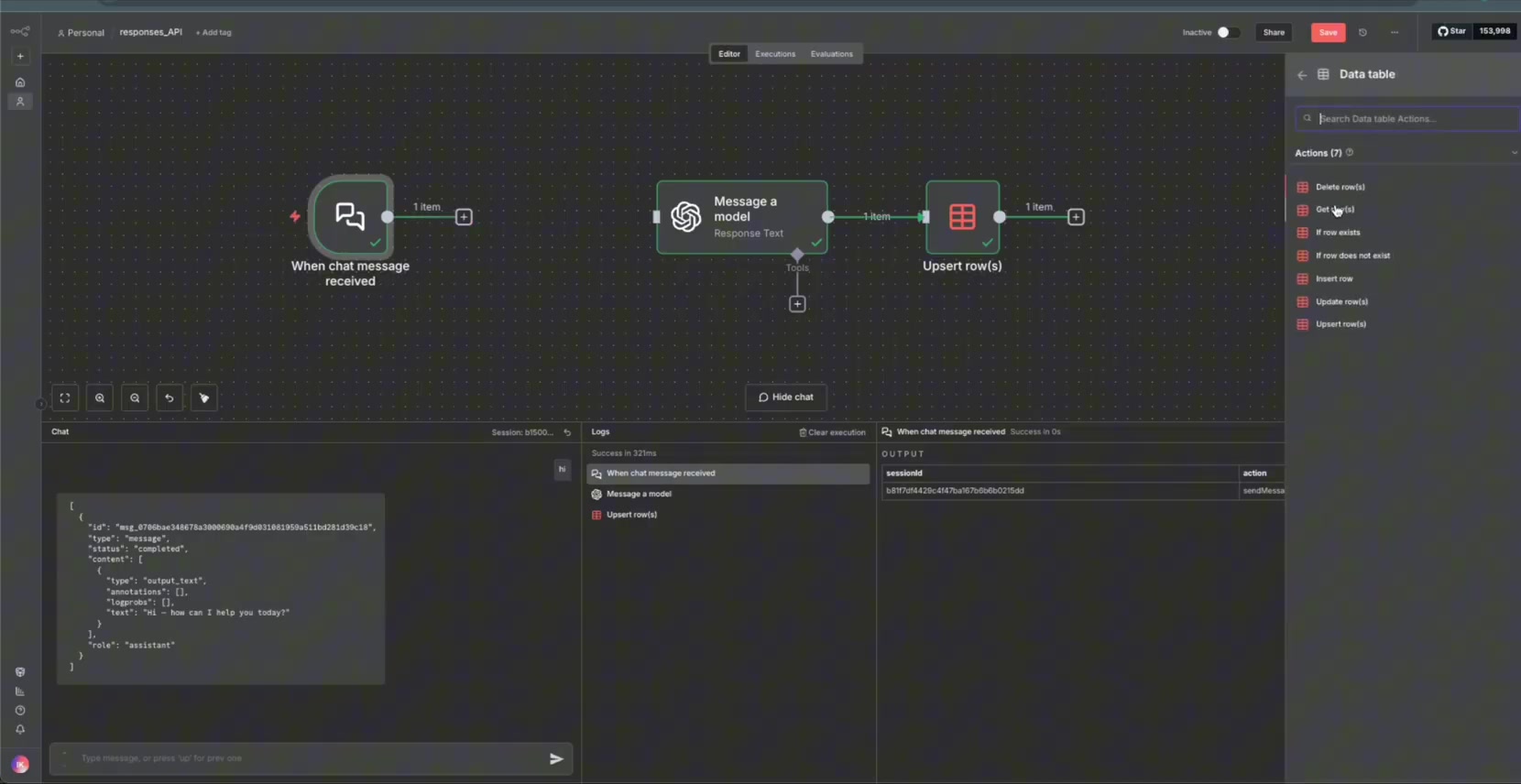
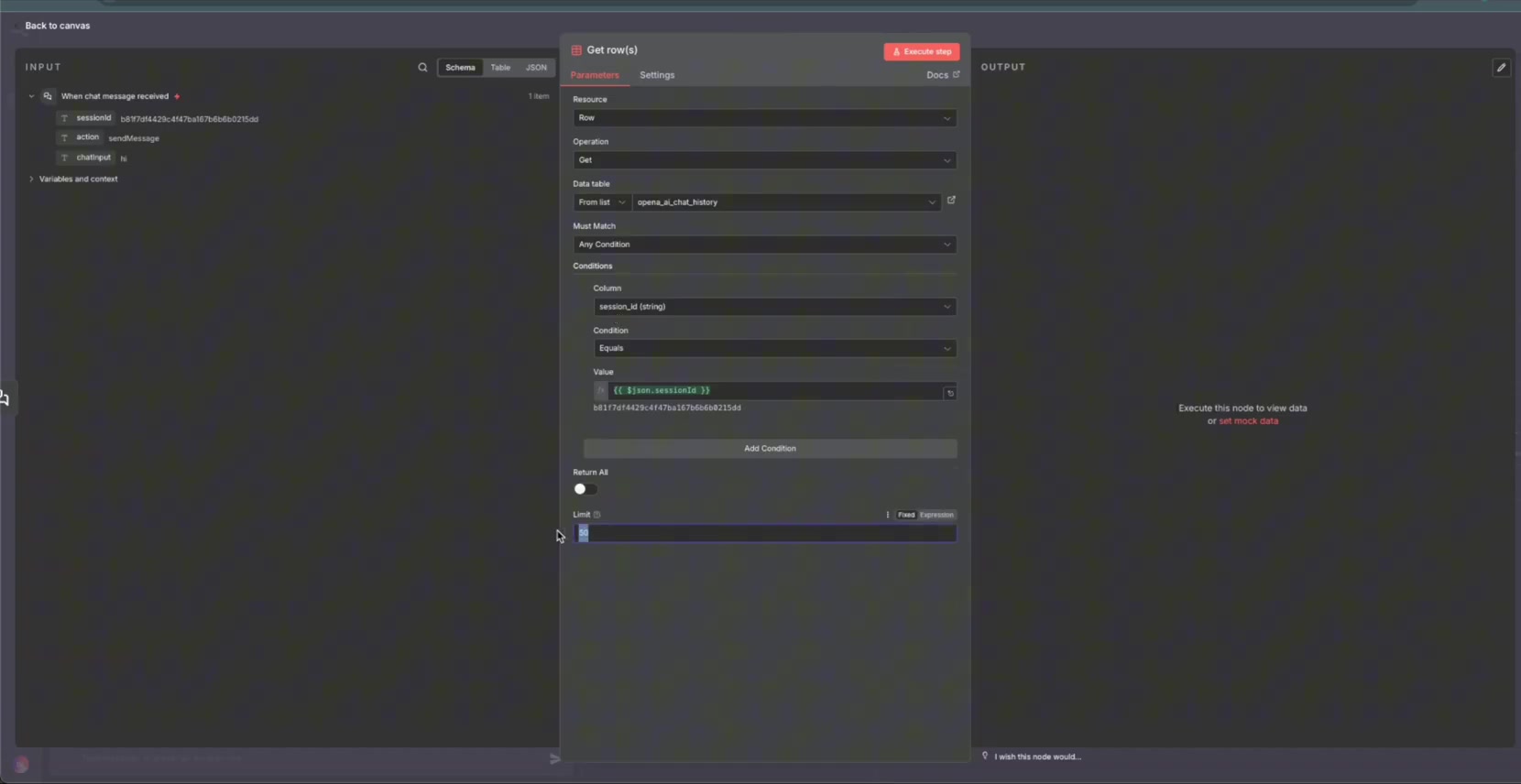
Add another Data Table node before the OpenAI node. This node retrieves the stored chat history for the current session.
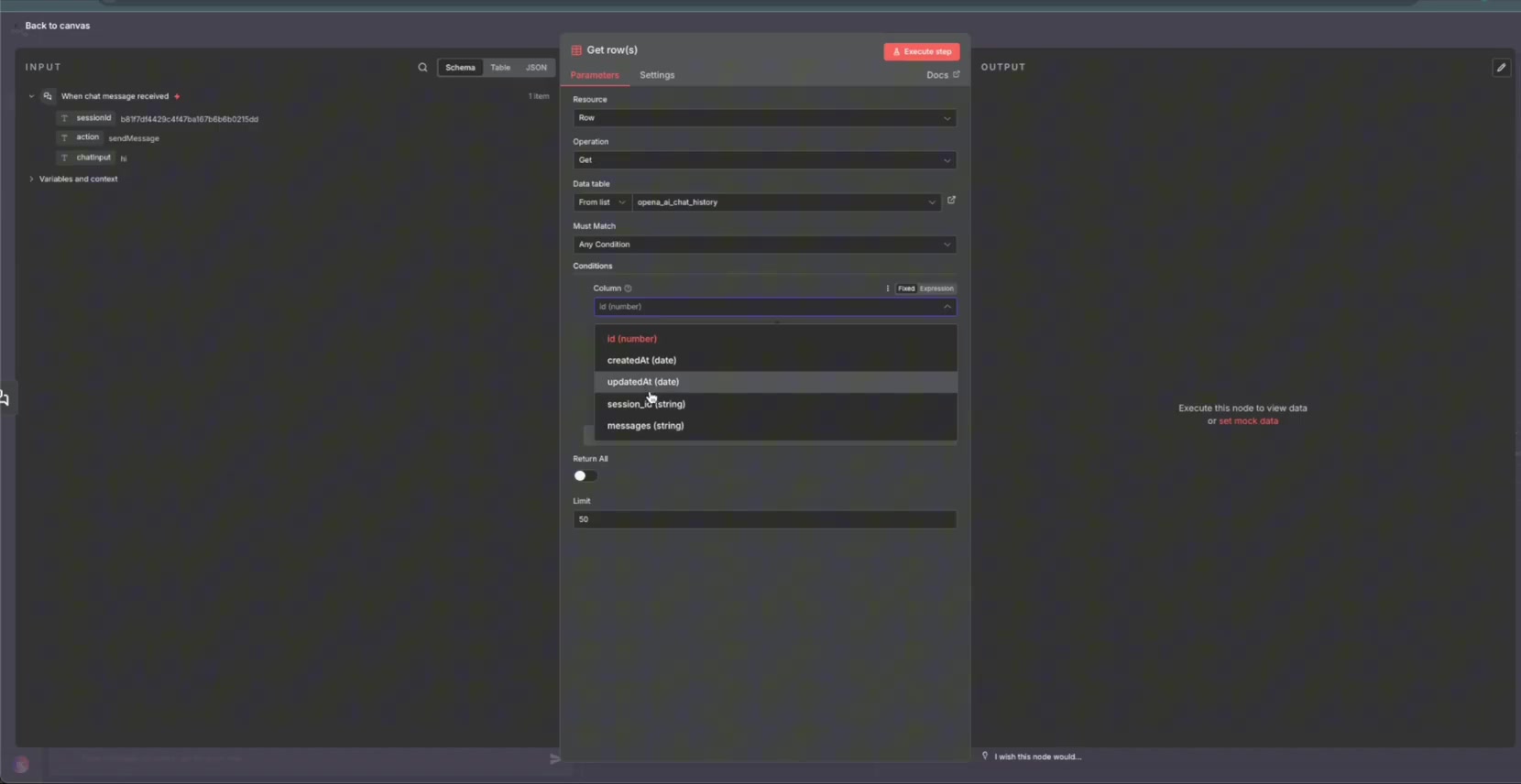
Filter the lookup by the current session ID using an expression from the incoming chat trigger data.
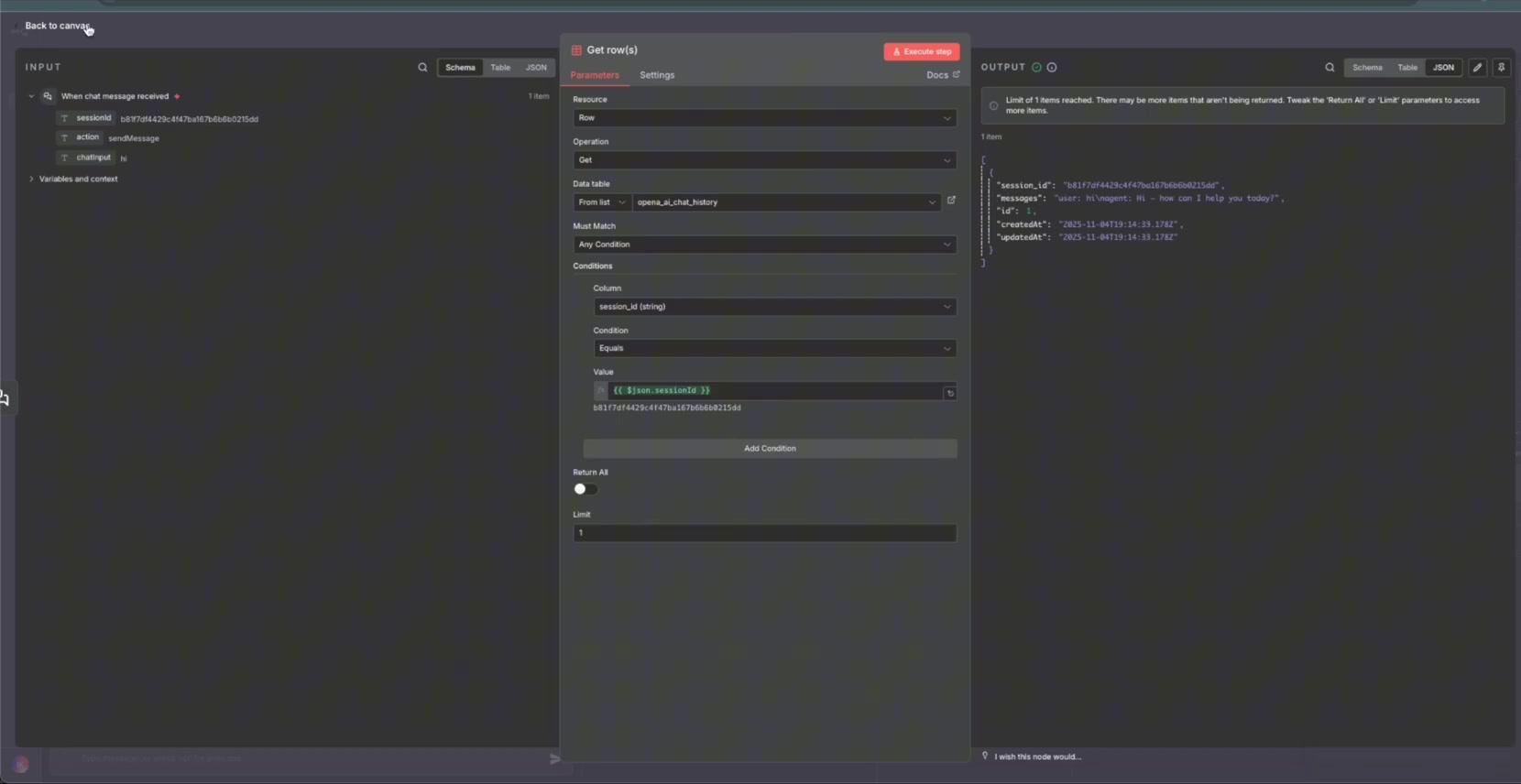
Because each session should only have one memory row, limit the query to one result.
Connect the history lookup into the OpenAI node. The model can now receive both the current user message and the previously stored conversation.
Step 5: Pass History into the OpenAI Node
In the OpenAI node, add a system message that explicitly labels the retrieved value as chat history. Then pass the message history field from the Data Table into that system message.
For production, this manual history string should be cleaned up. A stronger version would store messages as structured JSON, trim old turns, summarize older context, and handle empty history safely when a session is brand new.
Step 6: Test Whether the Bot Remembers
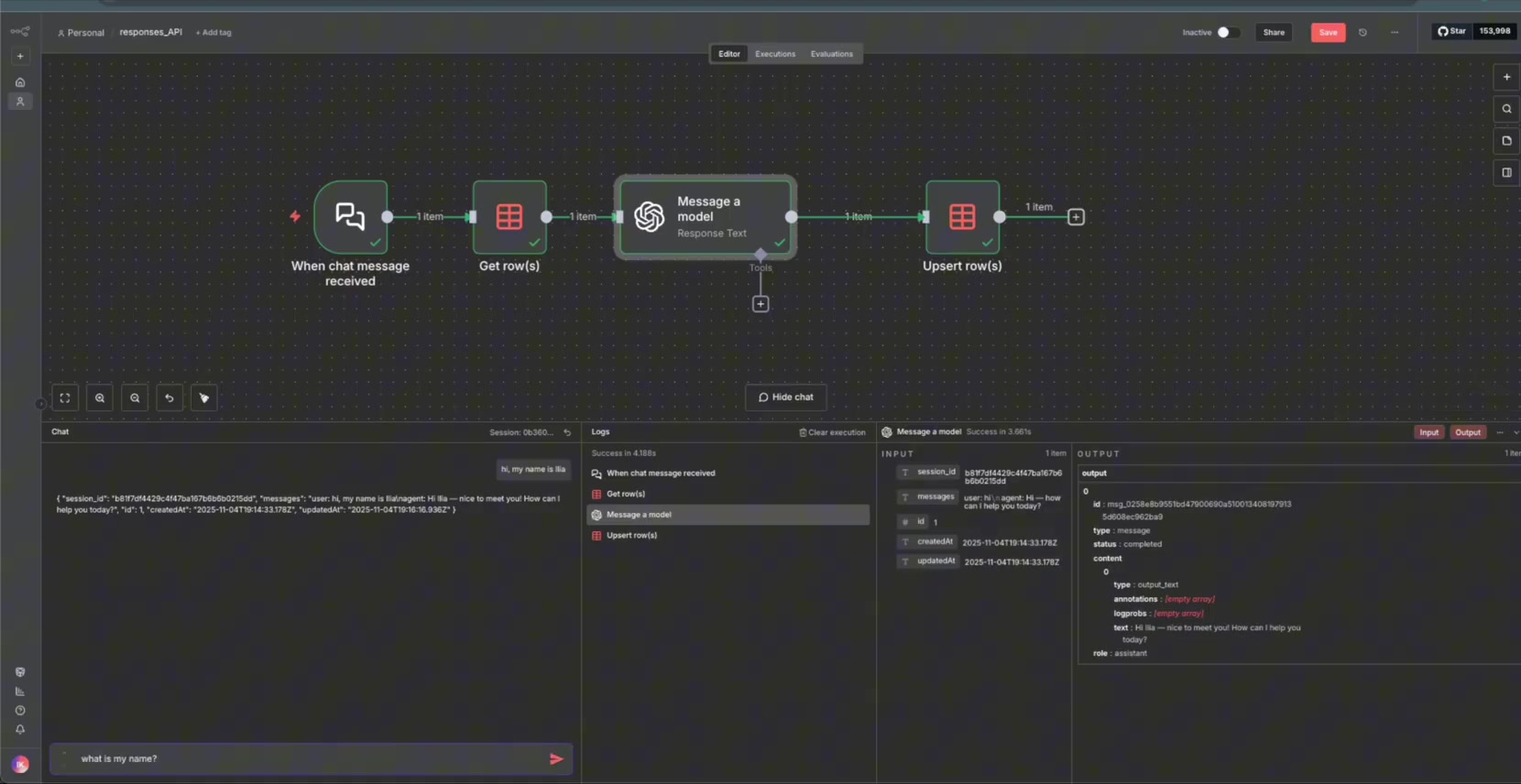
Send a message that introduces a fact, such as Hi, my name is Ilia. This creates a clear memory test for the next turn.
After the model replies, the upsert step stores the user message and assistant reply in the table.
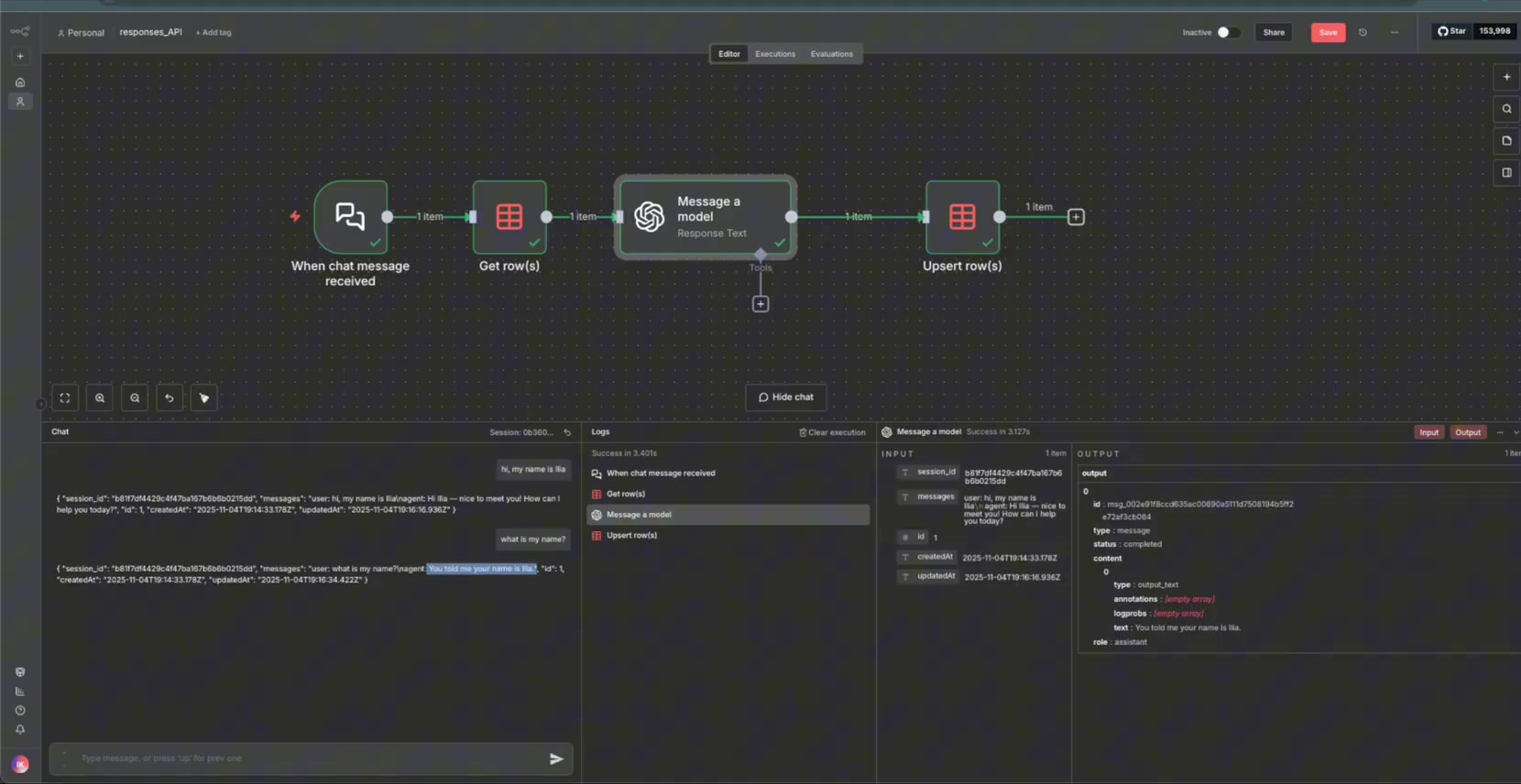
Now ask a follow-up question like What is my name?. If the table lookup and system history are working, the model should use the stored conversation to answer.
The model answers with the name from the earlier turn, which confirms that the manually stored chat history is being passed through successfully.
Step 7: Check Token Usage
Open the latest Responses log in the OpenAI dashboard. The dashboard shows input and output token usage for the request, which helps you understand the cost impact of passing chat history into the model.
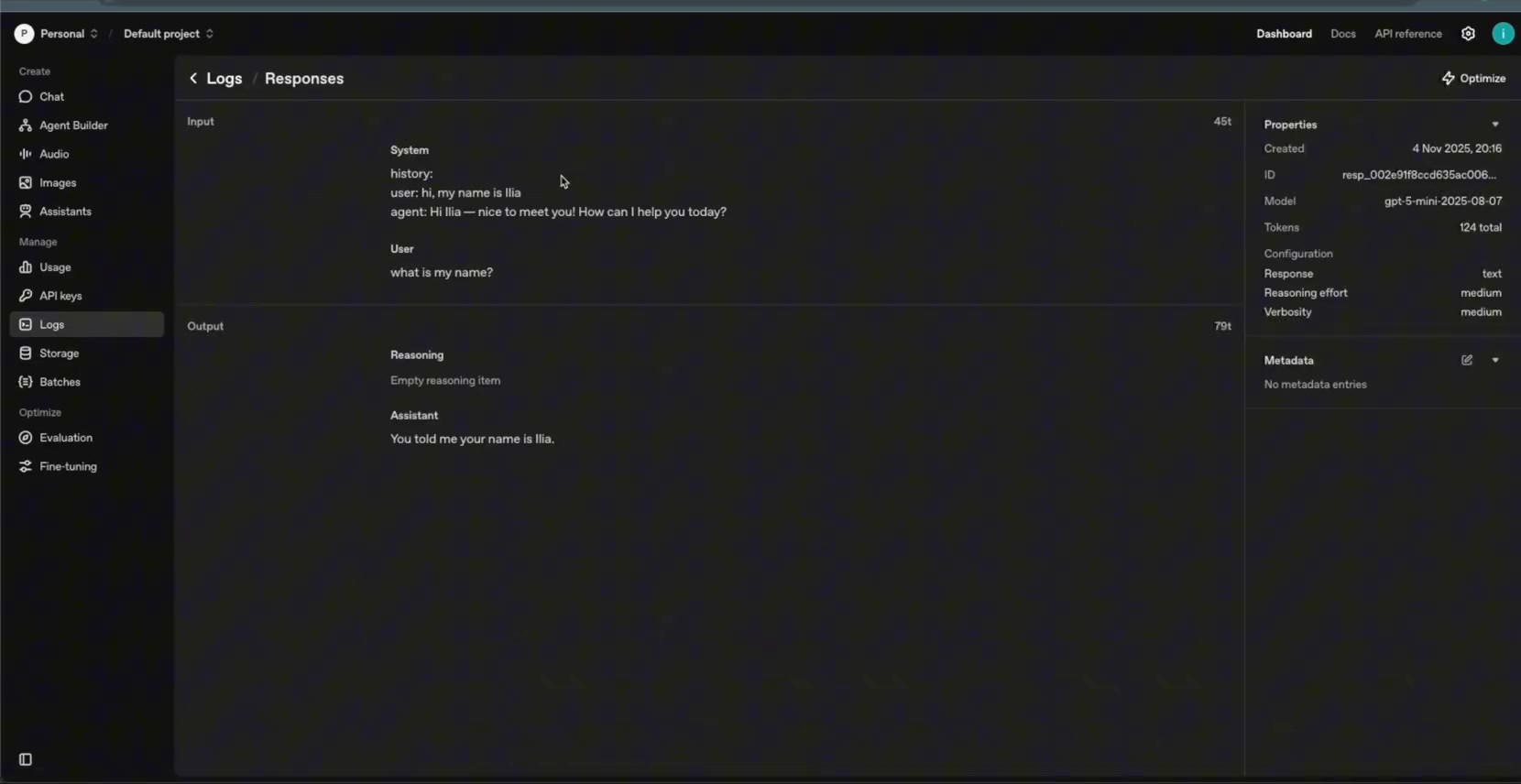
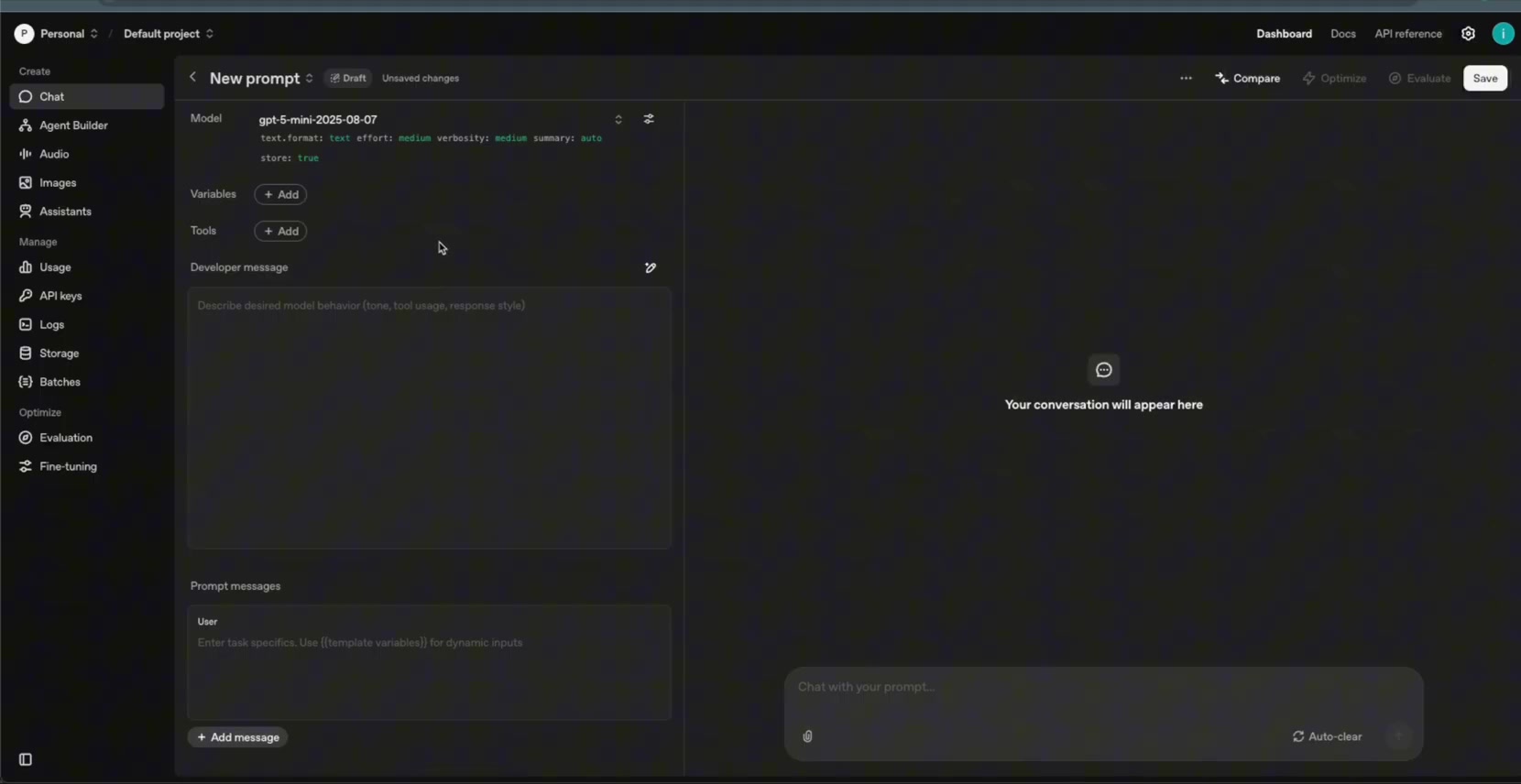
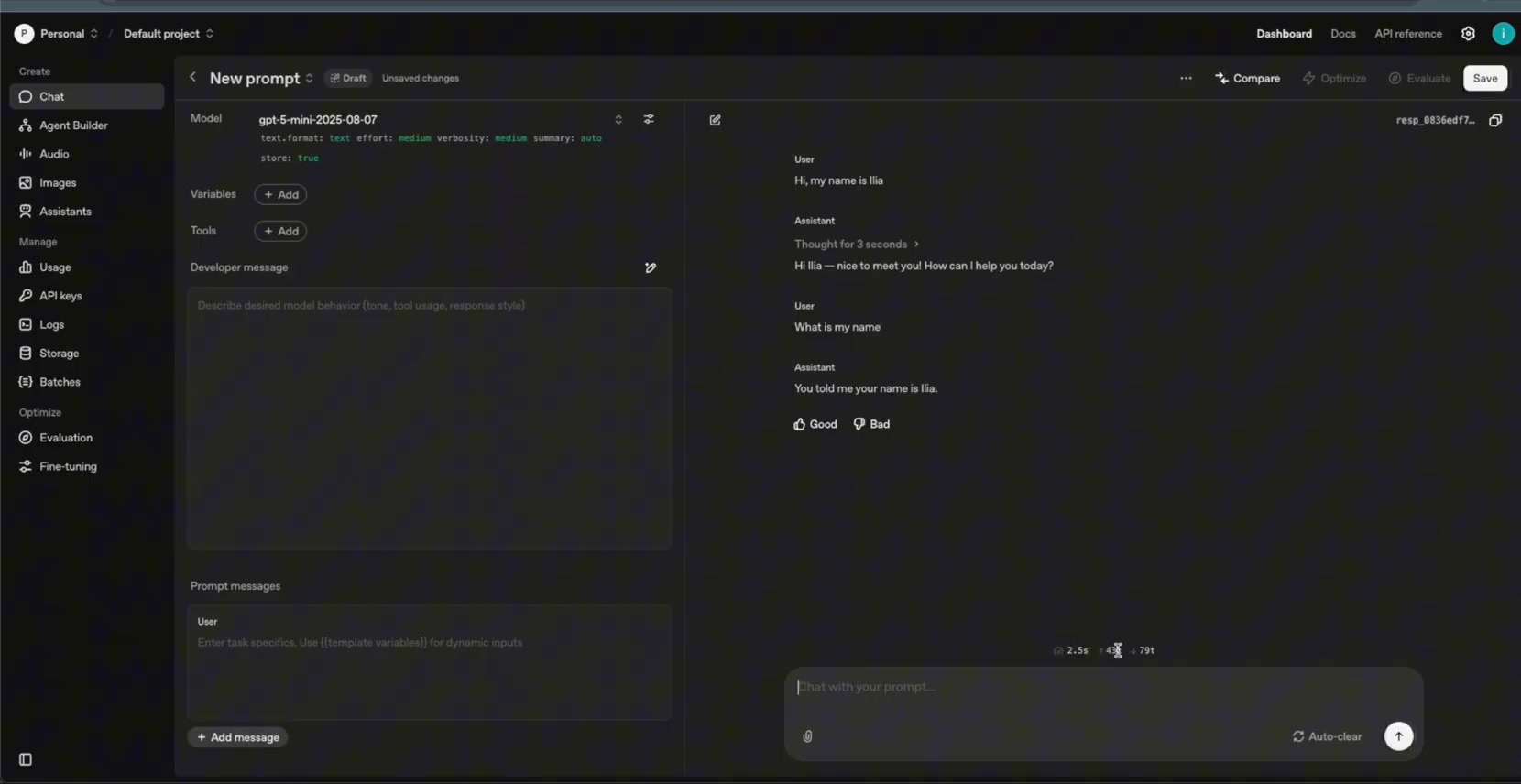
Then recreate the same chat inside the OpenAI Playground using the same model and similar settings.
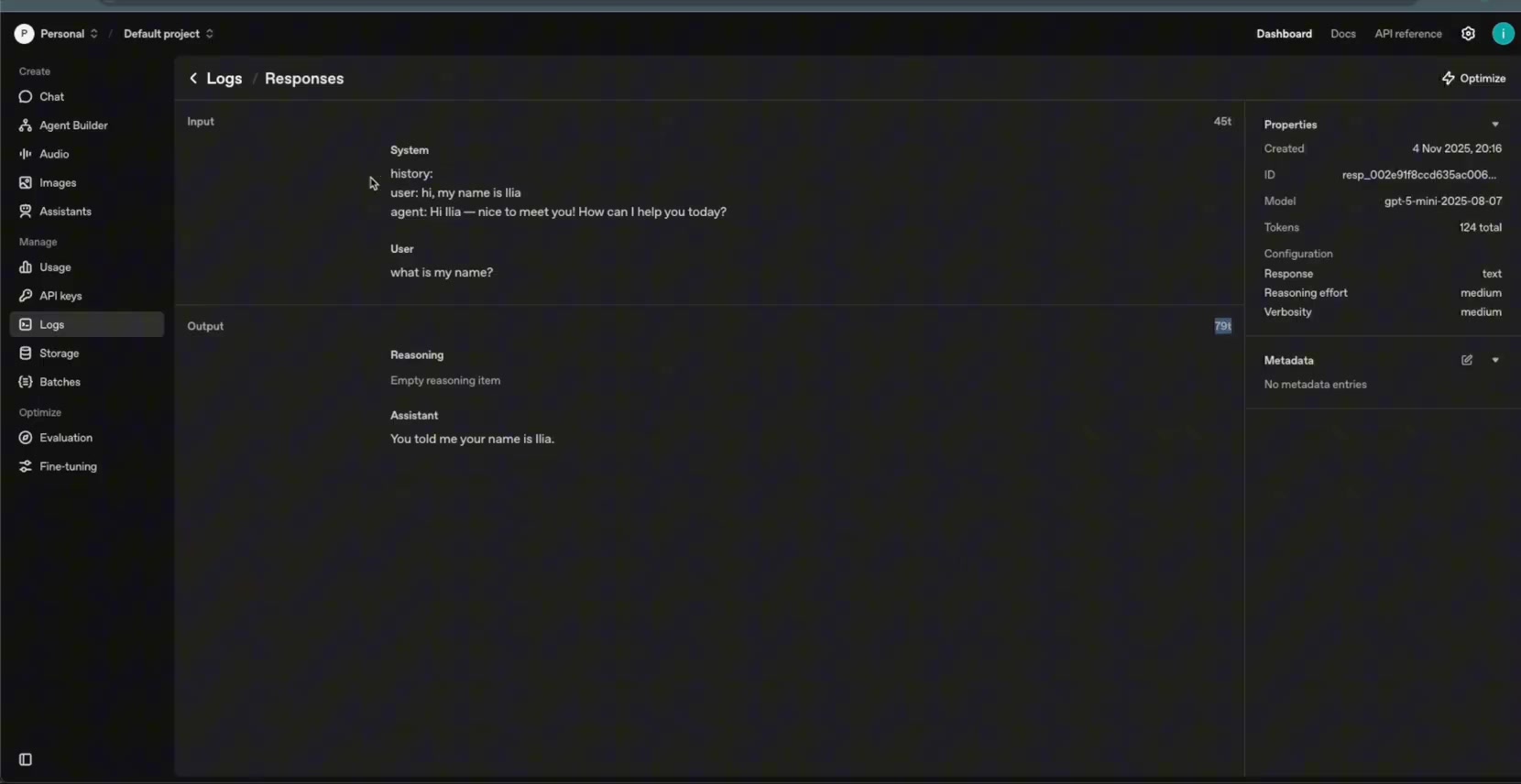
Compare the Playground token usage with the n8n-generated request. In the video, the counts are close, with small differences likely caused by the extra system message that labels the stored history.
Why This Matters
The value of using the Responses API path is not only text generation. OpenAI describes the Responses API as a unified interface for agent-like applications with built-in tools, multi-turn interactions, and multimodal support. n8n’s OpenAI node exposes more of that Responses API surface than a basic one-off prompt setup.
OpenAI’s official docs also note that built-in tools are configured through the tools parameter, and n8n’s docs list tools such as web search, file search, MCP servers, and code interpreter for compatible Responses API workflows. That makes this setup a useful foundation for richer AI automations.
Production Improvements to Make
- Store chat history as structured JSON instead of one long text string.
- Handle the first message in a session when no Data Table row exists yet.
- Trim or summarize older history so prompts do not grow forever.
- Use session IDs carefully so one user’s chat never leaks into another user’s session.
- Reconnect OpenAI credentials through n8n credentials rather than exposing API keys in plain text.
- Test token usage with real conversations before deploying the workflow to users.
As a next step, this same pattern can be expanded into multi-agent workflows where different OpenAI nodes or agents share memory, use tools, and pass results between each other.
Useful References
For current behavior, check the official documentation: OpenAI guide to the Responses API, OpenAI conversation state guide, OpenAI tools guide, n8n OpenAI Chat Model node docs, and n8n OpenAI Text operations docs.

Olaitan Oladipo holds a BSc in Sociology from Olabisi Onabanjo University. He is a self-taught automation builder who has spent years inside n8n doing the work that most tutorials skip: debugging OAuth errors at 2am, migrating client automations from Make.com mid-project, fighting reverse proxy misconfigurations on AWS EC2, and figuring out through trial and error what actually holds up in production versus what only looks clean in a demo.
He is not a developer by training and not a SaaS founder. He is the person in the Discord server who actually answers the question instead of linking to the docs.
His writing on n8n Automation Tutorial covers self-hosting, AI agent workflows, tool comparisons, and the security vulnerabilities the automation industry would rather not discuss. He has built AI-assisted invoice approval flows using OpenAI function calling, connected Claude via HTTP Request nodes, and holds considered opinions about Zapier, Make.com, LangChain, and CrewAI that their marketing teams would not appreciate.
He writes for people who are technical enough to follow a tutorial but experienced enough to want the honest version.