


When a self-hosted n8n AI Agent cannot use a community package tool, one of the most important settings to check is N8N_COMMUNITY_PACKAGES_ALLOW_TOOL_USAGE. This environment variable tells n8n that community package nodes are allowed to behave as AI tools, which is especially important for MCP-related workflows.
This article continues directly after the guide on fixing the n8n Google verification access blocked error. Here, the focus is not Google OAuth; it is the n8n self-hosting setting that allows AI Agents to call community tools safely.
What This Setting Fixes
The common symptom is an AI Agent workflow that tries to list or call MCP tools and fails with an unrecognized community package tool error. The node package may already be installed, but n8n still needs explicit permission before community package tools can be used by agents.

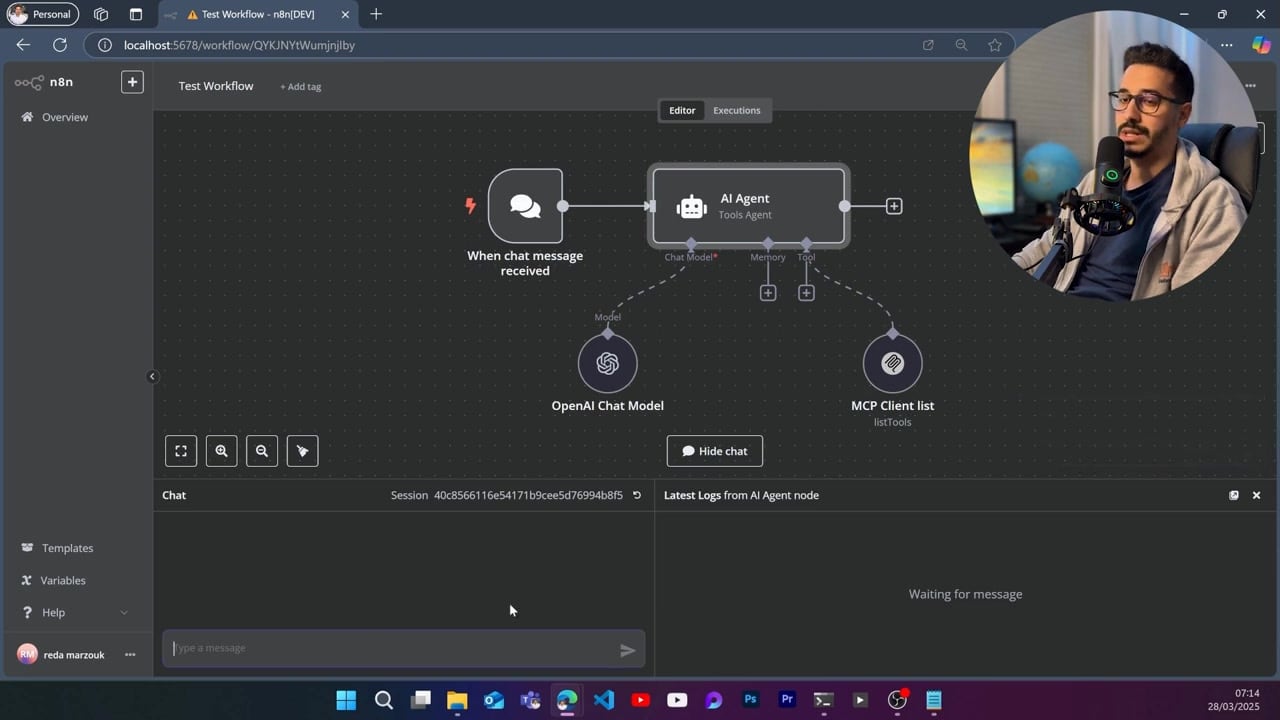
This setting matters because AI tools are more powerful than ordinary workflow nodes. A community tool can expose external actions to an AI Agent, so n8n requires the self-hosted administrator to allow that behavior deliberately instead of enabling it silently.
Step 1: Stop n8n First
Environment variables are read when the n8n process starts. If n8n is already running, changing the value in a terminal or compose file will not affect the current process until you restart it.
docker compose downIf you run n8n with npm, stop the running process with Ctrl + C. If it is running as a system service, stop the service before updating the environment file used by that service.
Step 2: Set N8N_COMMUNITY_PACKAGES_ALLOW_TOOL_USAGE
For a quick local test, set the variable in the same shell session that will start n8n.
# macOS or Linux
export N8N_COMMUNITY_PACKAGES_ALLOW_TOOL_USAGE=true

# Windows Command Prompt
set N8N_COMMUNITY_PACKAGES_ALLOW_TOOL_USAGE=true

# Windows PowerShell
$env:N8N_COMMUNITY_PACKAGES_ALLOW_TOOL_USAGE="true"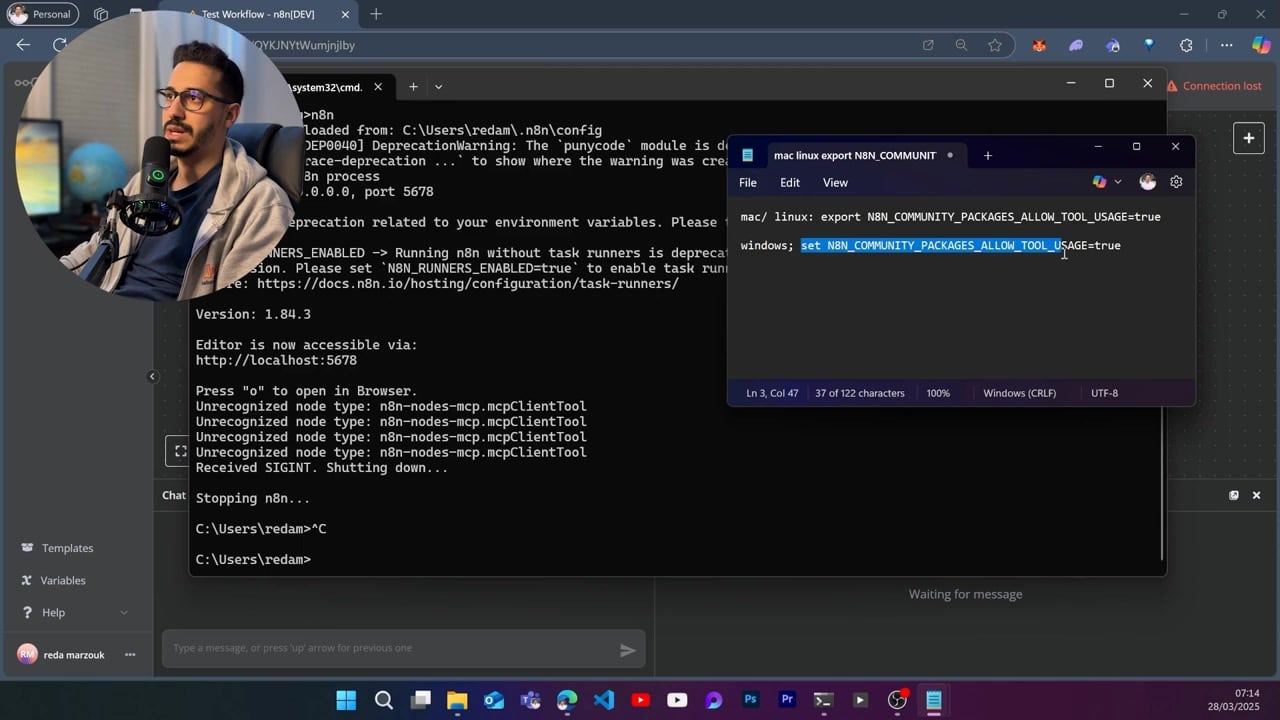
For a persistent Docker Compose setup, add the variable to the environment section of the n8n service.
services:
  n8n:
    image: docker.n8n.io/n8nio/n8n
    environment:
      - N8N_COMMUNITY_PACKAGES_ALLOW_TOOL_USAGE=true
If your stack uses a separate .env file, put the variable there and reference it from Docker Compose. The important rule is simple: the variable must be visible to the actual n8n process, not only typed into a separate terminal that does not start n8n.
Step 3: Start n8n Again
After saving the change, start n8n again.
docker compose up -dFor npm-based installs, start n8n from the same terminal session where the variable was exported.
n8n startStep 4: Refresh the Editor and Test the Tool
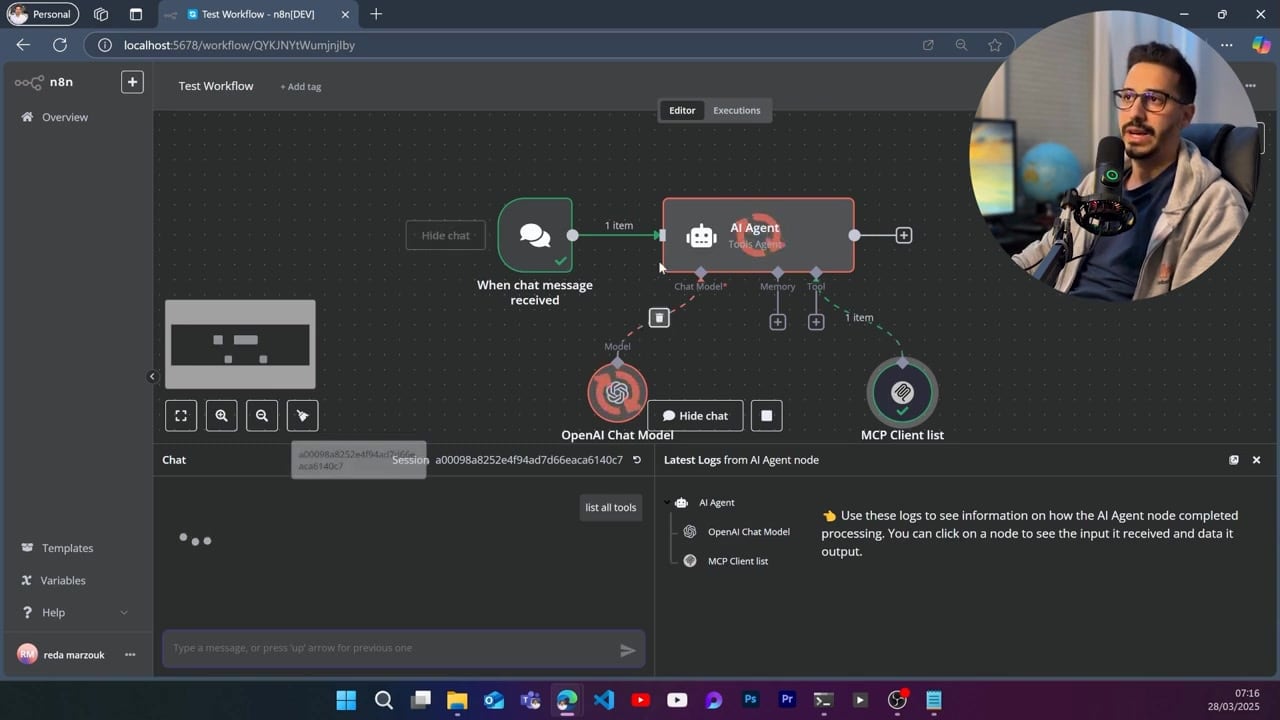
Open the workflow again, refresh the browser, and run a small test. A good first test is asking the AI Agent to list available MCP tools. If the setting is correct and the MCP server is reachable, n8n should call the tool instead of failing at the node type level.
Docker Compose Checklist
- Confirm you edited the compose file that actually launches the running n8n container.
- Confirm the variable is inside the n8n service, not inside Redis, Postgres, or another service.
- Restart the container after saving the variable.
- Refresh the n8n editor after the restart so the frontend reloads available node definitions.
- Check container logs if the MCP tool still fails after the setting is enabled.
Common Mistakes
The most common mistake is adding the variable but not restarting n8n. The second most common mistake is adding it to the wrong place. For example, if n8n is managed by Docker Compose, setting the variable in a random PowerShell window will not affect the container. Put it in Compose, Portainer, Coolify, Easypanel, Railway, Render, or whichever platform actually starts the container.
Another mistake is assuming this setting replaces community node installation. It does not. The package still needs to be installed and available. This variable only allows installed community package tools to be used by AI Agents.
Security Note
Only enable community package tool usage on a self-hosted instance you control. Community tools can extend what an AI Agent is allowed to do, so do not install random packages on a production instance unless you understand what they can access.
References
Official references used for accuracy: n8n community nodes installation, n8n MCP Client Tool documentation, and n8n configuration methods.


Olaitan Oladipo holds a BSc in Sociology from Olabisi Onabanjo University. He is a self-taught automation builder who has spent years inside n8n doing the work that most tutorials skip: debugging OAuth errors at 2am, migrating client automations from Make.com mid-project, fighting reverse proxy misconfigurations on AWS EC2, and figuring out through trial and error what actually holds up in production versus what only looks clean in a demo.
He is not a developer by training and not a SaaS founder. He is the person in the Discord server who actually answers the question instead of linking to the docs.
His writing on n8n Automation Tutorial covers self-hosting, AI agent workflows, tool comparisons, and the security vulnerabilities the automation industry would rather not discuss. He has built AI-assisted invoice approval flows using OpenAI function calling, connected Claude via HTTP Request nodes, and holds considered opinions about Zapier, Make.com, LangChain, and CrewAI that their marketing teams would not appreciate.
He writes for people who are technical enough to follow a tutorial but experienced enough to want the honest version.


