
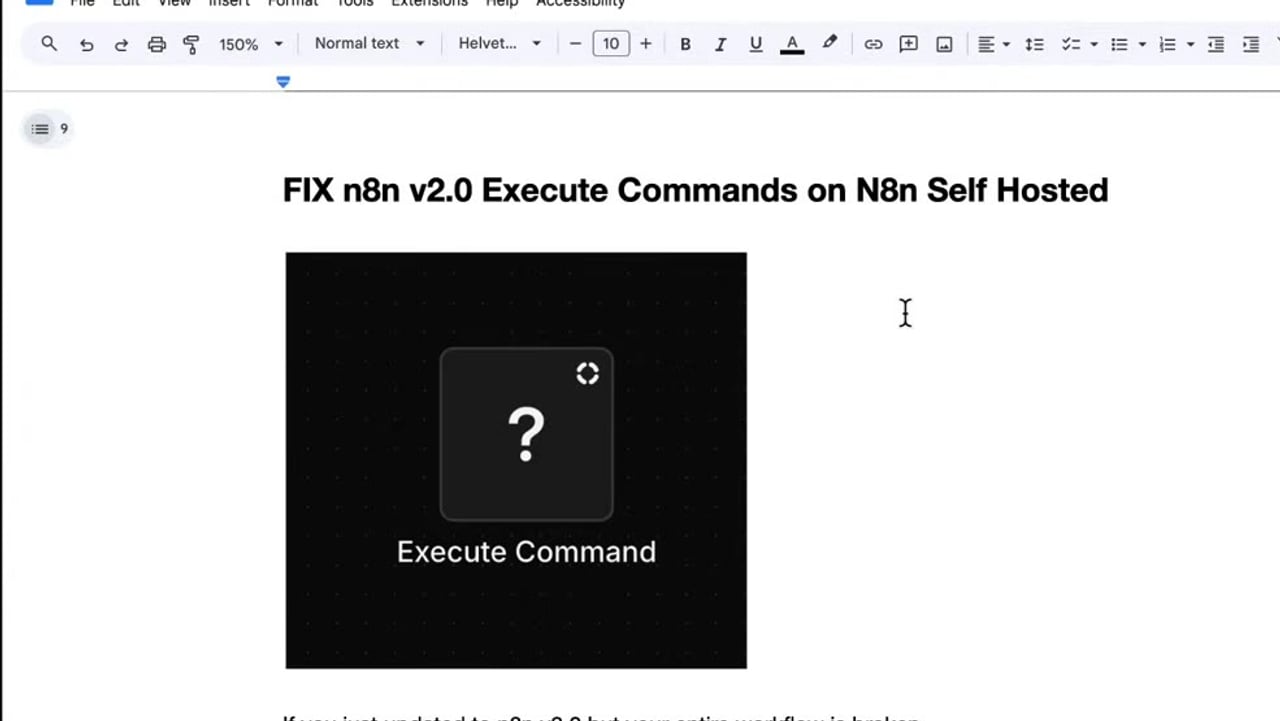
After updating a self-hosted n8n instance to version 2.x, some workflows can open with a broken node that says Unrecognized node type n8n-nodes-base.executecommand. This usually happens because the Execute Command node is blocked by default for security reasons, so n8n no longer loads it until you explicitly allow it.
This fix is for self-hosted n8n only. If you are still setting up your local or server instance, start with the previous guide on n8n community license activation and npm self-hosting, then come back here once your instance is running.
Security warning: the Execute Command node can run shell commands on the machine or container running n8n. Only enable it on trusted self-hosted instances where users and imported workflows are controlled.
What the Error Means
The error does not always mean the workflow file is corrupted. In n8n v2, Execute Command is treated as a high-risk node. Official n8n documentation says the node can introduce significant security risk and is disabled by default starting from version 2.0.
Step 1: Open Your Docker Compose File
On a Docker-based n8n install, open the folder that contains your docker-compose.yml or docker-compose.yaml file. The exact path depends on your host, but on many VPS setups you can list the current directory and then edit the compose file.
ls
nano docker-compose.yml
If your file is named docker-compose.yaml, use that filename instead.
Step 2: Remove Execute Command From the Excluded Nodes List
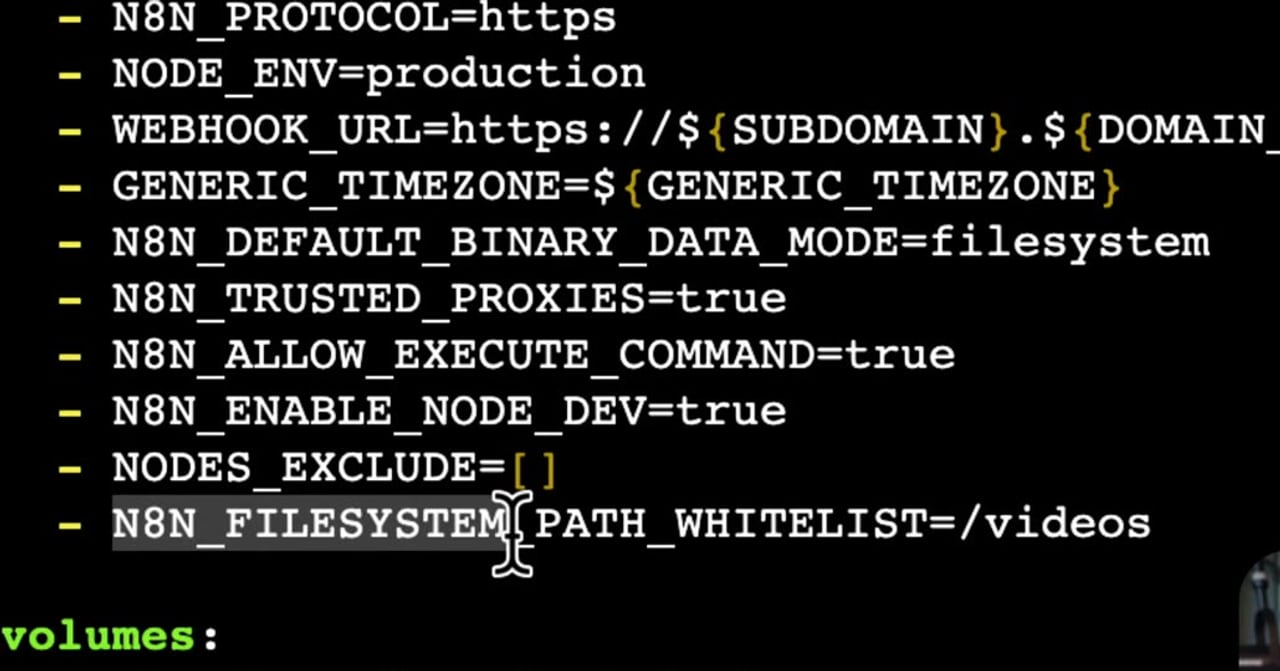
The key setting is NODES_EXCLUDE. n8n documentation lists n8n-nodes-base.executeCommand as excluded by default in v2. To enable all nodes, set the excluded nodes list to an empty array.
services:
  n8n:
    environment:
      - NODES_EXCLUDE=[]
Some older self-hosted templates also include values such as N8N_ALLOW_EXECUTE_COMMAND=true. The setting that matters in current n8n documentation is still NODES_EXCLUDE=[], because it tells n8n not to block the Execute Command node at startup.
Step 3: Fix Read and Write File Paths if They Also Broke
If the same workflow uses Read/Write Files from Disk nodes, you may also see file path errors after the update. This is separate from the Execute Command issue, but it often appears in the same self-hosted workflows because both features interact with the server filesystem.
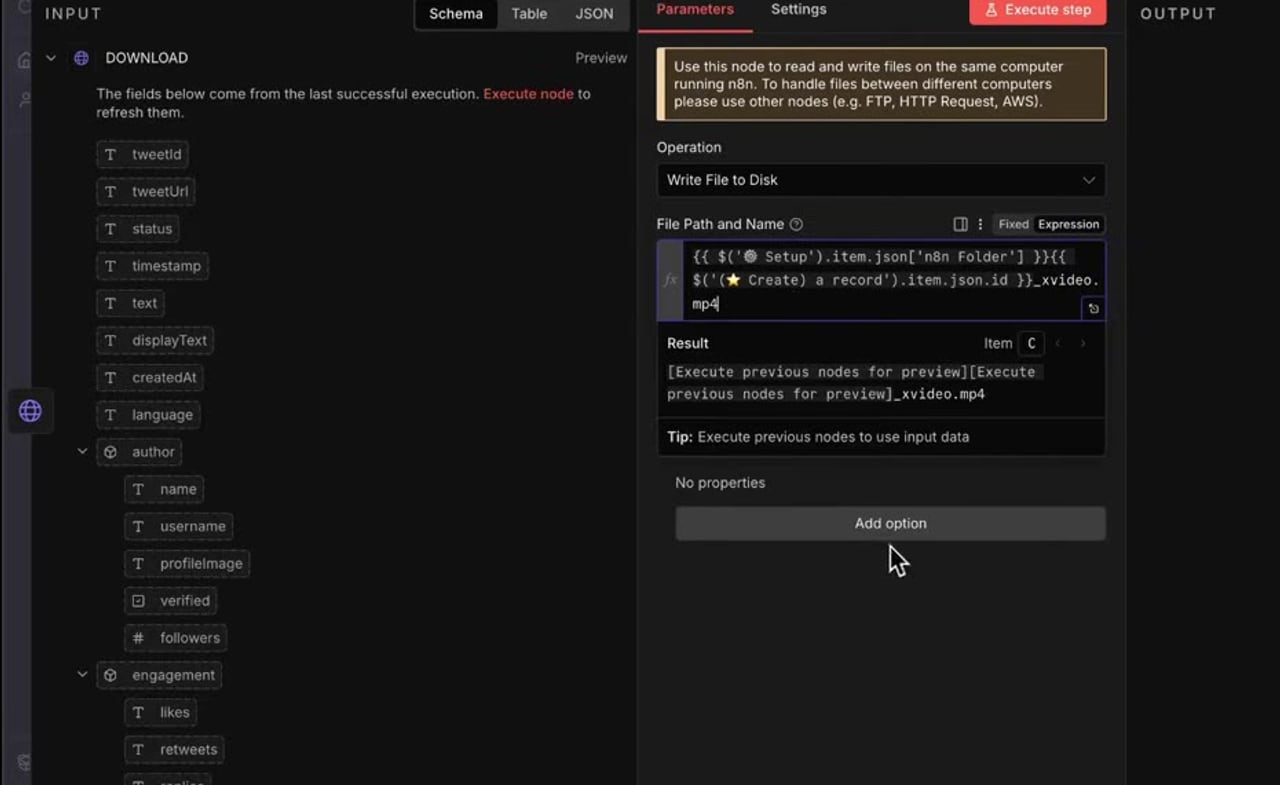
Remember the Docker rule: n8n sees paths inside the container, not automatically on the VPS host. A path such as /videos/file.mp4 only works if that path exists inside the container or is mapped with a volume.
Step 4: Mount a Safe Working Folder Into the Container
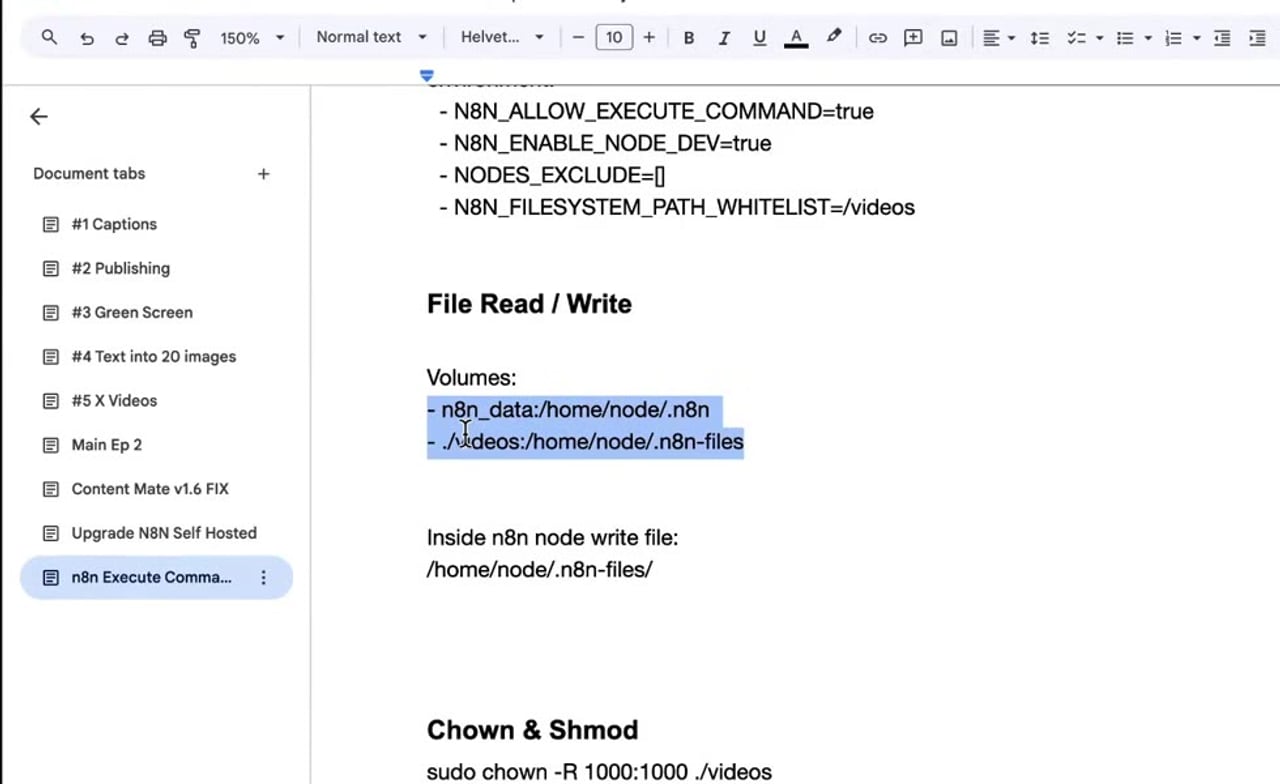
Add a volume mapping for the folder your workflow needs. The left side is the folder on the host. The right side is the folder path inside the n8n container.
services:
  n8n:
    volumes:
      - n8n_data:/home/node/.n8n
      - ./videos:/home/node/n8n-files
Then update your Read/Write Files from Disk nodes to use the container path, for example /home/node/n8n-files/output.mp4. If your existing workflow is built around another folder, map that folder deliberately instead of allowing arbitrary filesystem access.
Step 5: Restart n8n
Environment variables and volume mappings are loaded when the container starts. Saving the compose file is not enough. Restart n8n with Docker Compose.
docker compose down
docker compose up -d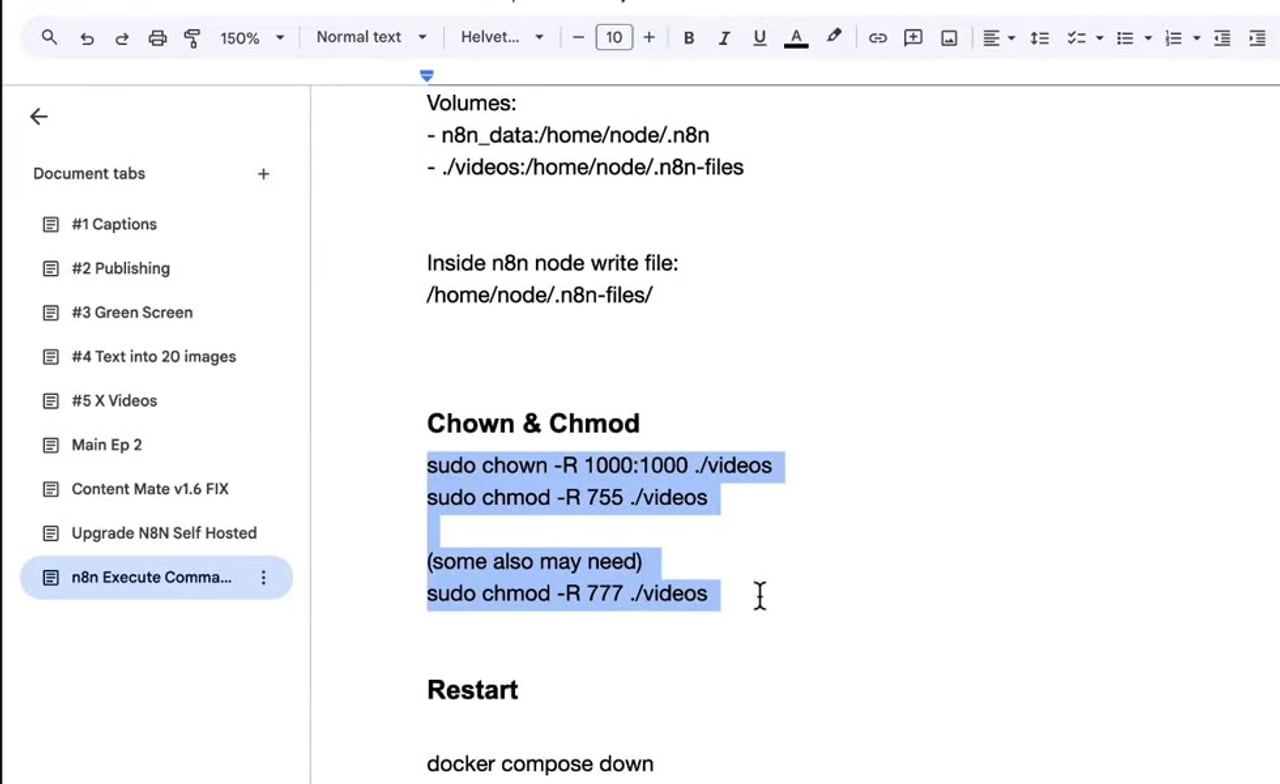
After the restart, refresh the n8n editor. The question mark node should resolve back into the Execute Command node if the workflow uses the standard n8n-nodes-base.executeCommand type and your compose change loaded correctly.
Troubleshooting Checklist
- Confirm you edited the compose file used by the running n8n container, not an old copy in another folder.
- Use
NODES_EXCLUDE=[]exactly when you want to enable nodes that are blocked by default. - Restart the container after changing environment variables.
- If the workflow still shows a question mark, reload the browser and reopen the workflow after n8n finishes starting.
- If file reads or writes fail, use a path inside the container and map it with Docker volumes.
- Do not enable Execute Command on a shared instance where untrusted users can import or run workflows.
Final Thoughts
The practical fix for Unrecognized node type n8n-nodes-base.executecommand is usually not to rebuild the whole workflow. Enable the node intentionally with NODES_EXCLUDE=[], mount any filesystem folders your workflow needs, restart n8n, and then test the workflow from the beginning.
References
Official references used for accuracy: n8n Execute Command node documentation, n8n nodes environment variables, n8n blocking nodes documentation, and n8n Read/Write Files from Disk documentation.

Olaitan Oladipo holds a BSc in Sociology from Olabisi Onabanjo University. He is a self-taught automation builder who has spent years inside n8n doing the work that most tutorials skip: debugging OAuth errors at 2am, migrating client automations from Make.com mid-project, fighting reverse proxy misconfigurations on AWS EC2, and figuring out through trial and error what actually holds up in production versus what only looks clean in a demo.
He is not a developer by training and not a SaaS founder. He is the person in the Discord server who actually answers the question instead of linking to the docs.
His writing on n8n Automation Tutorial covers self-hosting, AI agent workflows, tool comparisons, and the security vulnerabilities the automation industry would rather not discuss. He has built AI-assisted invoice approval flows using OpenAI function calling, connected Claude via HTTP Request nodes, and holds considered opinions about Zapier, Make.com, LangChain, and CrewAI that their marketing teams would not appreciate.
He writes for people who are technical enough to follow a tutorial but experienced enough to want the honest version.