
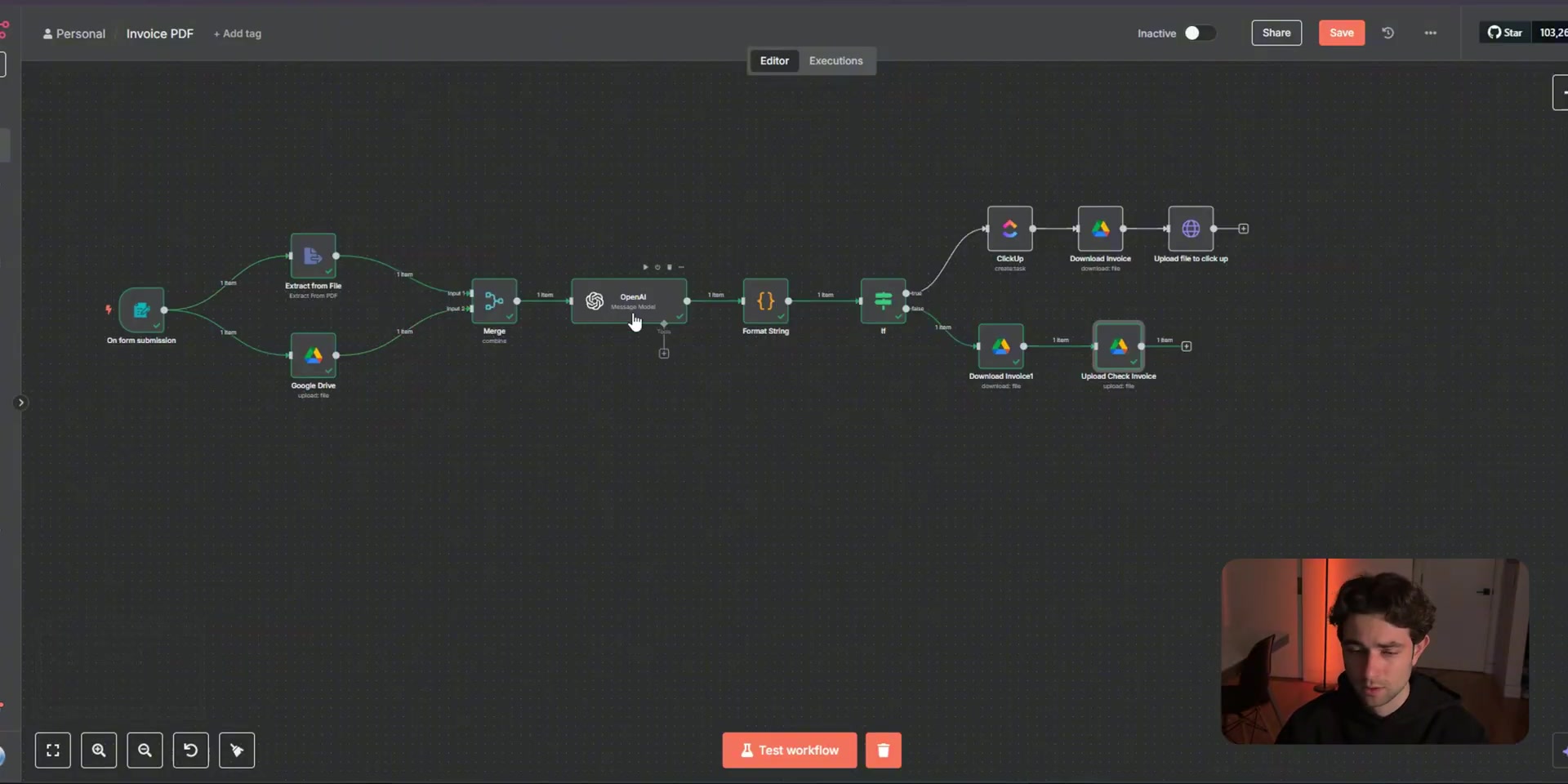
This guide shows how to build an n8n workflow that accepts an invoice PDF, extracts the text, asks OpenAI to classify the invoice data, and routes the result based on a review threshold. High-value invoices go to ClickUp for manual review. Lower-value invoices are archived in a Google Drive folder.
Practical use case: Use this pattern when a finance, operations, or agency team needs AI to triage invoice PDFs while still sending high-value or unusual invoices to a human before approval. For the previous guide in this series, read “Message a Model” OpenAI Node Not Working in n8n: How to Use the Built-In Node.
What You Will Build
- A public or internal n8n form that accepts invoice PDFs.
- A binary-file path that keeps the original PDF available for upload and audit.
- A PDF extraction step that turns the invoice into text.
- An OpenAI extraction step that returns clean JSON fields.
- A threshold check that routes invoices above or below $10,000.
- A ClickUp review task for high-value invoices, with the invoice attached through an HTTP Request node.
- A Google Drive Not Flagged folder for invoices that do not need extra review.
Step 1: Create the Invoice Upload Form
Start with the n8n Form Trigger node. Create a form called Invoice Upload, then add one required file field named Invoice. In the video workflow, authentication is left off for testing, but a production form should be protected if it handles business documents.
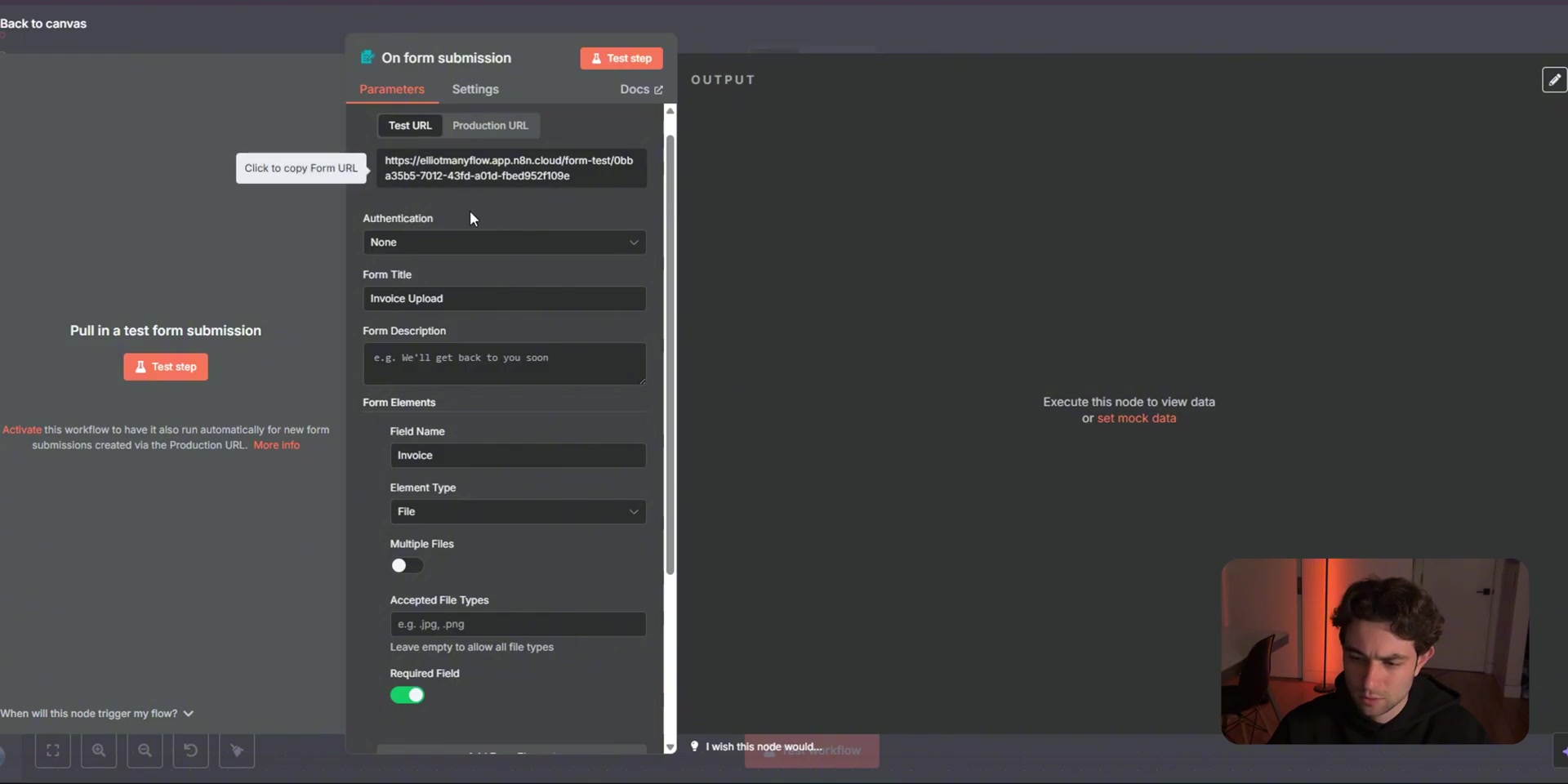
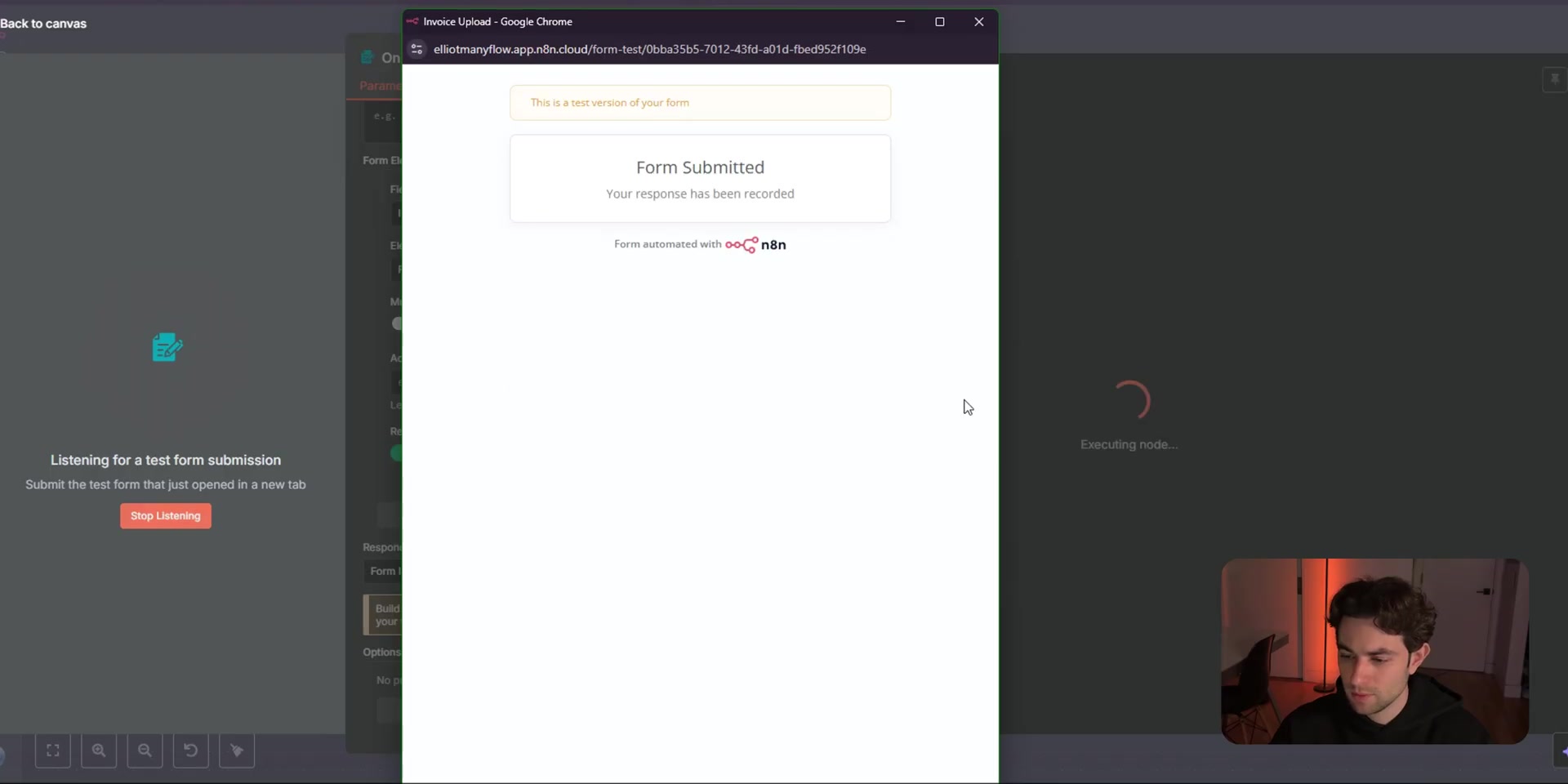
When a user submits the form, the file arrives in n8n as binary data. This matters because later nodes need the binary file again when uploading the PDF to Google Drive or ClickUp.
Step 2: Split the Workflow into Storage and Text Extraction
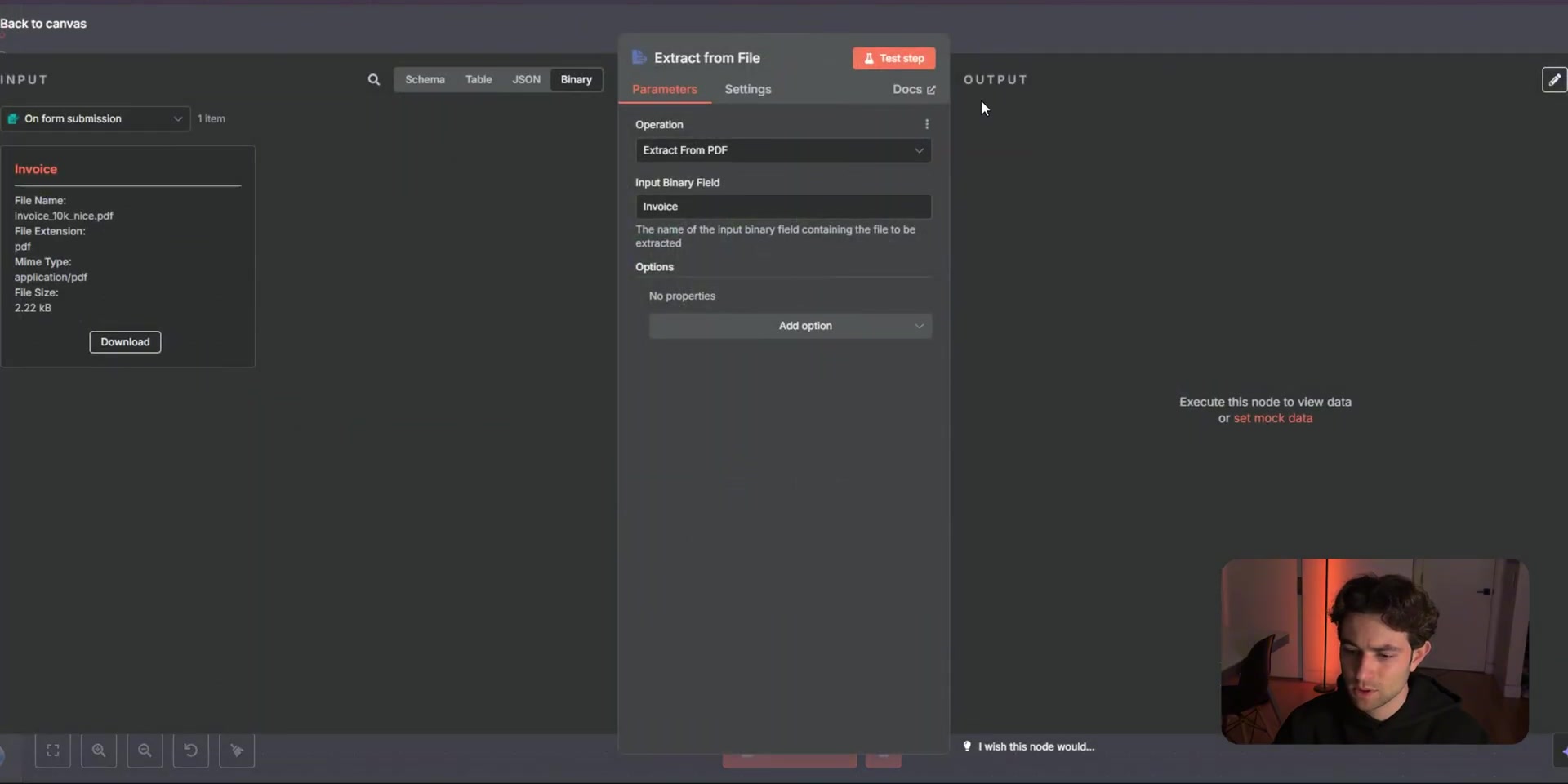
After the form submission, branch the workflow. One branch uploads the original invoice to Google Drive. The other branch uses the Extract from File node to read the PDF text. This gives the workflow both the original file and the text needed for AI extraction.
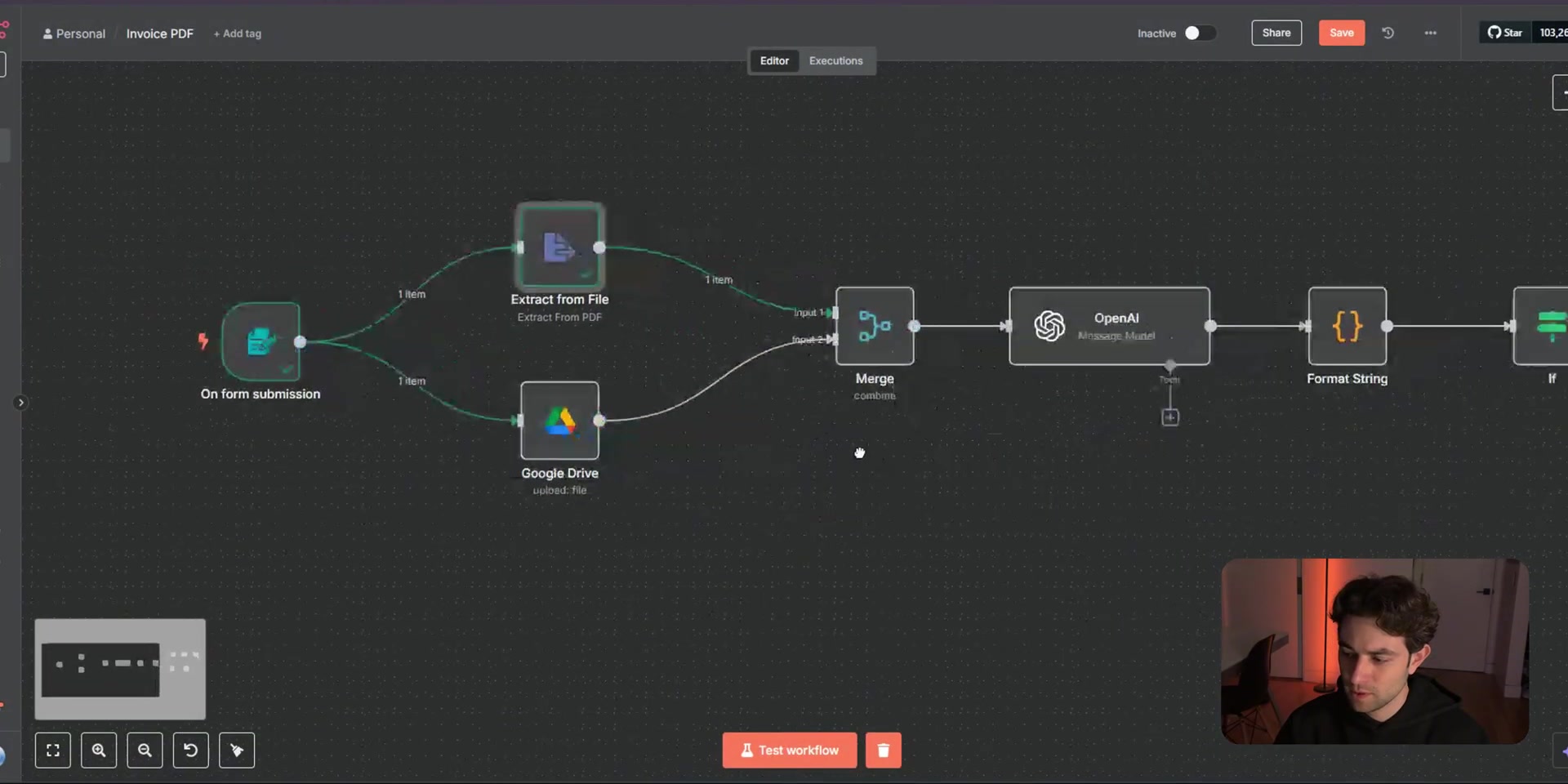
Use a Merge node to bring the branches back together. In the video, the Merge node combines by position, which works because both branches are handling the same submitted invoice item.
Step 3: Ask OpenAI to Return Structured Invoice JSON
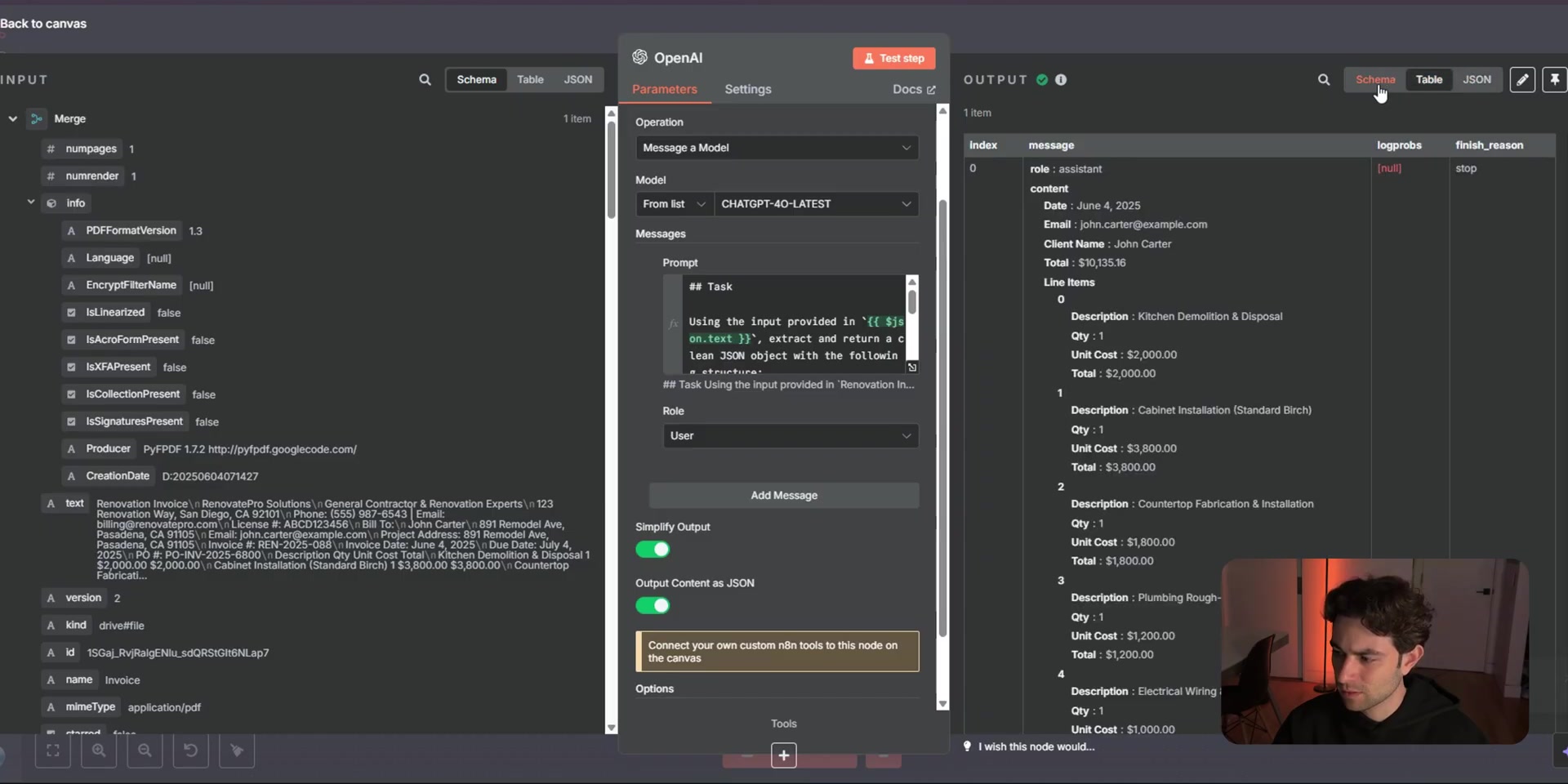
Use the OpenAI node to convert messy invoice text into a predictable JSON object. Keep the schema simple at first: date, email, client name, total, and line items.
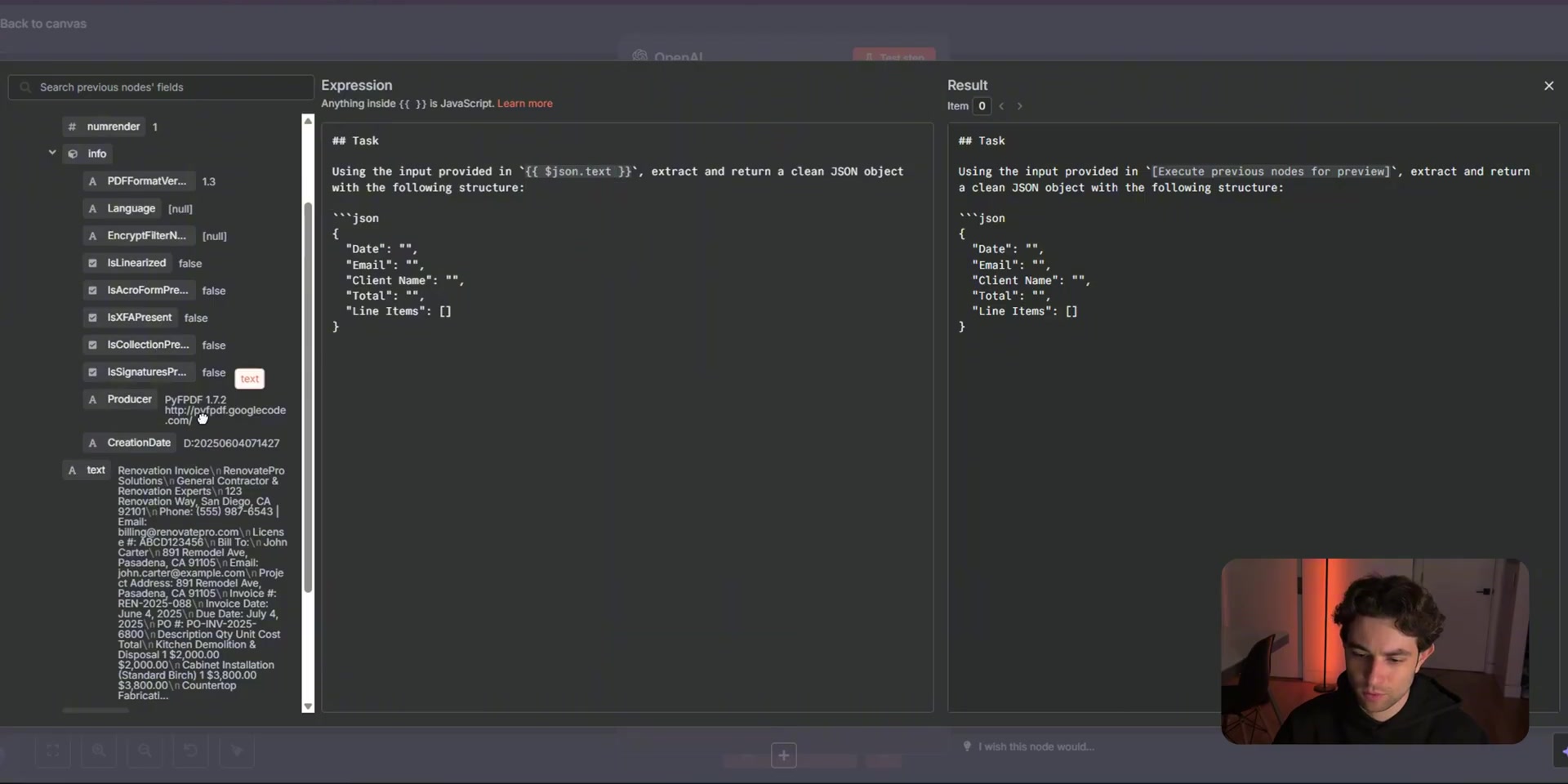
Using the input provided in {{$json.text}}, extract and return a clean JSON object with this structure:

{
  "Date": "",
  "Email": "",
  "Client Name": "",
  "Total": "",
  "Line Items": []
}
The output should be set to JSON so later nodes can reference the invoice total, client name, and other fields without brittle text parsing.
Step 4: Convert the Total into a Number
Invoice totals often arrive as strings such as $10,135.16. The IF node needs a numeric value, so add a short Code node that removes currency symbols and commas before comparison.
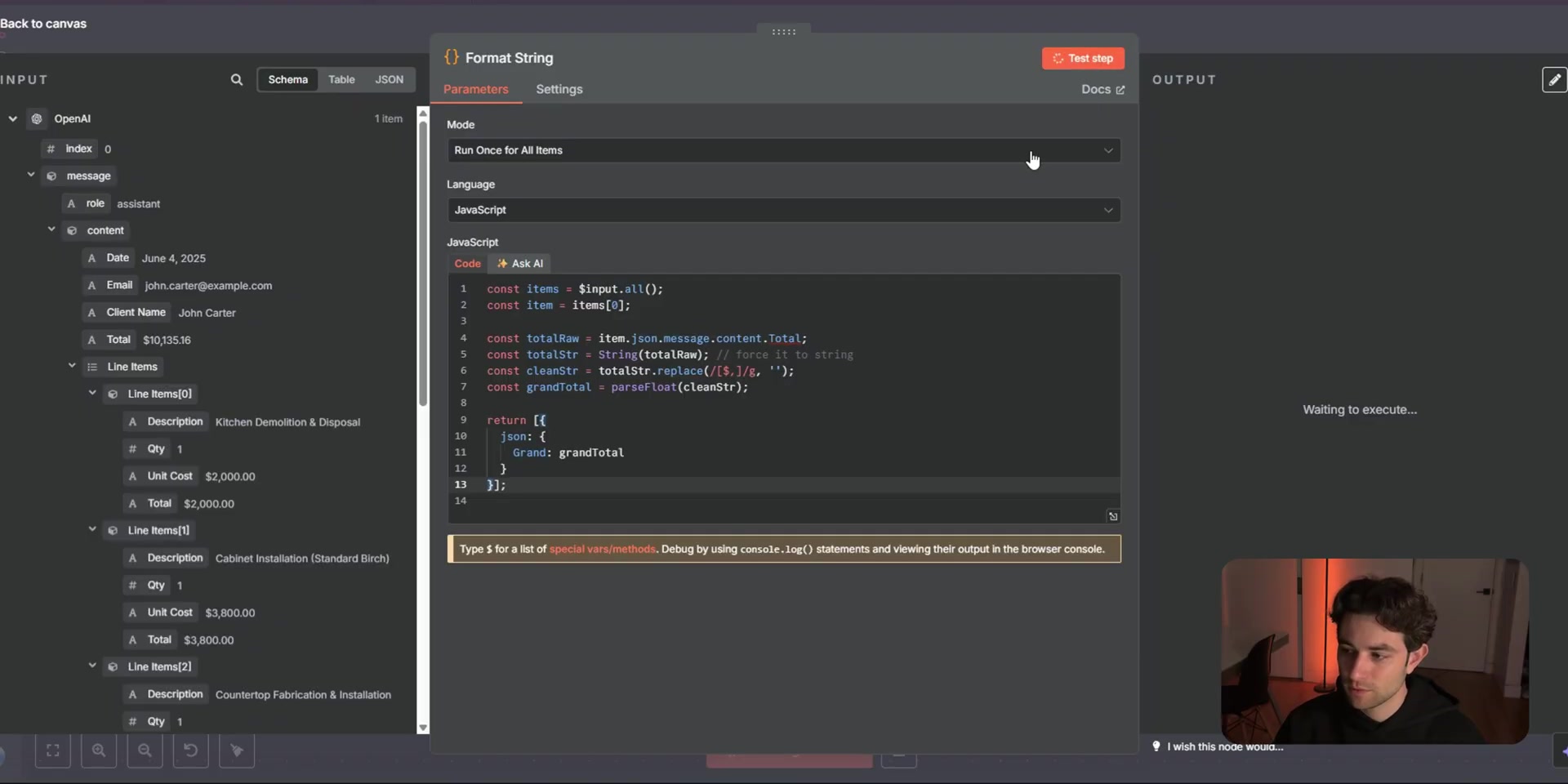
const rawTotal = $json.message.content.Total;
const total = Number(String(rawTotal).replace(/[^0-9.-]/g, ""));

return [{ json: { ...$json, total } }];
Step 5: Route Invoices by Approval Threshold
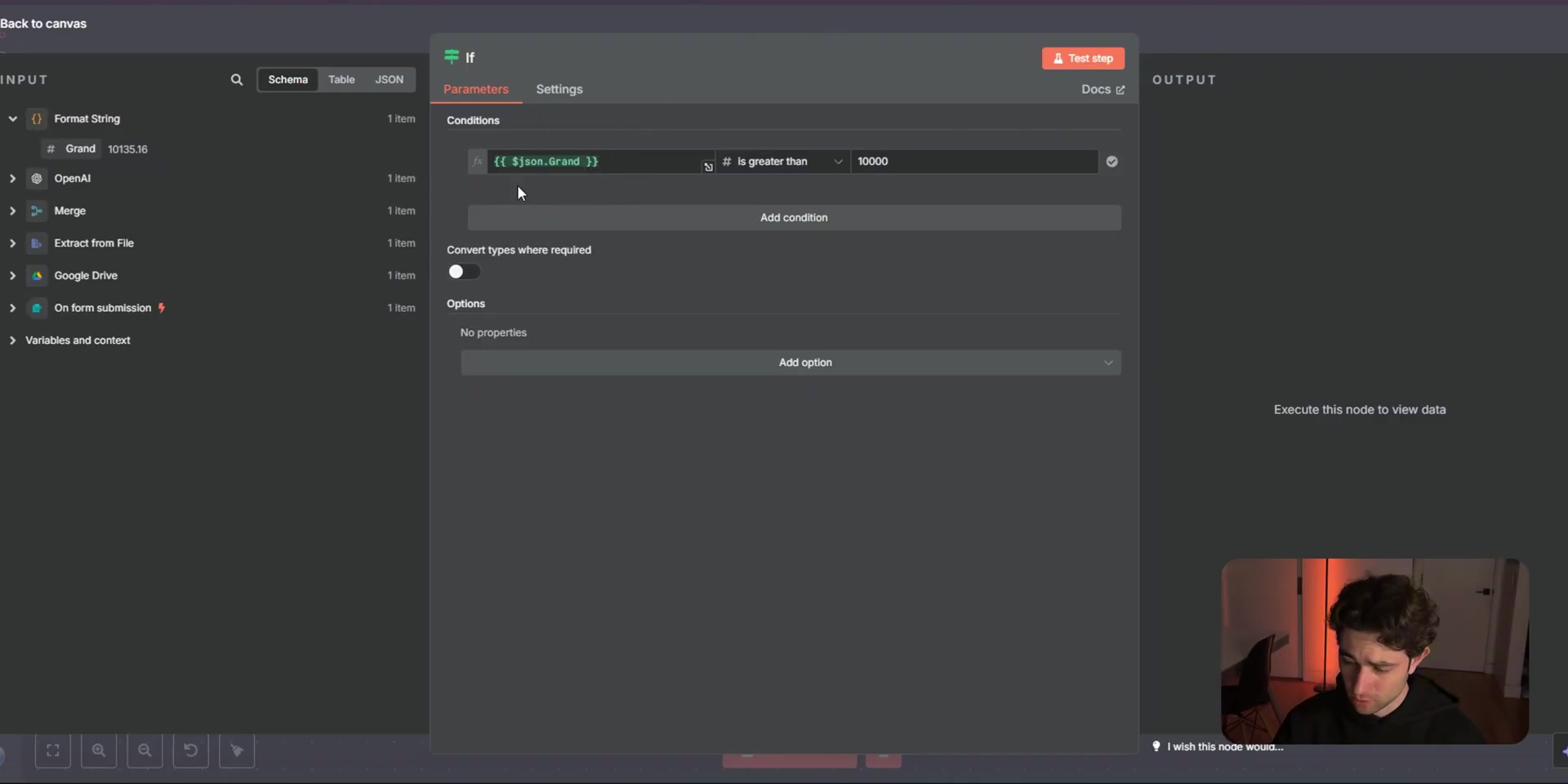
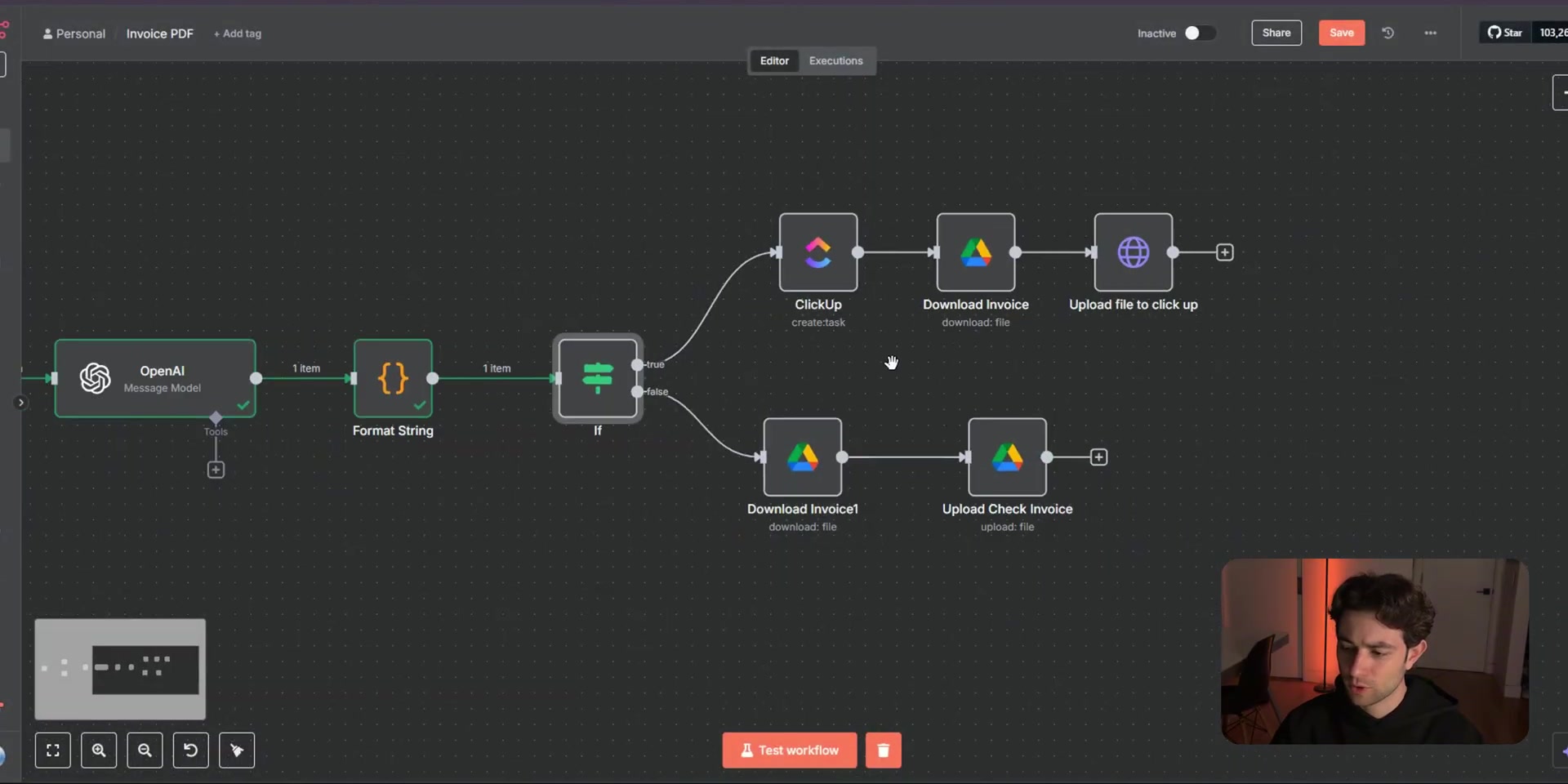
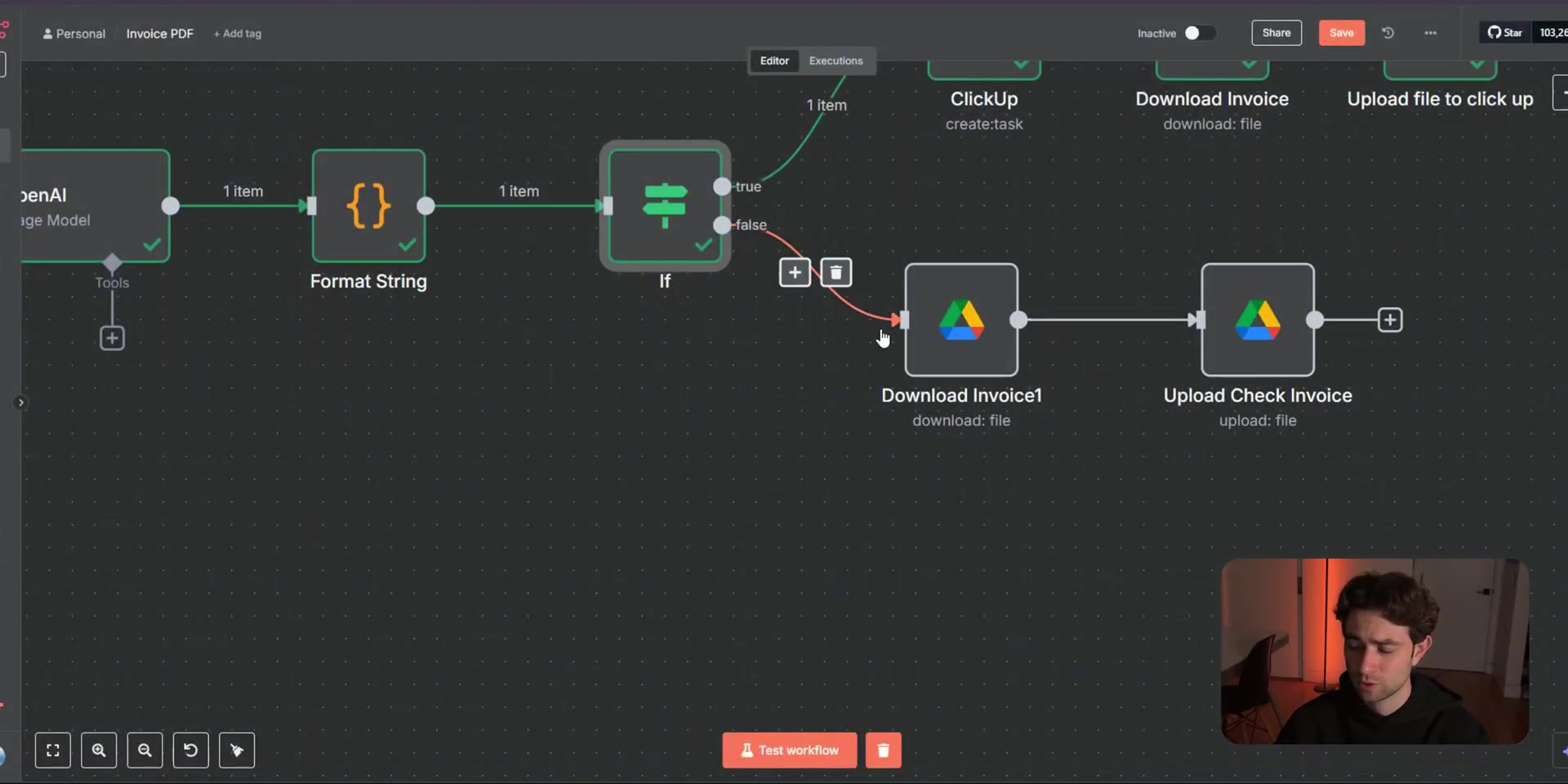
Add an IF node after the number-formatting step. In this example, invoices greater than 10000 go to ClickUp for manual review. Invoices below that threshold go to the Not Flagged folder in Google Drive.
Step 6: Create a ClickUp Review Task for High-Value Invoices
For the true path, create a ClickUp task. A useful task title is something like Needs Review – Invoice from Client Name, where the client name is mapped from the OpenAI extraction result. Set the status, priority, and task content according to your approval process.
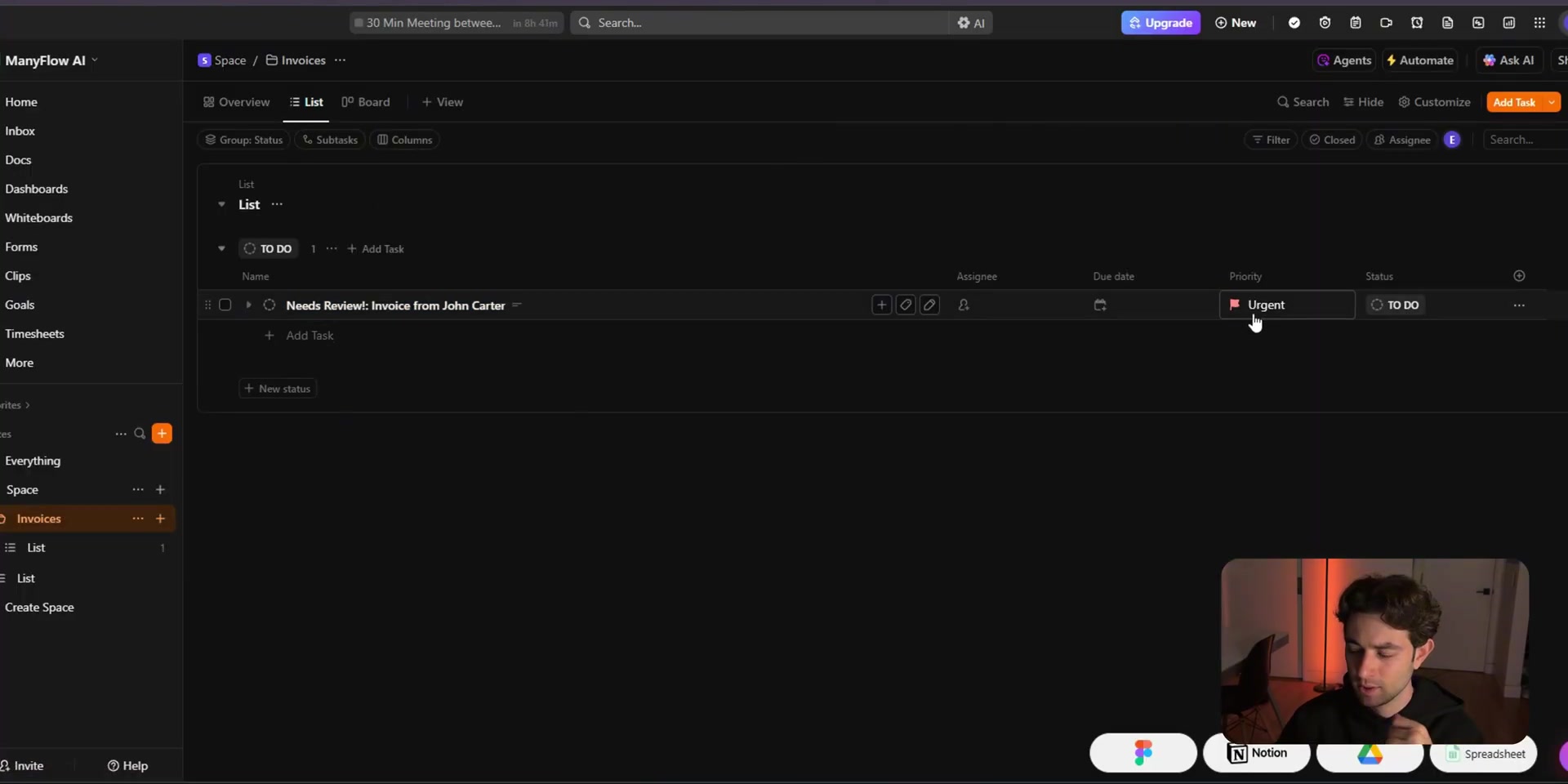
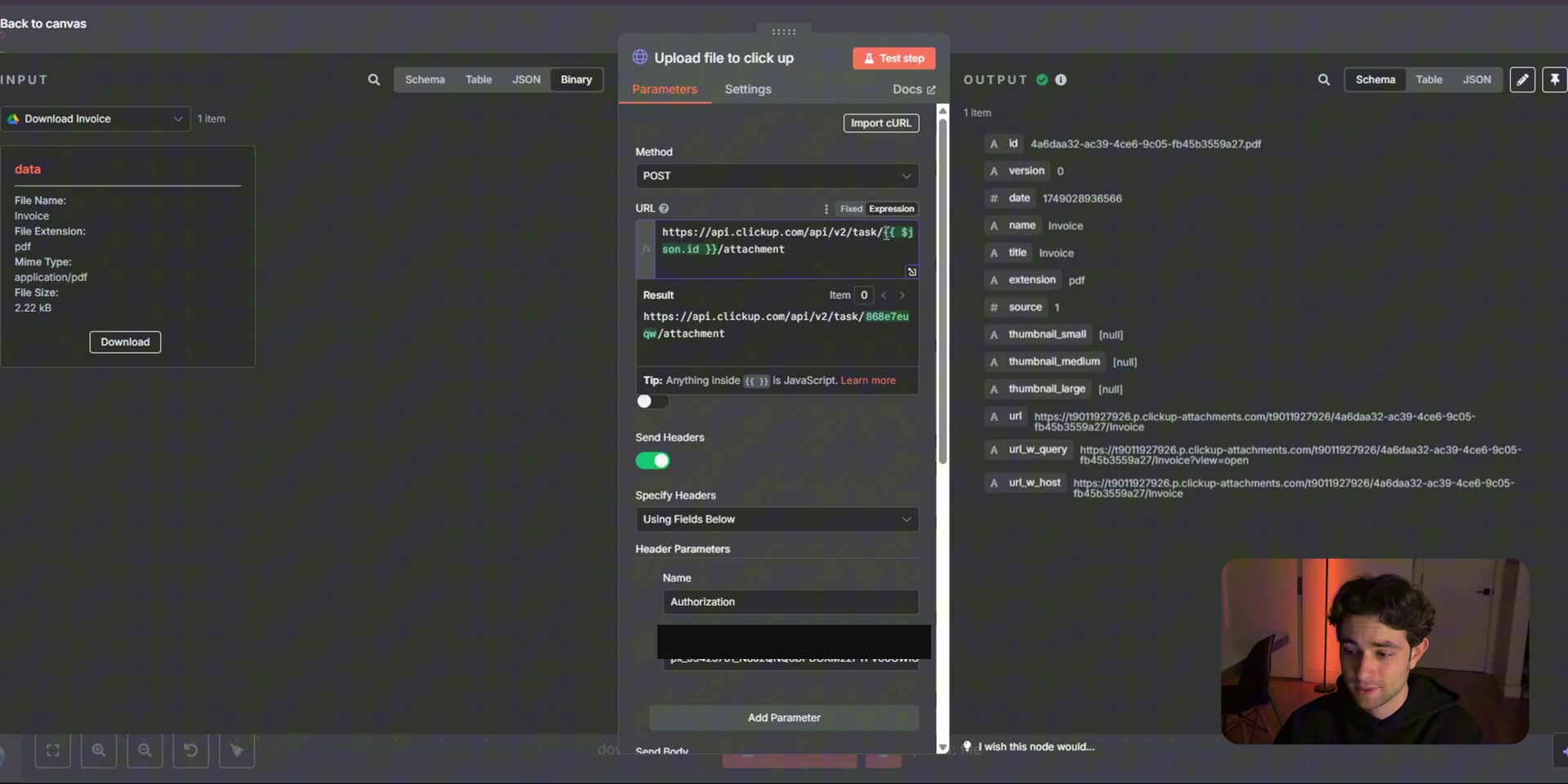
The native ClickUp node can create the task, but the video uses an HTTP Request node to attach the PDF file. The workflow re-downloads the original PDF from Google Drive so the request has binary data available for the attachment upload.
Security note: Never publish screenshots that expose API keys. The authorization value in the screenshot below has been redacted, and production workflows should store secrets in credentials or secure environment variables.
Step 7: Store Original Invoices in Google Drive
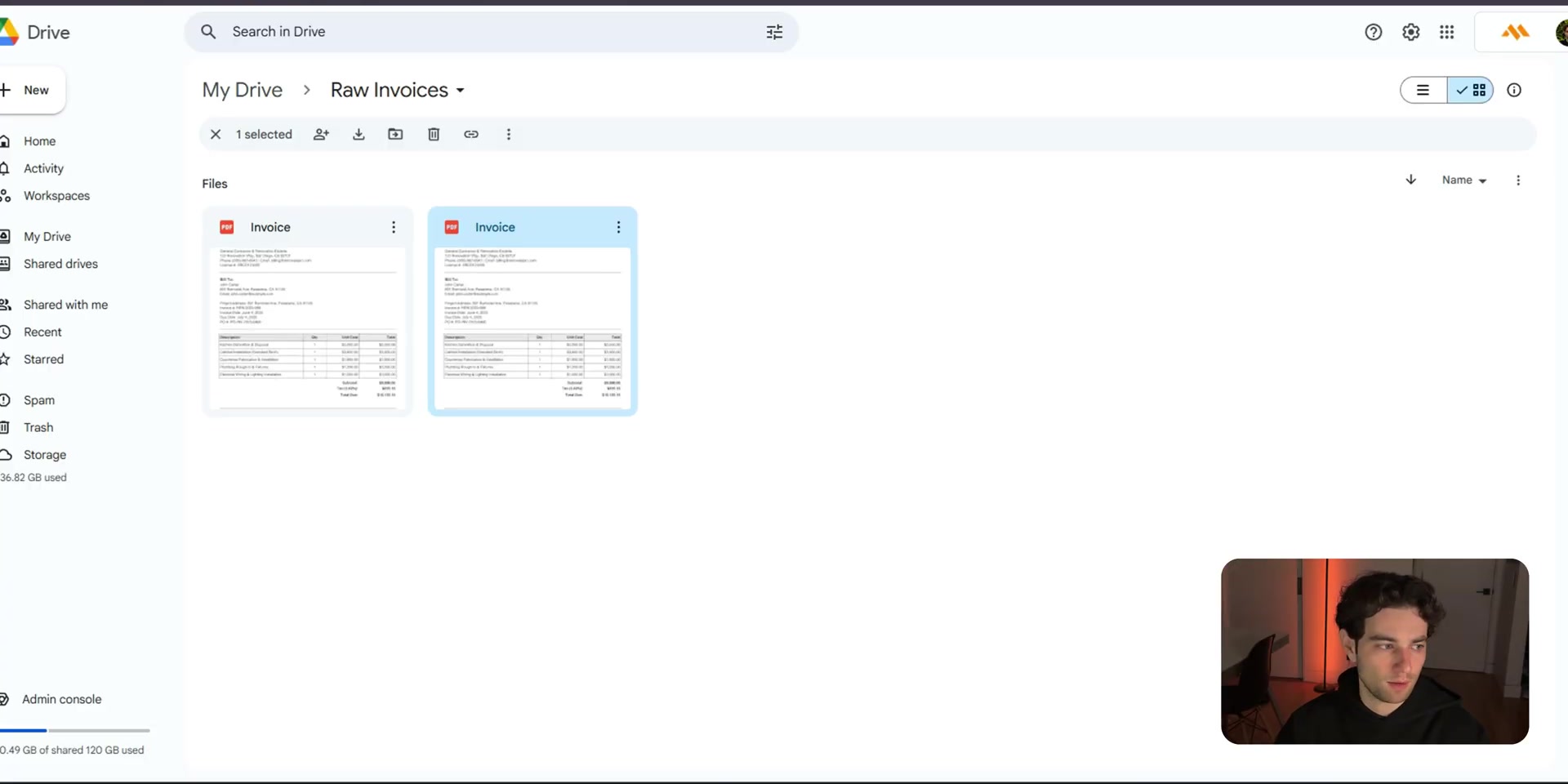
Keep a Raw Invoices folder for the original uploads. This is useful for audits, reprocessing, or checking the source PDF if AI extraction ever needs review.
Step 8: Archive Low-Value Invoices Separately
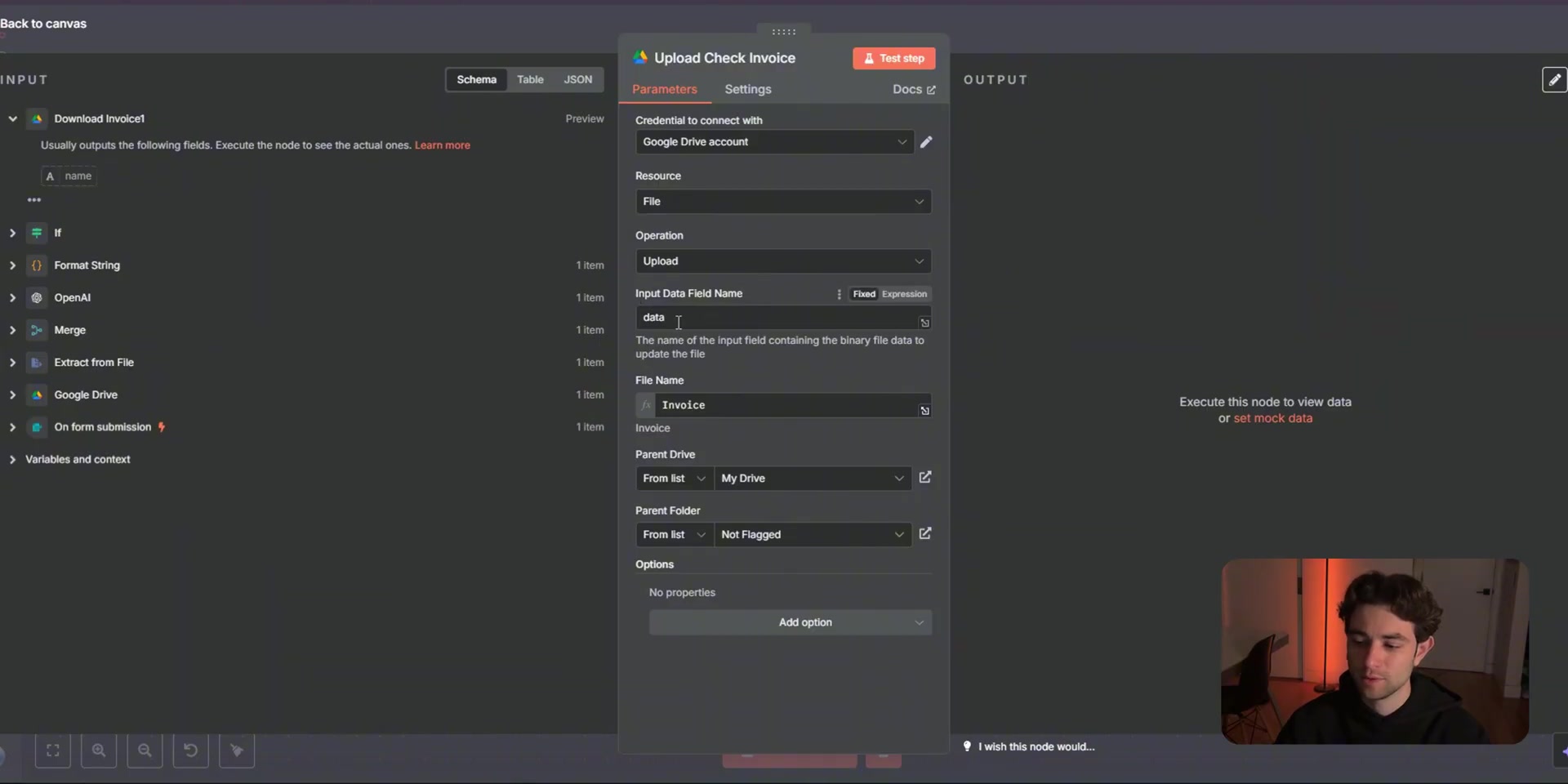
For the false branch, re-download the PDF from Google Drive and upload it into a Not Flagged folder. This keeps invoices under the threshold organized without creating extra ClickUp tasks.
Final Workflow Check
The finished workflow gives you a practical AI invoice triage system: upload a PDF, keep the original file, extract structured fields, compare the total, create review tasks for high-value invoices, and archive lower-risk invoices automatically.
Ways to Improve This Workflow
- Add vendor validation so the workflow flags unknown suppliers.
- Check purchase order numbers against an internal sheet or database.
- Route invoices by department, vendor, country, or tax category.
- Add a human approval step before payment for anything above the threshold.
- Store extracted JSON in a database or spreadsheet for reporting.
- Add error handling for bad PDFs, missing totals, or failed ClickUp attachment uploads.
Useful References
For current node behavior, check the official documentation: n8n Form Trigger node, n8n binary data guide, n8n Extract from File node, n8n Google Drive node, n8n ClickUp node, and ClickUp Create Task Attachment API.

Olaitan Oladipo holds a BSc in Sociology from Olabisi Onabanjo University. He is a self-taught automation builder who has spent years inside n8n doing the work that most tutorials skip: debugging OAuth errors at 2am, migrating client automations from Make.com mid-project, fighting reverse proxy misconfigurations on AWS EC2, and figuring out through trial and error what actually holds up in production versus what only looks clean in a demo.
He is not a developer by training and not a SaaS founder. He is the person in the Discord server who actually answers the question instead of linking to the docs.
His writing on n8n Automation Tutorial covers self-hosting, AI agent workflows, tool comparisons, and the security vulnerabilities the automation industry would rather not discuss. He has built AI-assisted invoice approval flows using OpenAI function calling, connected Claude via HTTP Request nodes, and holds considered opinions about Zapier, Make.com, LangChain, and CrewAI that their marketing teams would not appreciate.
He writes for people who are technical enough to follow a tutorial but experienced enough to want the honest version.